How to create a staging or clone of the WordPress site from CyberPanel?
Sometime you may need to create a clone or staging site of your WordPress site to make changes and test them. CyberPanel allows to create staging or clone site easily.
In this article, I will tell you how you can create a staging or clone of your WordPress site from CyberPanel.
You can create a staging site from CyberPanel and after doing that you can merge it back to the Original or master site.
Always keep backup before doing anything. So if you lost anything you can restore. The process of creating a staging site is very easy to follow along to do so.
Create a Clone or create a Staging for your site:
Step 1: Log in to CyberPanel and Go to Manage Website
Create a clone or staging site in cyberpanel is very easy. I will write the steps below to do so.
The first thing to do is login to your cyberpaner using your credentials on port 8090.
Then go to the Websites->List Websites->Manage
Step 2: Create a clone or Staging site
In the manage Dashboard, you can see the CLONE/STAGING button press that to process.
Add the Domain name which you want to use as staging or clone.
It will take some time and once staging is done it will show you this screen.
Now you must have to set A records for the staging domain you create Like staging.yourdomain.com. Visit your DNS manager and add A record for this staging site. No need to add any other records. A record is enough for staging.
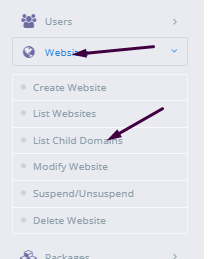
In cyberpanel got to Websites->List Child Domains you can check the staging site.
Push back, Copy or sync site to Master:
Once you did all changes to staging and now you want to sync the staging back with the master site CyberPanel allows to do this very easy to do so follow steps:
Go to the Websites-> List Child Domains:
Now on this page, you can see your staging site press the Manage button in front of your site.
Now you are in the management dashboard of the staging site. You can see COPY/SYNC TO MASTER from here you can push back your staging to the original.
Here you can chose the options:
Copy complete Data
Sync Database
Copy Changed Files
Chose any option from them according to your requirement. Once the process of sync or coping is done now go back to your original site and check the changes if you have any cache plugin clear cache and then check the changes.
CyberPanel is next generation hosting control panel. CyberPanel is powered by LiteSpeed Technologies.
In CyberPanel you can create new users easily and allow them access so they can manage their website settings there.
CyberPanel allow three types of user access ADMIN, USER, and RESALLER. You can easily create new account of any type according to the requirement of user.
How to create a new user account in CyberPanel:
The process of creating user, admin and reseller account is same i will tell you where the difference is during creation steps.
Login to your cyberpanel using port 8090.
Step 1:
In left menu go to Users-> CREATE NEW USER or navigate to this URL
https://<Yourip>:8090/users/createUser
Step 2:
Now Provide the information that need to create new user:
First Name
Last Name
Email
Select ACL ( admin, reseller, user)
Websites Limit (Put 0 for unlimited)
Username
Password (Press Generate for strong)
Security Level (High or Low)
Here in Select ACL you can create the admin, user or reseller permissions. Admin has access for every thing, reseller has less access then admin and at last user has some specific access.
Step 3:
After providing these required information press create a user and user is created successfully now you can see your user by navigating to USERS->LIST USERS. Or visit this URL
How to Transfer the whole Website From one CyberPanel to Other CyberPanel using a backup method?
If you want to transfer your web site from one cyberpanel to any other cyberpanel without losing any data, you are on right place follow this article step by step.
If you are thinking to transfer your site from any other CyberPanel. Maybe you Changed your server. In this article, I will tell you how you can transfer your site from one Cyberpanel to another Cyberpanel. I will use the backup method to transfer the whole website from one CyberPanel to the second Cyberpanel.
Table of Contents:
Create a Backup
Set Permissions or Move Public_html
Download to local Computer or Download on a remote server
Move to the backup folder
Restore Backup
Check through the Host file.
Create a Backup:
To tranfer your website from CyberPanel to CyberPanel this methode is one of the simple and easy method. Follow along with me to setup:
Login to your CyberPanel through your cyberpanel link like https://<your-ip>:8090: Provide credentials and press login.
2. Now in the left menu bar Go to the Backup->Create Backup section. You can also navigate to this link. https://<your-ip>:8090/backup/backupSite
Click on create back up button here.
3. Now cyberPanle asks you to select a site and the destination where the backup will store. The site for which you want to create a backup. Select your website, and leave the path as empty. And press Create back up button to start the backup creation process.
4. Now you can see the process of backup creation is running and in process.
wait until it will give you the massage Done. After creation you can see the massage of completed and can see a backup with its id on screen.
Done for backup process go to next step.
Set Permissions or Move Public_html:
If you are going to download files from cyber panel to a local computer then skip this step. Now in this step, you need to login to your SSH terminal. Using any software like putty or Bitvise. For this article, I am going to use Bitvise.
Login to Bitvise SSH you must have credentials:
Your server IP
Username (root)
Port number (22)
Password
After providing all details press the Login button. Now open STFP to check and confirm the backup.
2. Now go to this path in sfpt
/home/yoursite/backup
Here you can use two method one is to change permissions and download this file directly from this path on the remote server and other is move it into the public_html and then download. Second one is recommended.
Change Permission:
Click on the file and the go to Properties->Permissions :
Change the permission to 777 as shown in picture. And press OK
Download to local Computer or Download on a remote server:
Now its time to download the file to the local pc or on another server in order to restore the backup. Make sure that the cyber panel is installed on this server.
Download to local computer and then upload:
This way is time taking way but if you dont have credentials fo SSH then go for this.
Go to the Websites->List website
Press Manage button on the right side of website
Press Manage button on the right side of website
Go to the backup folder and Click the file and then click download you can see the file while downloading
Download Remotely using command:
Login to your SSH terminal and type this command if backupfile is in public_html folder:
wget yourdomain.com/backupfilename
If backup files are in back folder then type:
wget yourdomain.com/backup/backupfilename
Move to backup folder:
Now in order to restore Backup, you have to create a directory backup at home. use these commands to create a backup directory
cd /home
mkdir backup
Restore Backup:
Now its ite to restore backup for this log in to the new cyberpane.
Go to the Backup->Restore backup:
Select the backup file that you placed inside the backup folder
2. Click start backup I will take some time to restore wait until backup is completed.
Check through Host file:
At last step confirm that the backup is restored properly foe this open host file from your local computer.
Write Notepad in search bar of window.
Open Notepad as administrator
Now open the file host place in
C:\Windows\System32\drivers\etc
Write your new ip and then press TAB then write your site
Go to your browser and visit your site is working or not.
How to Setup Two Factor Authentication in CyberPanel?
Here i will tell you how you can setup Two Factor Authentication in cyberpanel?
In the latest version of cyberpanel they introduced the 2FA for login to cyberpanel. In the resent released version 2.0.3 this two factor authentication setup is introduced.
Now cyberpanel provide an extra layer of security for cyberpanel user. In this article I will tell you step by step how to setup 2FA in CyberPanel.
Table of contents:
Setup 2FA in CyberPanel
Test two factor Authentication by login
Setup 2FA in CyberPanel:
To setup 2FA in cyberpanel login to CyberPanel on port 8090 using your credentials.
Then navigate to Users-> Modify User:
Press modify user and use can see screen that ask you to select a user for modification. Select any user from this page.
Click themodify user and use can see screen that ask you to select a user for modification.
You can see the authenticator
Now go to download any two-factor authentication application and scan this code. For me, I used Google Authenticator. You can download it from here.
Now scan this code in your application and you will see a code on your screen.
After this press to Modify and save the settings.
Test two factor Authentication by login:
To test the two factor authentication what you need to do is log out from your account you enabled two factor authentication.
Now you can see the login page provide the login details and press Sign in button:
Now it will ask you Enter code from Google Authenticator. provide the code that you saved in google authenticator app and press Sign In.
Do you want to catch-all emails in postfix? Does missing emails due to misspelling addresses bothered you? Then this article is for you.
A catch-all email account is used to get all emails sent from every email account of your domain. No matter that email account exists or someone misspelled that email. Catch-all is usually used when you do not want to lose any email due to the wrong email address or email that did not exist.
Here we discuss all steps that are needed to set up a catch-all email account in Postfix.
Follow along so you can easily setup and never miss any Email.
Create Catch All Account:
The first step is to create a catch-all account where you will receive all emails. Which are lost due to misspelling or non existing email?
To do so you have to add a virtual alias to the Postfix server. The path of file where you have to add the alias is /etc/postfix/virtual.
You have to edit this file in your favorite Editor I chose vi editor. Use this command to edit the file.
vi /etc/postfix/virtual
Now add the address for catch-all at the end of this file. Add the address like:
@yourdomain.com username
You can also specify any email account where you want to catch-all emails. You can specify different email account for this operation also. like:
If you didn’t specify the valid account then your valid account’s email will also go to that specific email you specify for catch-all. This account helps to Catch-all email that you miss due to non existing account or misspelled email addresses.
After adding these Alias to /etc/postfix/virtual save and exit.
After this we have to run a command to execute this file again.
postmap /etc/postfix/virtual
Now your updated file is loaded shift to next step.
Setup Postfix Configuration:
After editing the virtual file now its time to do some configurations in the postfix configuration file. In order to do this go to the file etc/postfix/main.cf. Edit this file in vi or any other editor you like. for vi use this command:
vi /etc/postfix/main.cf
you have to add virtual_alias_maps in this file add this line at the end of this main.cf file:
virtual_alias_maps = hash:/etc/postfix/virtual
Reload Postfix for new settings:
Now Postfix needs to reload so it can fetch the new settings. To reload postfix run the command:
If you want to earn from your Android and IOS application then you can use AdMob. The question is how to Signup on AdMob Account?
In order to make money from your application first, you need to know how to create an AdMob account. In this article, I will show you a detailed method to signup on AdMob.
How to create AdMob Account?
I will tell you the process step by step so you can understand the method in a better way.
Go to this LINK And press Get started OR Signup button on the screen.
2. If you access this link in a browser where you have already login with a Google account you will receive this screen. Where they ask you to verify your account click Next.
3. Place the password and Click the Next button.
4. Now place all the required information in this step.
country or territory
Time Zone
Billing currency
Check the agreement
Click the CREATE ADMOB ACCOUNT button after adding all information.
5. Check the email notifications for your account. And continue to next screen.
6. Your account is created and ready to to use. Click Get stared to create units on your AdMob to earn.
How To create AdMob Units:
the main part is to create AdMob units on google admob account. Follow the steps to do so.
Click on the Apps in left menu and the click Add Your First APP.
2. After clicking Add Your First App you will receive a screen that ask you about the application is on the play store or not. Press Yes or No
3. I press No on the next screen you have to put some details.
App name
Android or IOS
After providing these details press ADD.
4. Now finally you reach at the point where you can create ADD UNIT. Press Create Ad Unit button.
5. You have to chose the ad format which you want to create and add to your Application like i go for Banner.
6. Add name for ad unit and Press the create button.
Your admob units are created successfully. If you want to create an other unit press CREATE ANOTHER AD UNIT Or press done.
If you want to view ad units of any specific app you can go to Apps->App name->Ad Units and from here you can add a new ADD unit from here also.
Add Payment Information:
On a new AdMob account without payment information, your ads did not go live. You have to add Payment information in order to proceed. For this follow these steps:
Go to the Payments-> Setup Payment
Add the following required information on Payments Page:
Please provide a valid address and passcode because your approval depends upon this. After providing all details press SUBMIT and you can see this screen.
And on Home you can see this massage that your account is being verified Please wait untill they verfiy your account.
Once your account is versified you will receive a verification email. And your adds goes live after verification.
How to Create a Website and install WordPress on CyberPanel one-click installation?
In this article, I am going to tell you how to install WordPress on CyberPanel. This article is about the one-click installation of WordPress on CyberPanel.
I will briefly describe how to create a website on CyberPanel. And then we will go toward the installation of WordPress on CyberPanel. The main theme is how you can create a website and install WordPress on CyberPanel.
if you are new on CyberPanel and want to know the basic Information and usage of CyberPanel then do not leave the article i will explain some basic at the end of article.
How to create a new Website on CyberPanel?
Creating a website on CyberPanel is very simple and easy. Here the all steps to create a Website on CyberPanel are listed.
Go to the Websites-> Create Website Option in CyberPanel Menu:
Can navigate to this ULR to Create new web site:
https://your_IP:8090/websites/createWebsite
Provide the following details here
Select Package (Default )
Select Owner (Admin or any other)
Domain name (example.com without www)
Email (Your email address (youremail@xyz.com))
Select PHP (Latest is recommended )
SSL (Always check)
DKIM (Always check)
Open Basedir Protection (Check )
Create Mail Domain (Check if you want to you on same server)
After providing all information press Create Website Button. It will take sometime to complete and will show the confirmation massage once its Done.
How to install WordPress on your domain from CyberPanel?
When creation of your website on cyberpanel is done. Time to install WordPress on that site using CyberPanel. Just Follow these steps and do it quickly.
Go to the Websites-> list websites
Can follow this URL to list all websites
https://your_IP:8090/websites/listWebsites
2. Click the Manage button to navigate to the manage website dashboard
Navigate to this URL to list all websites
https://your_IP:8090/websites/listWebsites
3. On the management dashboard to the last section there you found WordPress click on that.
You can also get access the dashboard through this Url
https://your_IP:8090/websites/yoursite.com
4. Once you click this button now you can see a screen asking for the WordPress details.
How to migrate WordPress Site using Migrate Guru Step by Step guide
Do you want to transfer your site from Local to live server? Do you want to create a clone of your site? Do you want to migrate your site from one server to another server? the question is How to transfer your website to another host?
So you are in the right place. In this article, I am going to tell you how to migrate the WordPress site using migrate Guru.
This guide helps you to migrate WordPress site using migrate guru from local to live, from one live server to another live server, from one domain to any other domain and all.
But first of all, I am going to add some information about the Migrate Guru plugin. So before going deep you have some knowledge about the migrate guru plugin.
Top features of Migrate Guru:
1 click migration
Migrate large site
No addons
No space required for migration
Compatible with almost every host
Fully Automatic
Timely alters
1 click migration:
Migrate Guru made the WordPress migration on click migration. You just need to enter the details of remote server (host) and click to processed.
Migrate large site:
Migrate Guru allows you to migrate large sites even the large as 200 GB. There is no limit for transfer. Large site migrations usually fail because of live-site server import limits.
No addons:
You don’t need any add-ons to move multi-sites. You know that sometimes we need add-ons to migrate multi sites from one place to another.
No space required for migration:
As the migration process of the wordpress site is done on there server so no extra space need for the migration process.
After the migration is complete, the copy is erased.
Compatible with almost every host:
Migrate guru plugin is compatible with a large amount of web hosts. you can see them when you are going to perform migration. Like FTP, BLUEHOST, GoDaddy, A2 hosting, etc.
Fully Automatic:
The process of migration is fully automatic and you didn’t need to perform any task manfully. Migrate Guru will take care of each and every thing.
Timely alters:
The main thing that i like about them is timely alerts. They alert instantly when the process began and inform immediately when the process complete.
Step-by-Step Guide to Migrate Your WordPress Site to a New Host
Follow these steps:
Install Migrate Guru
Setup site where need to move
Move Site using Migrate Guru
Install Migrate Guru:
To install migrate guru Go to the Plugins-> add new
Type migrate guru into the search bar and install this one.
Activate migrate guru by pressing the activate button.
Your migrate guru is installed and activated you can see the Migrate Guru in the menu.
Video link
Setup WordPress site where need to move:
Migrate Guru migrate WordPress site from one server to another. For this process, we need to create the WordPress site on the other server to make the migration possible.
Simply Go to the control panel or the environment that you are using to create a new website there and then install the WordPress on that website.
You need to create a just simple WordPress site.
For FTP transfer:
For the transfer through FTP create an FTP account also on your host provider. different host provider has different methods to create FTP account.
Move Site using Migrate Guru
Noe the phase to transfer the site from one place to another started. Follow these steps to migrate the site.
Step1: Start Migrate Guru:
Click the migrate guru from the menu and provide details write your email, check the agreement and press the migrate button.
Setp2: Select your Server:
Now select your host from here to transfer site. I selected FTP to show you how to transfer through FTP. You can go with others.
Step3: Provide detials to tranfere:
Provide all the required details for the transfer. The following details and press migrate
your domain
your host IP
FTP user name
FTP account password
Path as(public_html)
After this, you can click the migrate and go to the migrate WordPress site using migrate guru. You can see the screen that show the process of migration.
At the beginning and end of the migration. Migrate Guru will send you email there are very good in timely updating.
Migrate Guru is a free Plugin powered by BlogVault. Migrate Guru plugin helps you to migrate your site from one place to any other with out risk of losing any thing.
You can migrate even a large site in a short time using this plugin. Migrate guru makes the migration 1 click process. You have nothing to do manually migrate guru will do everything automatically.
You want to Install node js on windows 10 machine?
To start the guide to install node js on your windows 10 machine. First of all, we have to know what actually node js is. Before knowing how to install node js on your windows 10 know about the node js.
Basic node js is a JavaScript runtime environment. It simply means that the node js run-time environment includes everything you need to execute a program written in JavaScript. Now I would like to mention some points about node js for better understanding.
What is node js?
Node js is free and opensource environment.
Node js uses javascript on the server.
Node js can generate dynamic pages, can do many operation on databases and its is available for different platforms (Operating Systems).
How to Install Node js on windows 10?
In order to install node js to your windows 10 machine. You need to follow different steps.
Download Node.js
In order to install node js on your windows 10, you have to download the Node js. To do so click here or visit this link https://nodejs.org/en/download/ in your favorite browser. Here you can see this screen.
You can see the latest and current version always chose the current version from them because that is the stable one then chose the windows installer from the operating systems. you can also download:
Windows Installer (.msi) Windows Binary (.zip) Source Code
In 32 and 64 bits depending on your operating system.
Install Node js on windows 10:
Once your download completed now its time to install it on your machine to do so follow these steps:
Click on the download file and then click install.
2. You will receive a screen that asks you to run Wizard to install node js. Press Next.
3. Now accept the License Agreement. To go to the next step.
4. You can specify the location in your computer where you want to install the node js. By default its C:/Program Files/nodejs/ and leave as its and click Next.
5. In this step you can see which node js packages you are going to install and what is disk usage, and all. Click Next to proceed.
6. In this step you can allow node js to Automatically install the necessary tools. you can follow the instruction from the link given on-screen. Then press Next.
7. All setup is done Press Install to install node js on your windows 10.
Allow the installation and this installation may take some time to complete wait until the status bar show completion.
8. All done now your node js is installed and you can press Finish and go ahead.
Verification of node js installation
Once the installation process has done you need to verify the installation of your node js on windows 10. to do so just run a simple command:
npm -v
You can see the installed version it’s mean your installation is complete. Now your system is good to go.
In this article, I am going to tell you how you can install a WordPress plugin on your WordPress site. In this article, I will explain briefly how can you install any WordPress plugin on your site.
I know if you are familiar with WordPress then its not an issue for you to install any plugin. But I must say if you are an expert then this article is not for you. How to install a WordPress Plugin is for the beginner. Those who have very little knowledge of WordPress.
In this article, I am going to tell you different methods to Install any Plugin on WordPress. I will tell you a different method if one does not work for you you can go with the other one. But mostly all methods work without any issue. Lets go.
Methods To install a WordPress Plugin:
Install plugin from WordPress admin Dashboard plugin section
Install Plugin via Upload plugin method
Install plugin from WordPress admin Dashboard plugin section:
This one is the easiest and most used way to install any plugin on WordPress. Commonly most of the free plugins available here and you can easily install plugins from here. This method is a 1 click installation method. You just need to click the install button and the installation is done. Now I am going to define the installation process step by step.
Set 1: Search in Plugins Section:
The first thing to do for installation is Go to the Plugins-> Add New from the admin dashboard.
Now on the left side, you can see a search box. You have to search the name of the plugin in that search box which you want to install. Just go to that search box and write the name of plugin.
You can see I want to install an element or plugin and I wrote Elementor in the search box and the results are there.
Step 2: Install Plugin
Now its time to install your required Plugin. To do so just click on the Install Button present next to the name of the plugin that you searched.
Step 3: Activate Plugin
Once the installation is done now click the Activate button to activate the plugin.
Now your plugin is installed and Activated. Good to go.
Install Plugin via Upload plugin method:
You are now familiar with plugin installation now I am going to tell you another method to install the plugin. This method is slightly different from the first one. Let’s move toward the steps so you can understand this method.
Step 1: Download Plugin
First of all, you have to download the required plugin from a valid source. mostly free plugins are available on WordPress official sites and plugins also have there own sites to download. I am going to download elementor plugin. I just opened Google and write elementor plugin.
I prefer to download from the official site you can download from any source. From the official site click on the Get Started button
Now you can see the screen to add an email and download the zip file for the plugin. Click the download button.
Setp2: Upload and install Plugin:
Its time to log in to your WordPress admin dashboard and go to the Plugins->Add New.
Here you can see the Upload option. Click upload
Select the Plugin file from choose file option that you downloaded in the last step. Please note that your file must be in zip format.
Once file is selected now you can see install button is active click Install.
After a short time, you will see a screen that shows that your required WordPress plugin is installed. Now press Activate to activate Plugin
There are also some other methods to install plugins on WordPress but for this article, we discuss these two only.
Do you know what is WordPress? If you don’t know relax I will tell you that what is WordPress is. WordPress is an open-source and a free content Management system (CMS). WordPress is written in PHP and MySQL or MariaDB is used as a database. A very large amount of websites are using WordPress as their content management system. Almost 38% of the websites are built on WordPress and a very huge number of os bloggers and companies are also using this CMS. WordPress is used for small blog websites to large eCommerce websites that mean every kind of website. WordPress has a large number of Themes and Plugins for its user. These plugins and Themes come in free and paid versions. WordPress itself is free but its themes and plugins paid. There are free WordPress plugins and themes also but they also have paid versions.