Warning: Redis::get(): php_network_getaddresses: getaddrinfo for localhost failed: Name or service not known in /home/solveddoc.com/public_html/wp-content/plugins/litespeed-cache/src/object-cache.cls.php on line 674 limit Archives - Solveddoc
Change PHP Upload Limit for Website in CyberPanel
Change PHP upload limit is not big deal in CyberPanel you just need to follow this short article and all will go good. In cyberpanel upload_max_filesize is just a matter of few clicks. So now to increase upload limit just follow few steps:
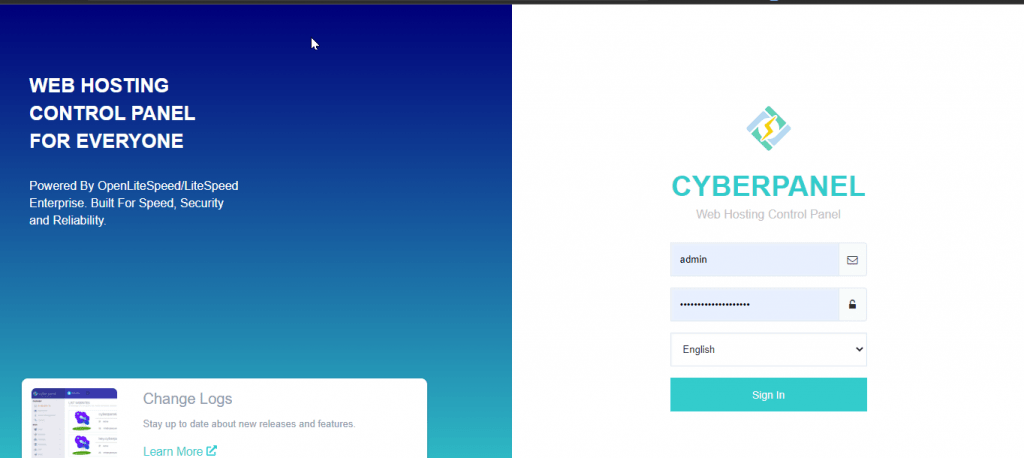
Step-1 Login CyberPanel:
Login to your CyberPanel on port 8090 and any other if you have changed. URL will be like:
https://<your-ip>:8090
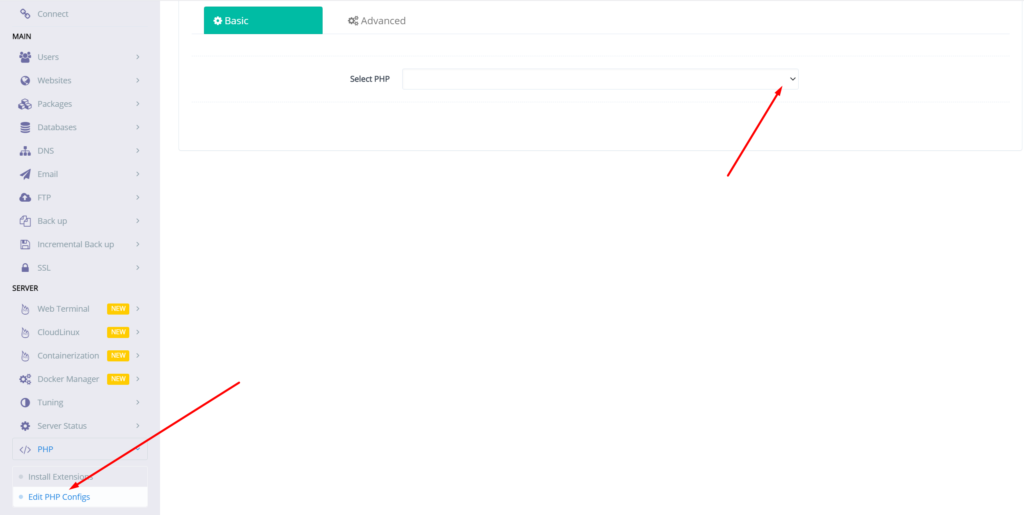
Step-2 Go to Edit PHP Configs
Go to PHP → Eidt PHP Configs → Basic, and select the version of PHP on which you want to change values of the required data.
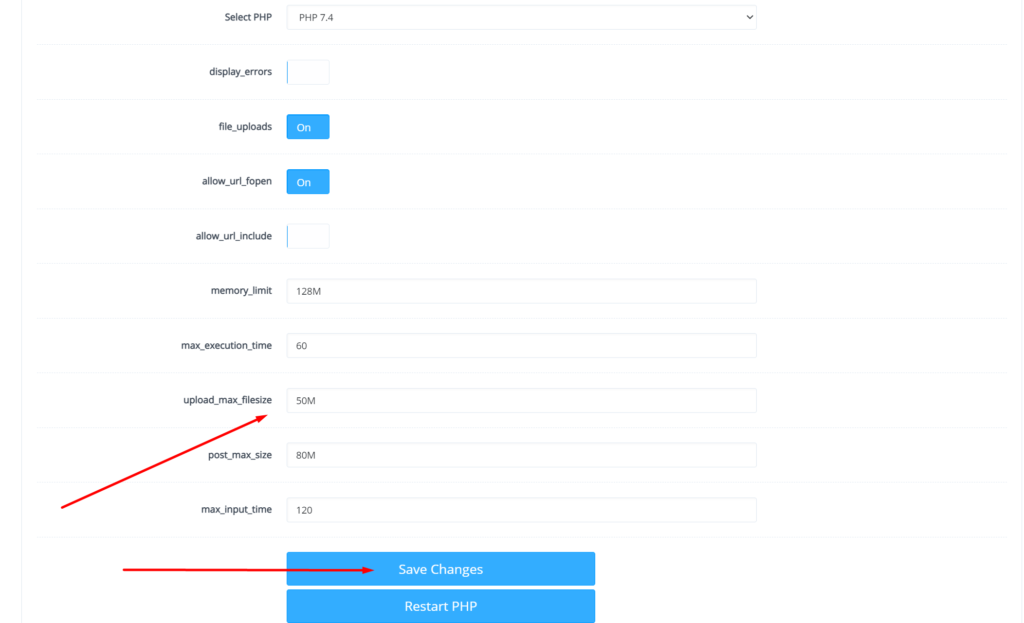
Step-3 Change PHP upload limit CyberPanel
Set the limit in upload_max_filesize according to your choice and then click on Save Changes
After doing that also press the Restart PHP button this thing will apply all changes on server level and you can now good to go with it.
We have an other article on this as well check here. For old version CyberPanel official guide is here.
How to solve the can’t upload the file on file manager issue in CyberPanel?
if you are uploading a file on file manager in CyberPanel. and getting some error there. Follow this short solution for can’t upload the file on CyberPanel file manager.
Solution
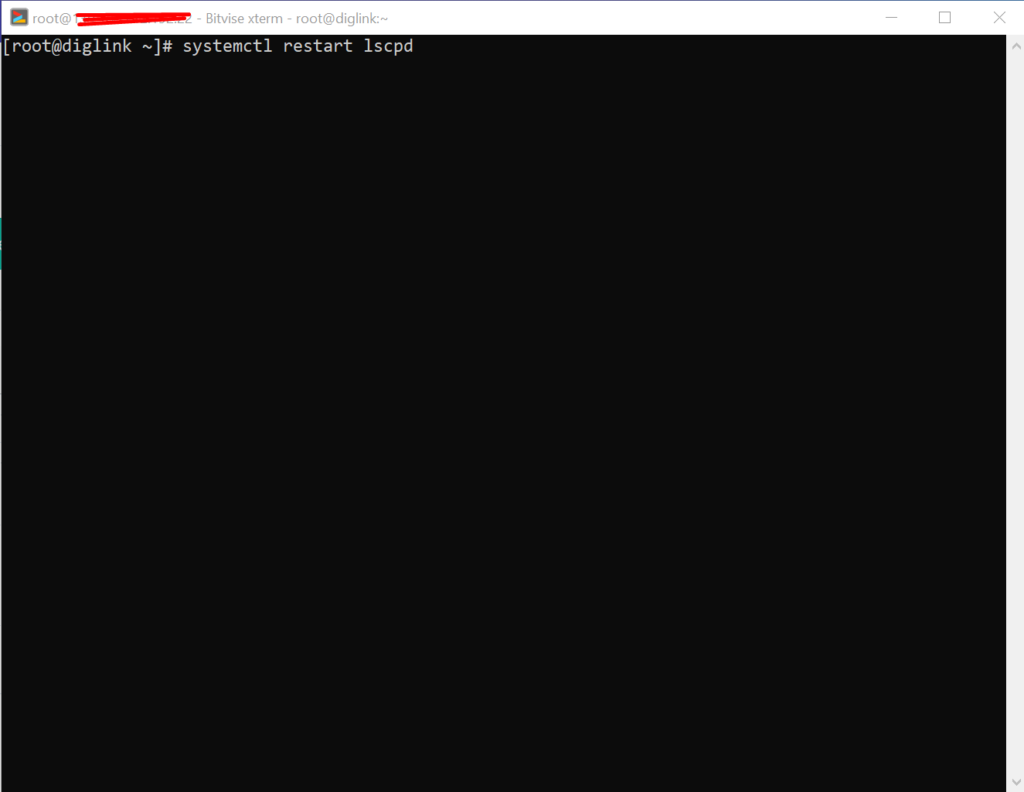
There is very easy and short solution for this issue. Access your root through Bitvise or putty open your terminal(CLI) and run this Command
Systemctl restart lscpd
This simple command will restart all of your CyberPanel services and now if you can try you can easily upload any file but there may be upload limit issue if so you can follow this tutorial to solve that Link below.
if you want to upload a file from the file manager on CyberPanel and the size of the file is large according to the upload limit. Then you need to change (Mostly increase) the default setting. In this article, we show how to change the upload limit on cyberpanel step by step.
Change Upload limit On CyberPanel
Login to your CyberPanel using the link:
https://<your-ip>:8090
Go to PHP → Eidt PHP Configs → Basic, and select the version of PHP on which you want to change the upload limit.
Set the limit in upload_max_filesize according to your choice and then click on Save Changes
After doing that also press the Restart PHP button this thing will apply all changes on the server level and you can now be good to go with it.
You can also read about child domains and more in the next article.
How to change Upload Limit on CyberPanel? Increase or decrease Upload Size through CyberPanel?
CyberPanel is a Webhosting control panel. If you want to upload a file of large size and you are unable to do so. So here I will tell you how to change the Maximum upload file size.
Sometimes you want to import a database of large size or you want to upload an image or file on your size of large size and then you receive an error that you cant upload a file more than 2M (2M is the default size for the post in CyberPanel).
Here I will tell you how you can increase the Max upload limit for post and file. You can also change different things like maximum execution time, max input time, etc.
Follow all the steps to change Upload Limit.
Login to your CyberPanel using your credentials.
2. Now go to the PHP->Edit PHP Configs
3. You can see the Basic and Advanced buttons here. Remain on Basic and Select your required PHP version from here.
4. Once you select the required version you can see the different option here
Here you can update the values for all fields according to your requirements. You can update values here Like Max uploads size, max execution time, Post size, etc.
After updating values you need to click the save button to save all changes .
In the last steps, you need to restart PHP in the latest version of CyberPanel they give the option of restart in the Panel. Below the configuration. But if you are on the old version you have to restart PHP.
Without restarting PHP the changes will never applied.