In some cases, you need to change the SSH port and create and use an SSH key. Securing SSH is one of the most important tasks of a system administrator. CyberPanel allows you to change SSH ports, disable root login, and save your SSH keys. In his article, we learn about how to add your SSH key to the server using CyberPanel
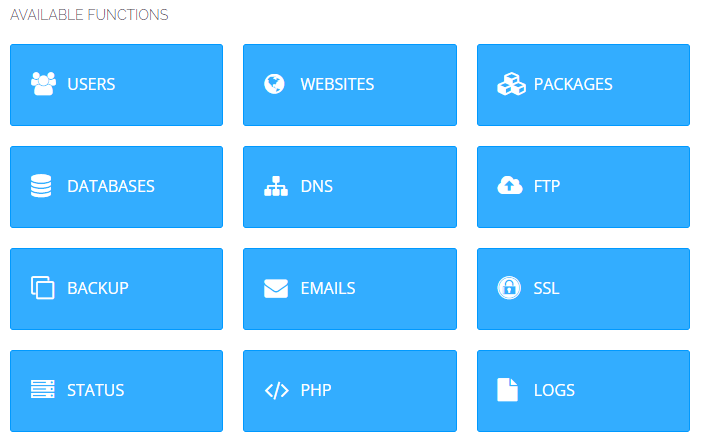
Step 1: Login to the CyberPanel dashboard
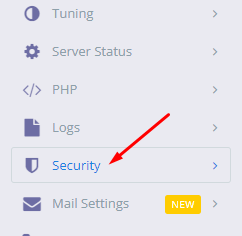
Step 2: On the left side menu scroll down Click on the Security
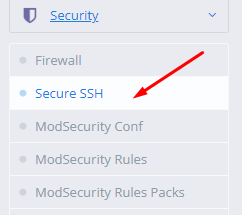
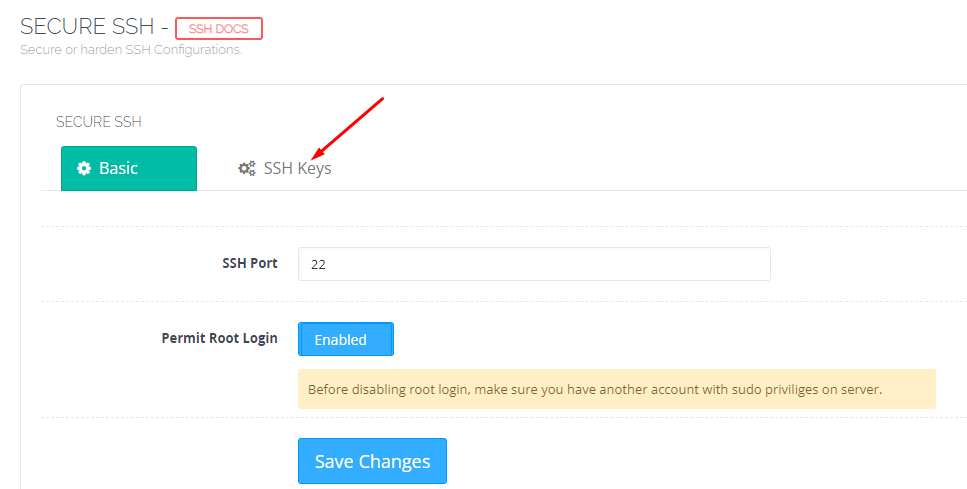
Step 3: Go to the Security->Secure SSH
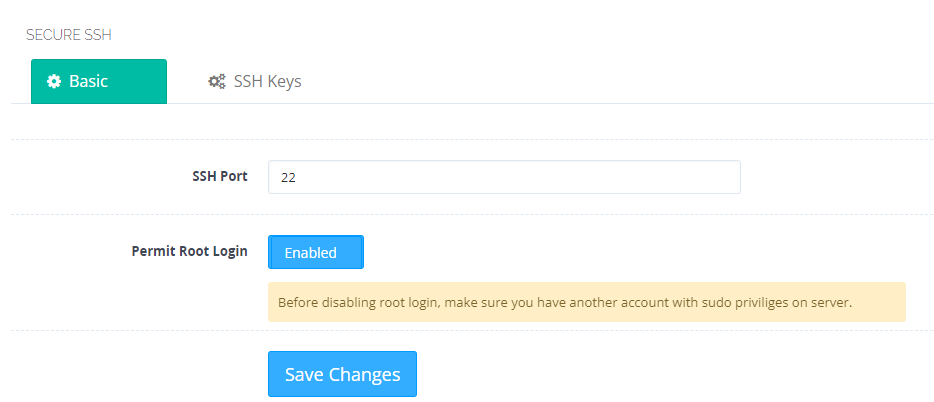
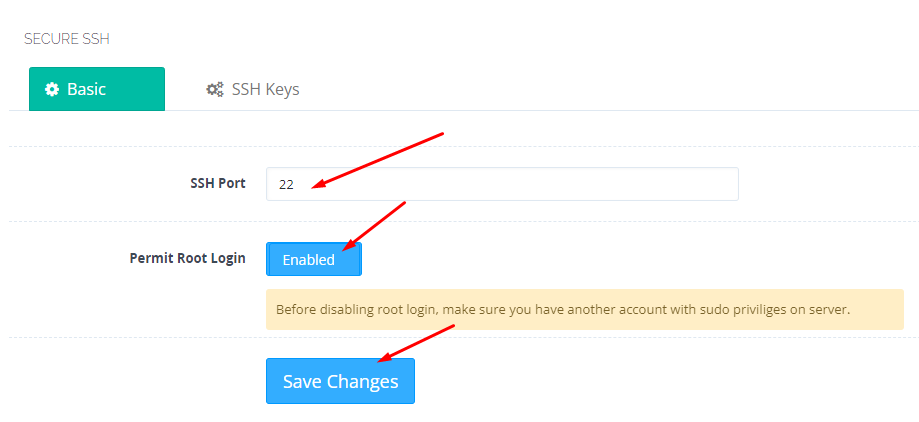
Now this page will be open. Here you can see the SSH port,permit root login
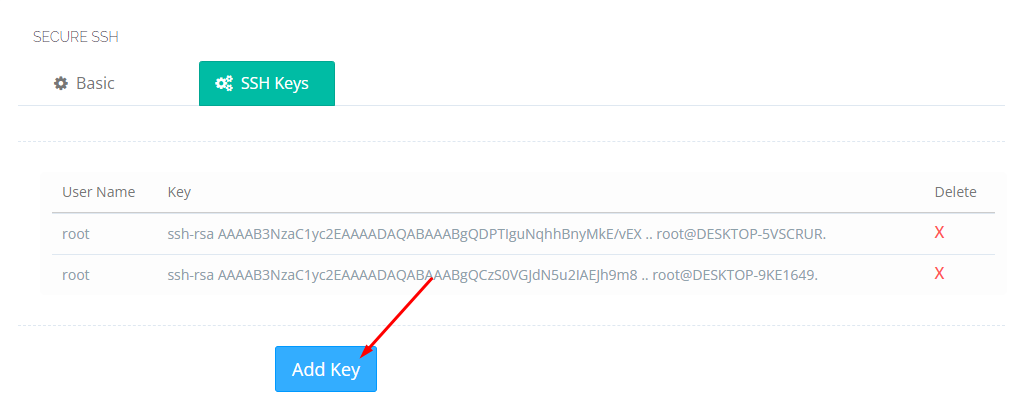
Step 4: Click on the SSh keys-> Add key
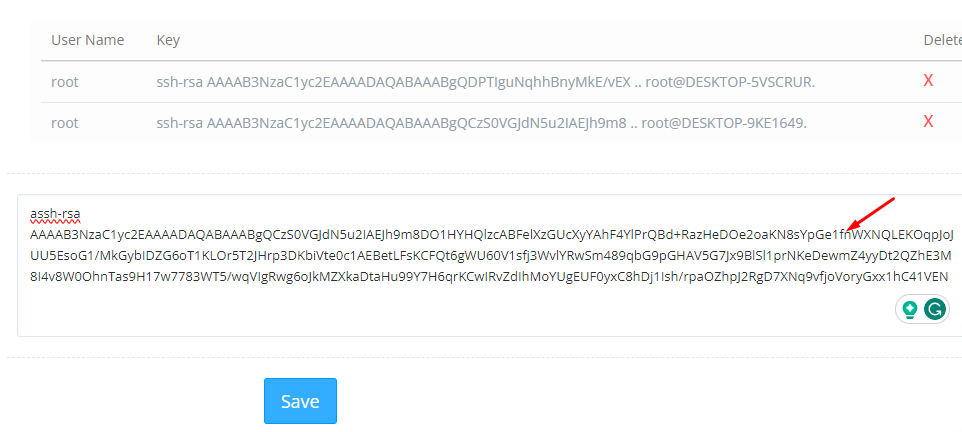
Step 5: After Clicking on the Add key you can paste your key and Click on save
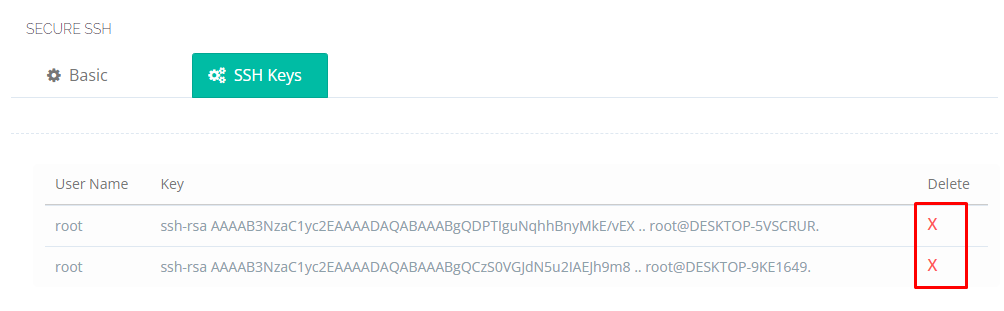
Step 6: You can delete your key By clicking on the ‘X’ button Listed here
Step 7: You can also change your port and enable or disable the permit root login after changing these Click on Save changes
We have an other article on this as well check here. For old version CyberPanel official guide is here.
Reset or Change CyberPanel Admin Password
Do you know how to change CyberPanel Admin Password? Read this short article to check and know how to change or reset the admin password on CyberPanel.
Methods to Change or reset CyberPanel Password:
Reset Cyberpanel Password using Command line.
Change Password From CyberPanel
Reset CyberPanel Password using Command line
Mostly you use this method when you don’t have your CyberPnael Credentials are forgotten your CyberPanel password. And you have root SSH access to your system.
To change the Cyberpanel password from the command line you just need to run a simple command.
adminPass Your_New_Password
This command helps you to reset your password easily without having any CyberPanel access.
Reset CyberPanel Password using Command line
Change Password From CyberPanel:
If you have your CyberPanel admin account access and you want to change it you just need to follow these easy steps.
Login to your cyberpanel account using your credentials on port 8090.
https://<your_ip>:8090
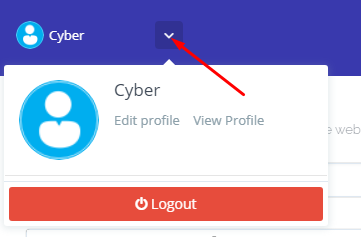
Once you login into your account clicks on the arrow on the top of your cyber panel account.
CyberPanel Profile
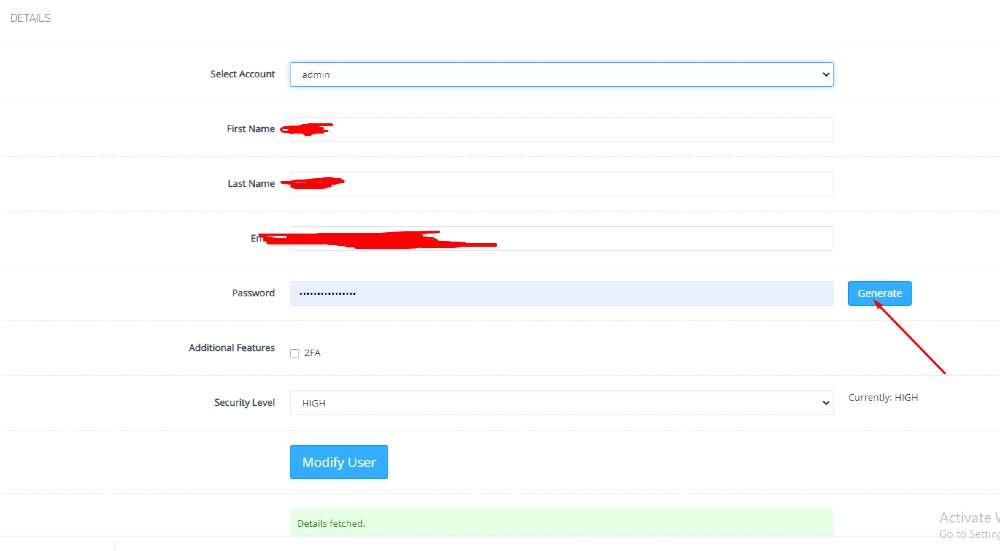
Then click the Edit Profile button. You can see a screen that ask you to select the account for which you want to change the password of CyberPanel.
Edit Profile
On this page, you can see you can change the password for your account and you can easily generate a password by clicking the generate password button.
Generating a password is a good move because CyberPanel auto-generate password will always generate a strong password.