While transferring your website from one server to another you may need to export your database in some cases. In this article, I am going to show you how to export Database from PHPMyAdmin.
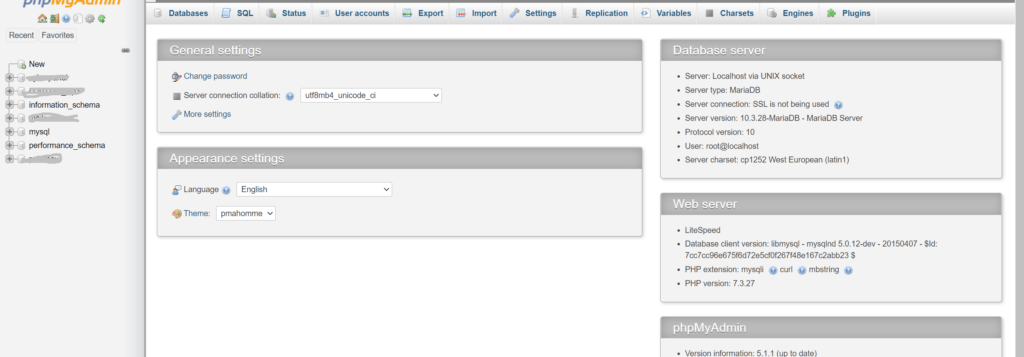
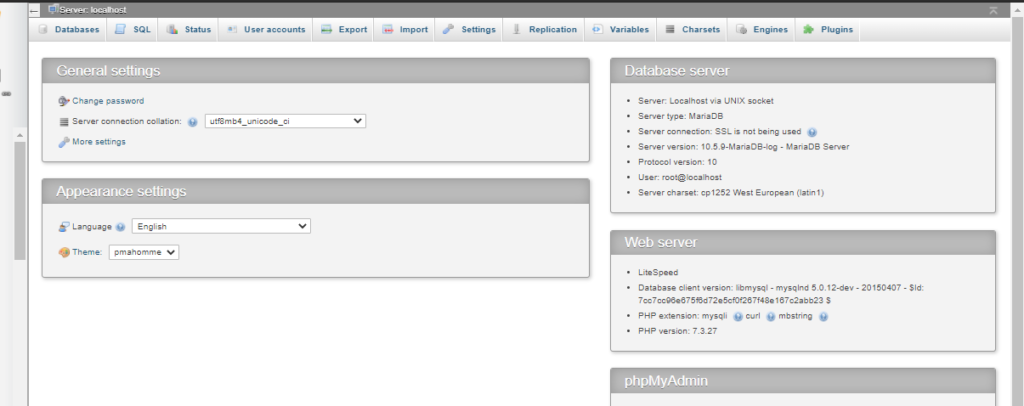
Exporting a database is just a few-click process. Just login to your PHPMyAdmin dashboard providing username and password. to export Database from PHPMyAdmin
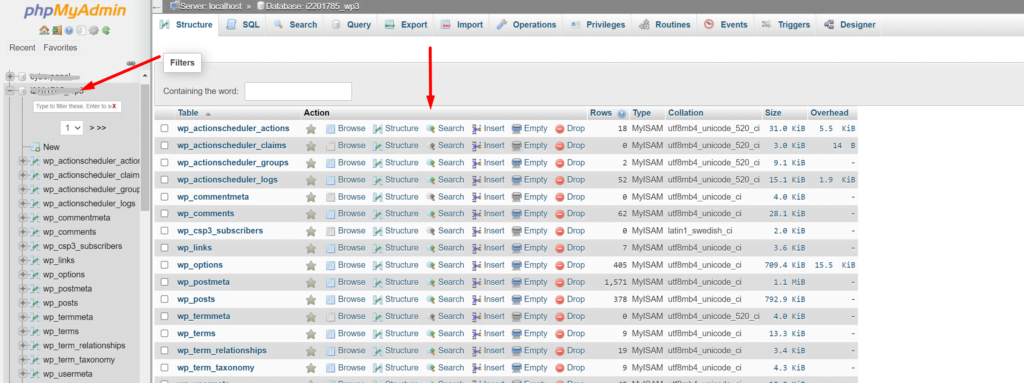
You can see all the database you have created In your database is there.
Select the database you want to export. To select a database click on it. And you can see all the tables of your database on your screen.
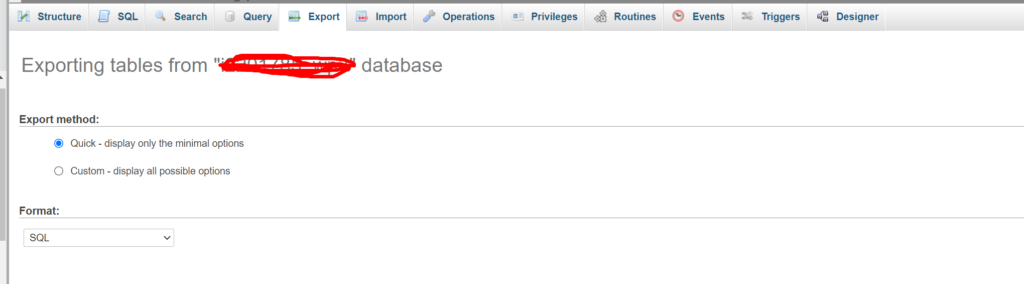
Now from the top bar click on the Export button to start theexport database.
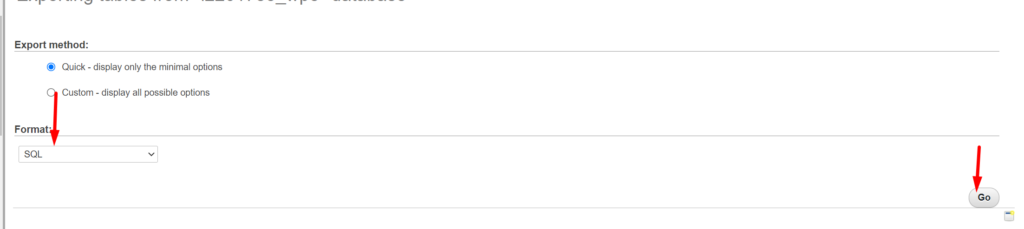
Now you have to select the type of file in which you want to export your database. After selecting file type click on the Go button on the right bottom side.
on clicking the Go button process will start and you can see the download progress on your browser.
How to access MySql root user using the command line?
Often in the case of big databases or lack of user interfaces you need to do MySQL functions using the command line on your server. In this article, we will discuss How to access MySql root users using the command line?
We try to minimize this article as we can.
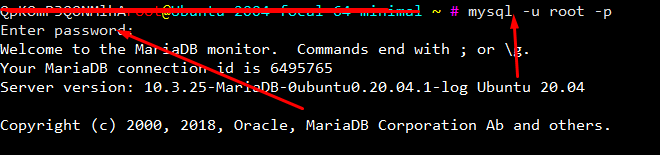
Login to SSH using your credetial vis putty/bitvise etc.
Now copy this comand and paste on your ssh terminal.
mysql -u root -p
After this terminal will ask for the root MySQL password provide a password to be processed.
In the case of cyberpanel Mysql root password location is. /etc/cyberpanel/mysqlPassword. use cmd to show.
How to resolve PHPMyAdmin blank page error CyberPanel?
Sometime after update you faced PHPMyAdmin blank page error CyberPanel. In this article i will tell you the shortest way to resolve PHPMyAdmin blank page error CyberPanel.
You have to do few steps to resolve this issue.
You have to load your default PhpMyadmin script and replaced it with the present script.
1.Login to SSH. Change directory to the phpmyadmin using this command.
cd /usr/local/CyberCP/public/phpmyadmin
2. Here you have one simple file and one the working config file. Rename the working config to the new file like config.inc.php.old using this command.
mv config.inc.php config.inc.php.old
3. Now rename simple file to the working file and try to access phpmyadmin from the CyberPanel.
mv config.sample.inc.php config.inc.php
Go to the PhpMyAdmin page of your CyberPanel and check now.
This article will discuss the CyberPanel features list. All the features discussed in detail. This CyberPanel features list has all the features CyberPanel has.
CyberPanel Dasboard:
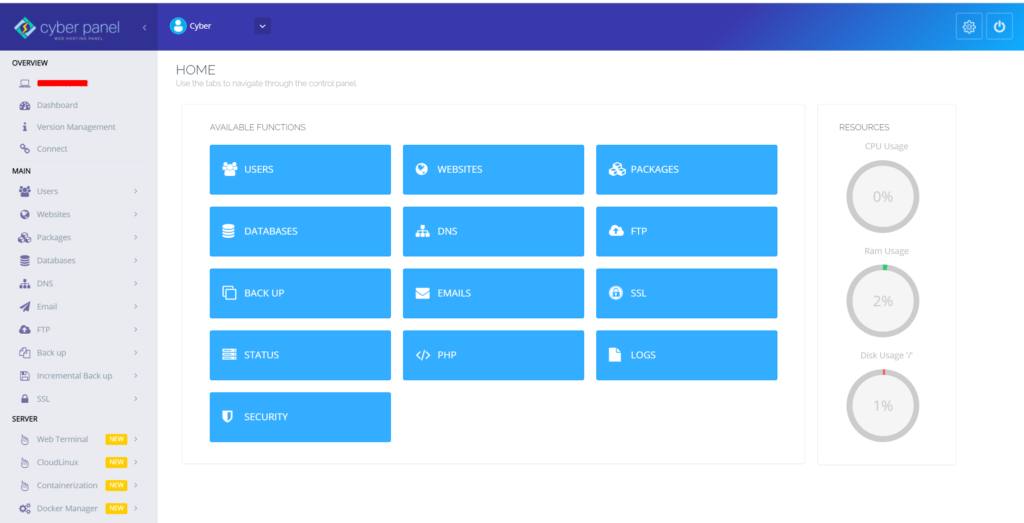
After login, you come to the base page, which is the CyberPanel dashboard. On the dashboard, you can see a sidebar on the left side, in this sidebar you can almost the feature of CyberPanel. In the center of the page you see those feature buttons you can access these feature from the sidebar lists or you can access through these buttons. On the right, you can see the Resources bar here you can see CPU usage, Ram usage, and Disk usage in percentage, how much you used the resources.
This is the all I discuss above are belong to the base/dashboard page of CyberPanel. now I’m discussing the sidebar feature list one by one.
CyberPanel Features List details
Sidebar in CyberPanel Dashboard:
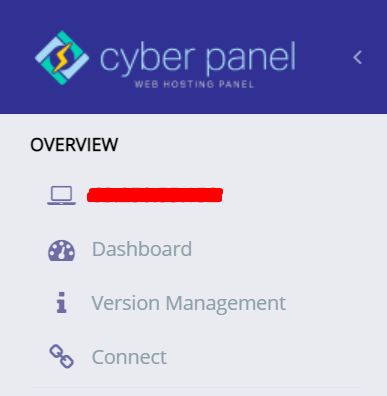
here is the whole sidebar or CyberPanel Dashboard, the Sidebar is divided into three section that is Overview, Main, and Server.
Overview
In the Overview section, there is the general information of your server, On the Top, you can see the IP address(255.255.255.255) that IP is your server IP address. The next button is the Dashboard button, after clicking on this button go to the dashboard. The next button is version management, if you want to know about your CyberPanel version click on this button. The last button in this section is Connect if you want to connect your server to the CyberPanel Cloud then click on this button
On the second section of the CyberPanel dashboard sidebar, you can see a lot of feature dropdown lists,
Users
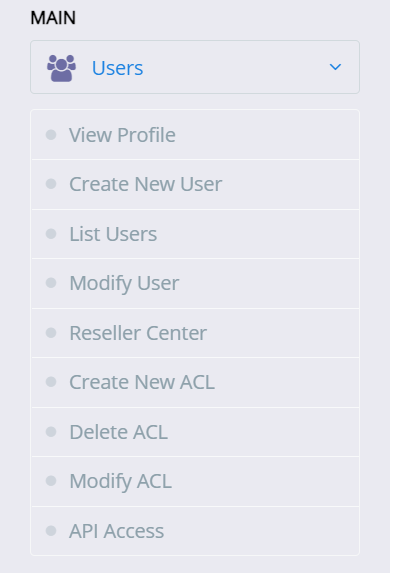
This first feature is Users when you click on Users a dropdown list shown on your sidebar that has a lot more features. View Profile, this feature shows your account details e.g Username, Account ACL, Email, etc. Create New User, if you want to create a new user click on this button. List Users, if you want to list all users of CyberPanel click on this button the all use show on your screen. Modify Users, as the name shows, this button is for update/modify your user’s information. Reseller Center, This feature issue the Reseller account. Create New ACL, This feature is for Creating a new ACL (Access Control List) Delete ACL, if you want to Delete ACL (Access Control List) this feature is for deleting. Modify ACL, if you want to modify or update ACL (Access Control List) click on this. API Access, Enable or disable via this button.
Websites
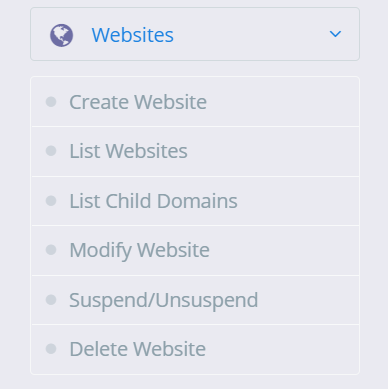
On the Section, the whole information about your websites that you are deployed on this server. Create Website, You can create a new website by clicking on the button List Website, You can list you all website that are deployed on your this server List Child Domains, if you want to List all Child domain you can view all by clicking on this button Modify Website, if you want to update/Modify your website click on this button Suspend/Unsuspend, Delete Website, if you want to delete your website click on this button.
Packages
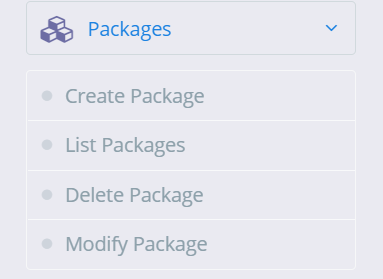
Packages on CyberPanel help you assign resources to an individual website, you must create at least one package before you start creating websites. Create Packages, You can create a package according to your requirement. List Packages, List all Packages. Delete Package, Delete the packages you won’t need anymore. Modify Package, If you feel the need to modify the parameters for the existing package you can do so via modify package page.
Database
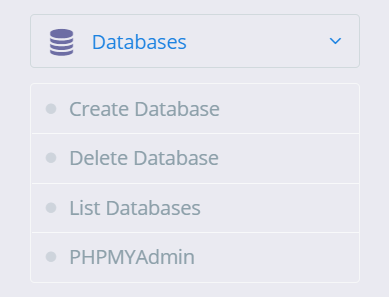
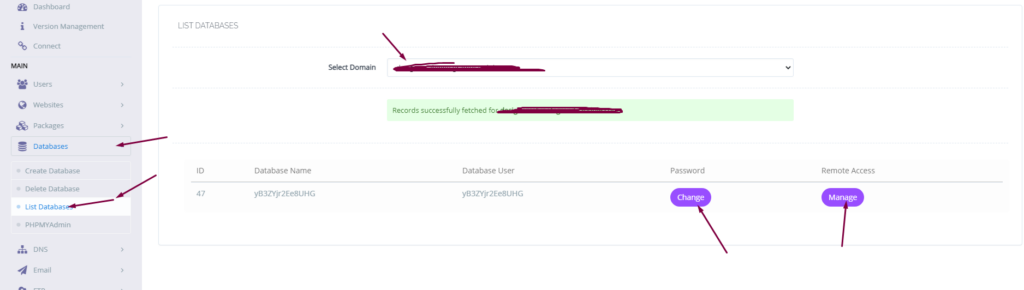
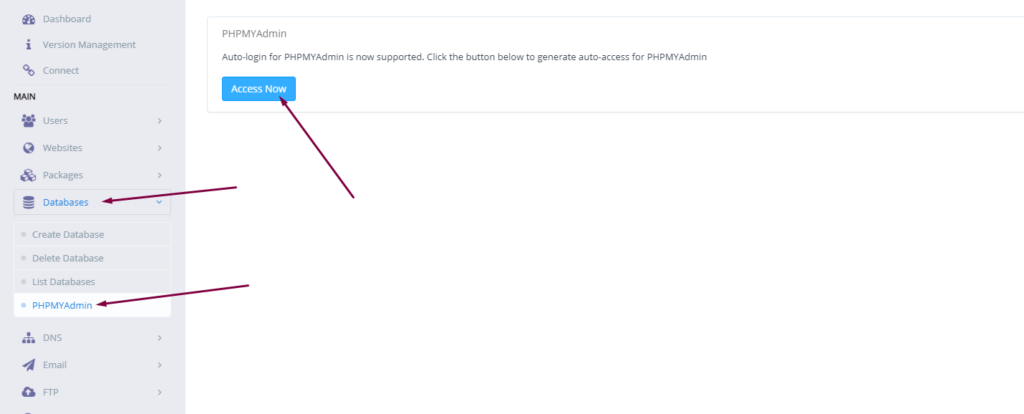
On the Database, you can create, delete, list, and access your database Create Database, if you want to create a new database click on this button Delete Database, On this button, it will delete the database List Database, On this button it will list the database after selecting the website PHPMyAdmin, if you want to access your PHPMyAdmin click on this button.
DNS
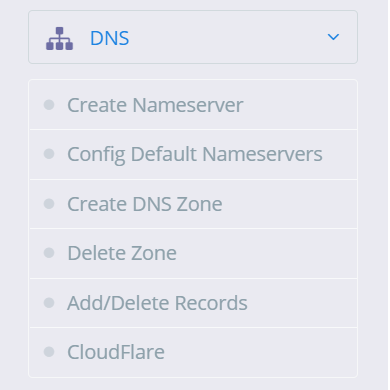
On this Button the whole informationabout DNS(Domain Name Server) Create Nameserver, You can create a NameServer according to your requirement via this button. Config Default Nameservers, Configure Nameserver via this Button Create DNS Zone, Before you can use the “ADD/MODIFY DNS Records” page you have to create a DNS zone first, this is the first step to start using the DNS server. Delete Zone, Once the DNS zone is created you can delete the zone using this button. Add/Delete Records, Once the DNS zone is created you can add or delete records using this button. Cloudflare, In version v2.0.0, CyberPanel has added the ability to synchronize DNS entries between Cloudflare and CyberPanel DNS on your own server
Email
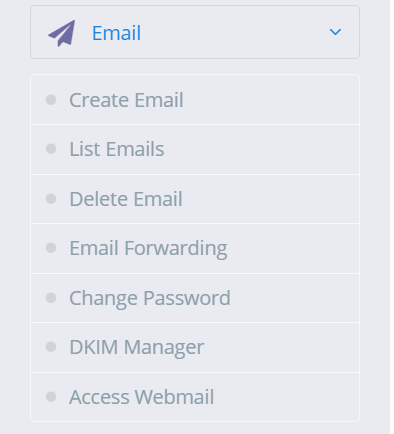
In this section, you can create, list, delete email, etc, Create Email, if you want to create a new email then click on this List Email, This button is for List all Email created on the website. Delete Email, if you want to delete Email click on this button Email Forwarding, ChangePassword, if you want to update or change the password of your email click on its button DKIM Manager, access DKIM manager through this button Access Webmail, access Webmail(Rainloop) through this button
FTP
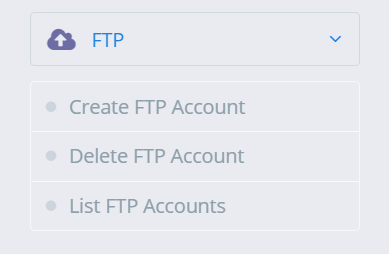
Create FTP Account, click on this button to create a new FPT account Delete FTP Account, if you want to delete an FPT account click on this button List FTP Accounts, This button is for List all FTP account
Backup
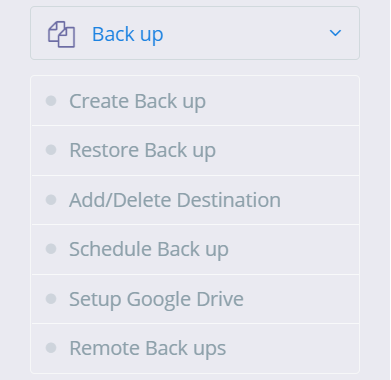
Taking complete backup of a website account is simple. Create Back up, If you want to create a backup click on this. Restore Back up, Backup restore only works with backups generated through the backup generation tool in CyberPanel. Add/Delete Destination, if you want to Add or Delete Back up Destination click on this Schedule Back up, if you want to schedule your website’s backup then click and produce. Setup Google Drive, This feature is for Google drive one-click backup Remote Backups, this feature is for Remote backup
Incremental Back up
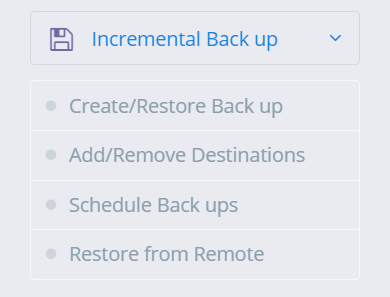
CyberPanel version v1.9.1 adds supports for incremental backups, Local, SFTP, S3 backup Create/Restore Back up, you can create a local or remote incremental backup. Add/Remove Destinations, From this button, you can directly go to backup destinations. Schedule Backups, if you want to schedule your website’s backup then click and produce. Restore from Remote this feature is for Incremental Remote backup
SSL
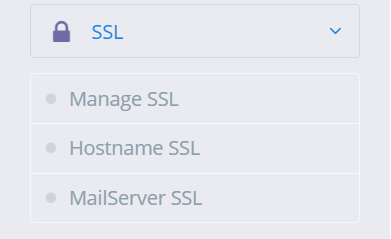
Manage SSL, If you want to Manage SSL click on this button and manage Hostname SSL, If you want to issue Hostname SSL you can issue it via this button MailServer SSL, this button is for Mailserver SSl
Server
The third and last section of CyberPanel sidebae is server.
Web Terminal:
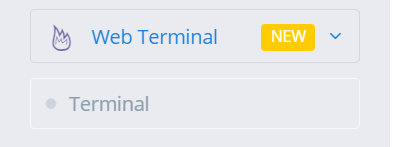
CyberPanel v1.9.2 onwards has a web terminal (to access your server SSH). However, in some browsers, you might not be able to use Web Terminal with default self-signed SSL. In that case, just set up CyberPanel on SSL. Now access CyberPanel using that domain.
Cloudlinux
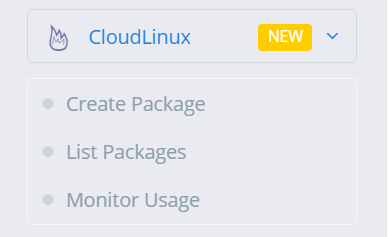
CloudLinux and CageFS is available with CyberPanel v.1.8.6, but before using any of its features, you need to convert your operating system to CloudLinux OS. Use the commands below to convert your server to CloudLinux OS. Create Package, List Packages, Monitor Usage,
Containerization
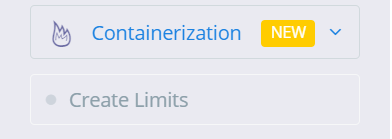
Containerization feature (v1.8.0 and above required, currently only CentOS is supported) offers to limit website resources and have no link to our Docker Manager feature. With containerization you can limit various system resources for a website, groups are used on the back end to enforce these limits. You can limit:
CPU Usage.
Memory Usage.
Network Usage.
Disk Usage (IO and IOPS)
Docker Manager
CyberPanel gives you the ability to manage your Docker container and images the easy way. Some of the exciting features of CyberPanel Docker Manager:
Search and pull images from Docker Hub (Along with tags).
Prune the system.
Create Container from available/pulled images.
List and manage container that includes:
Start/Stop Containers.
View Logs.
Export the file.
View Processes inside the container.
Delete Containers.
Re-create containers.
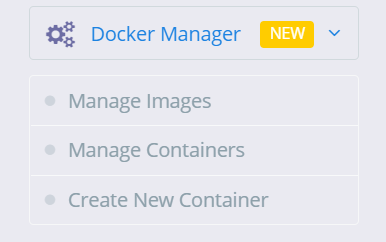
Manage Images, Manage Containers, Create New Container,
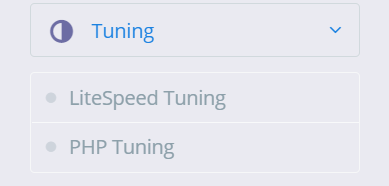
Tuning LiteSpeed Tuning, PHP Tuning,
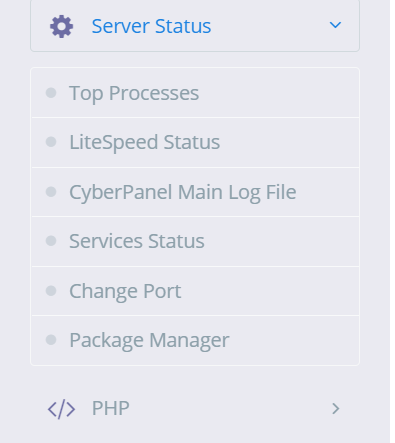
Server Status
This feature is for check your server status and maintains it. Top Processes, from this feature you can check Top process. LiteSpeed Status, from this feature you can LiteSpeed status CyberPanel Main Log File, from this feature you can check CyberPanel Mail log files Services Status, from this feature you can check your servers Status Change Port, if you want to change your port then this feature is for that Package Manager, from this feature you can access your package manager
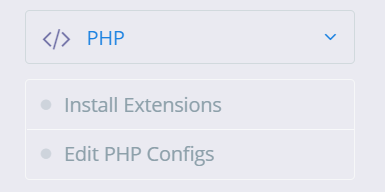
PHP
Install Extensions, if you want to install extensions e.g. redis etc extension you can install via this option Eidt PHP Configes if you want to change or configure your PHP version or anything else then you can change from this option
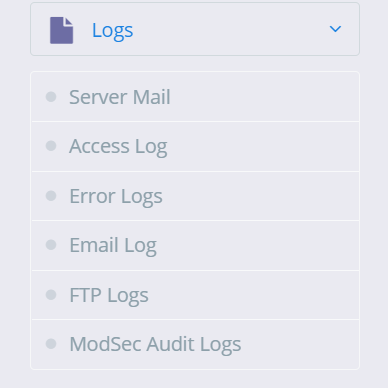
Logs
This is main featuer of CyberPanel. if you want see your server log you can watch from the option you can see: Server Mail, Access Log, Error Logs, Email Log, FTP Logs, ModSec Audit Logs,
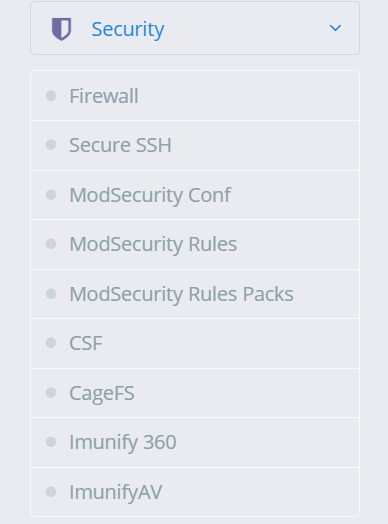
Security
This feature is for your server security. there is a lot of more feature in this. Firewall, you can stop, start, reload, and add/delete firewall through his option Secure SSH, Securing SSH is one of the most important tasks of a system administrator. CyberPanel allows you to change SSH port, disable root login and save your SSH keys. ModSecurity Conf, this feature is for ModSecurity configuration. The ModSecurity Rules, if you want to add/remove update or anything else with ModSecurity Rule you can from this option For the ModSecurity Rules Packs, you can check the ModSecurity Rule pack from this option. CSF, You can configure CSF(ConfigServer Security & Firewall) from this button CageFS, you can enable/disable CageFS from this button Immunity 360, you can enable/disable Imunify 360 from this. ImunifyAV, you can enable/disable ImunifyAV from this.
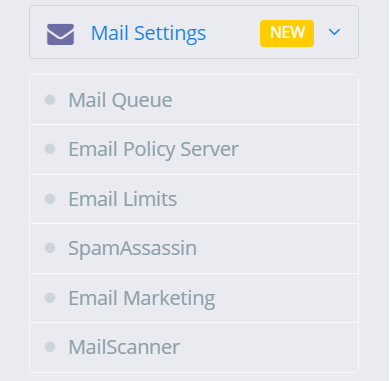
Mail Settings
This feature is related to your emails. Mail Queue, If you want to see your mail Queue(pending mails) you can see. Email Policy Server, this feature s for Email policy. Email Limits, this feature is for email limits SpamAssassin, you can Install SpamAssassin through this feature. Email Marketing, this feature is for Email Marketing MailScanner, If you want to install or remove MailScanner you can from this feature.
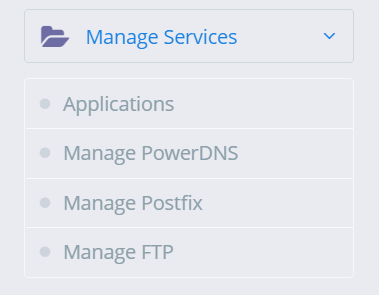
Manage Services
This feature is related to your server Service and application that you can install and check status. Applications, you can install and uninstall applications from this feature. Manage PowerDNS, PowerDNS is the service you can check this form this option And Manage Postfix, you can check postfix service form this option Manage FTP, you can check FTP form this option
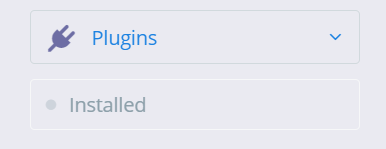
Plugins
You can install new plugin and uninstall installed plugin from this feature.
if you want to upload a file from the file manager on CyberPanel and the size of the file is large according to the upload limit. Then you need to change (Mostly increase) the default setting. In this article, we show how to change the upload limit on cyberpanel step by step.
Change Upload limit On CyberPanel
Login to your CyberPanel using the link:
https://<your-ip>:8090
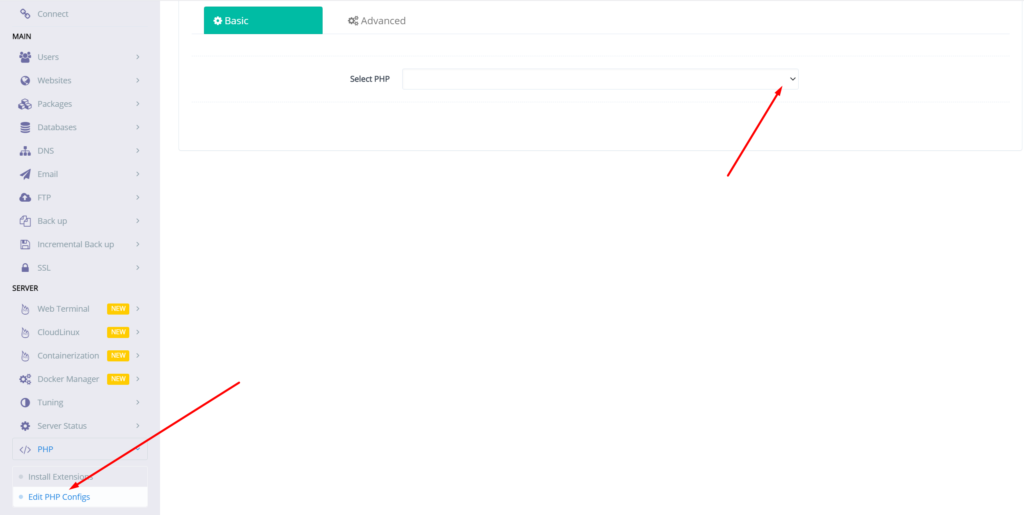
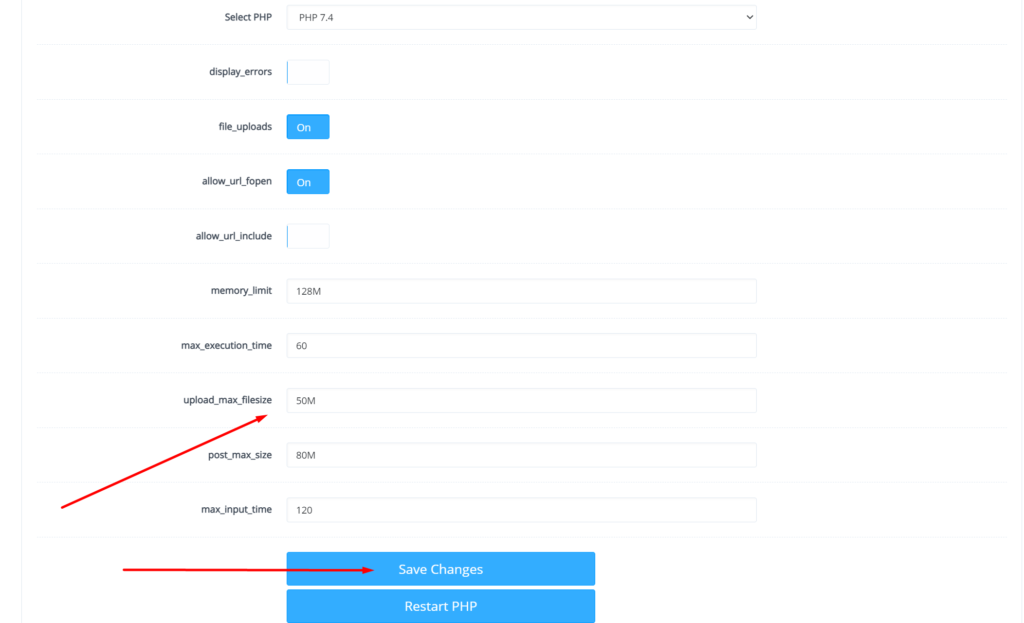
Go to PHP → Eidt PHP Configs → Basic, and select the version of PHP on which you want to change the upload limit.
Set the limit in upload_max_filesize according to your choice and then click on Save Changes
After doing that also press the Restart PHP button this thing will apply all changes on the server level and you can now be good to go with it.
You can also read about child domains and more in the next article.
If you want to create a Database in CyberPanel. And do not know how to do this you are on right place read this article to know how you can create a new DataBase on CyberPanel for your Website.
Table of Contents:
Login to CyberPanel
Create New Database
Access Database
Login to CyberPanel:
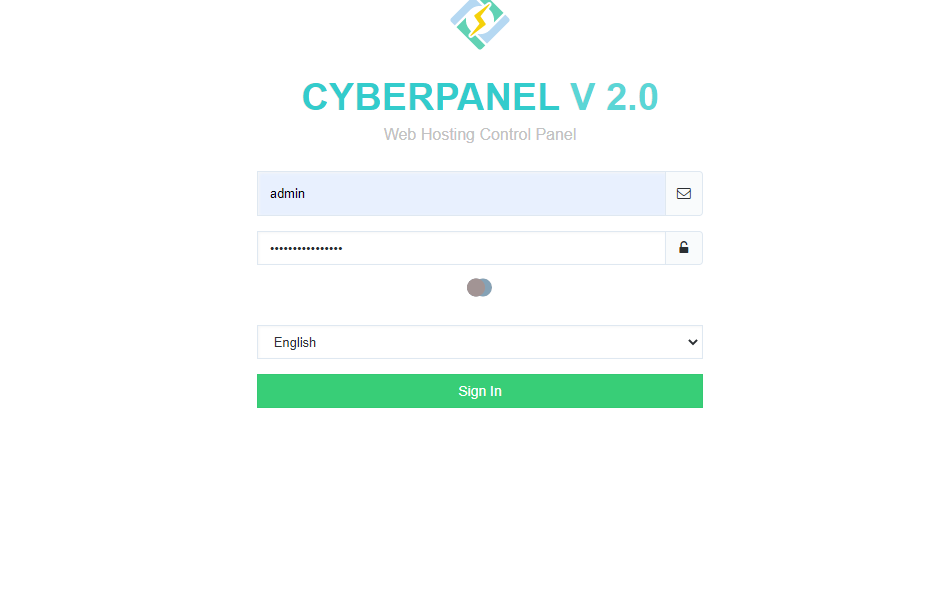
First of all visi the CyberPanel login URL to login to your CyberPanel it must be with port 8090, Look like:
https://<somainname/IP>:8090
Provide username and password and login to your CyberPanel dashboard.
CyberPanel Login
Create New Database:
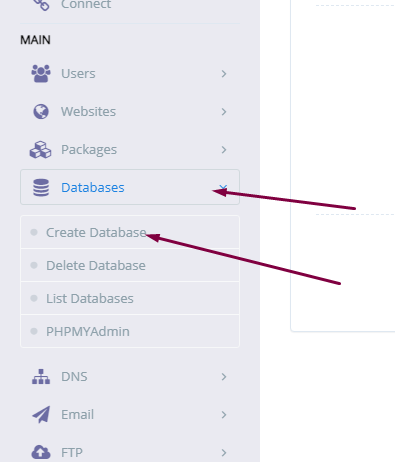
Once you logged in go to the Database->Create Database: in the left menu.
Create New Database
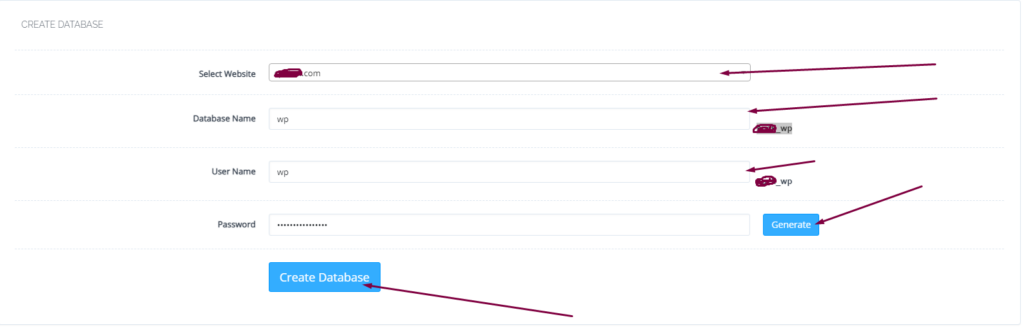
On this create database page you have to select the domain for which you want to create a new database.
select domain
Now screen ask you to provide the details for database.
Username
Database name
Password
Provide the Details for Database
When you press Create Database button this will create a new one for you on your server.
you can also list the database for any of your site on sever from Database-> List Database then select the domain and you can see the list.
list database
Access Database:
To access your database you created you have to go to Database-> PHPMYADMIN. Then press Access Now button.
You can see the PHPMyAdmin screen now. Where you can see all database for all domains. You can check the database your created and do any operation you want to do on this database.
How to change Upload Limit on CyberPanel? Increase or decrease Upload Size through CyberPanel?
CyberPanel is a Webhosting control panel. If you want to upload a file of large size and you are unable to do so. So here I will tell you how to change the Maximum upload file size.
Sometimes you want to import a database of large size or you want to upload an image or file on your size of large size and then you receive an error that you cant upload a file more than 2M (2M is the default size for the post in CyberPanel).
Here I will tell you how you can increase the Max upload limit for post and file. You can also change different things like maximum execution time, max input time, etc.
Follow all the steps to change Upload Limit.
Login to your CyberPanel using your credentials.
2. Now go to the PHP->Edit PHP Configs
3. You can see the Basic and Advanced buttons here. Remain on Basic and Select your required PHP version from here.
4. Once you select the required version you can see the different option here
Here you can update the values for all fields according to your requirements. You can update values here Like Max uploads size, max execution time, Post size, etc.
After updating values you need to click the save button to save all changes .
In the last steps, you need to restart PHP in the latest version of CyberPanel they give the option of restart in the Panel. Below the configuration. But if you are on the old version you have to restart PHP.
Without restarting PHP the changes will never applied.
You want to Install node js on windows 10 machine?
To start the guide to install node js on your windows 10 machine. First of all, we have to know what actually node js is. Before knowing how to install node js on your windows 10 know about the node js.
Basic node js is a JavaScript runtime environment. It simply means that the node js run-time environment includes everything you need to execute a program written in JavaScript. Now I would like to mention some points about node js for better understanding.
What is node js?
Node js is free and opensource environment.
Node js uses javascript on the server.
Node js can generate dynamic pages, can do many operation on databases and its is available for different platforms (Operating Systems).
How to Install Node js on windows 10?
In order to install node js to your windows 10 machine. You need to follow different steps.
Download Node.js
In order to install node js on your windows 10, you have to download the Node js. To do so click here or visit this link https://nodejs.org/en/download/ in your favorite browser. Here you can see this screen.
You can see the latest and current version always chose the current version from them because that is the stable one then chose the windows installer from the operating systems. you can also download:
Windows Installer (.msi) Windows Binary (.zip) Source Code
In 32 and 64 bits depending on your operating system.
Install Node js on windows 10:
Once your download completed now its time to install it on your machine to do so follow these steps:
Click on the download file and then click install.
2. You will receive a screen that asks you to run Wizard to install node js. Press Next.
3. Now accept the License Agreement. To go to the next step.
4. You can specify the location in your computer where you want to install the node js. By default its C:/Program Files/nodejs/ and leave as its and click Next.
5. In this step you can see which node js packages you are going to install and what is disk usage, and all. Click Next to proceed.
6. In this step you can allow node js to Automatically install the necessary tools. you can follow the instruction from the link given on-screen. Then press Next.
7. All setup is done Press Install to install node js on your windows 10.
Allow the installation and this installation may take some time to complete wait until the status bar show completion.
8. All done now your node js is installed and you can press Finish and go ahead.
Verification of node js installation
Once the installation process has done you need to verify the installation of your node js on windows 10. to do so just run a simple command:
npm -v
You can see the installed version it’s mean your installation is complete. Now your system is good to go.