How to dump Database without Password from Linux Command line?
In this article, I am going to explain How to dump Database without a Password from the Linux Command line?
As we know when someone wants to dump a database from the Linux command line they need a password for the database to dump it. Basically dumping database means exporting the database from the Linux command line.
In a normal way when you want to export a database you need a password for the database to do it. Here is the normal command to dump.
But sometimes people don’t like to give passwords again and again. So here I will tell you how you can do the database dump using a password. To do so just follow the process along with me.
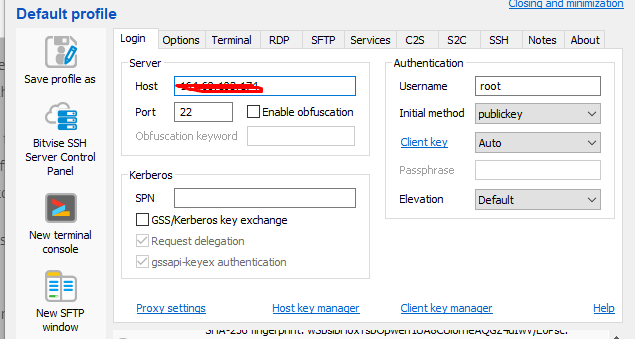
You have to do some configurations on the MySQL configurations to dump the database without a password. You have to set the root user database password in my.cnf file and you can dump a database without a password. To do so first login to your root ssh using an ssh client like bitvise, putty, etc.
Location of my.cnf is different in the case of different operating systems like in the case of Ubuntu it is /etc/mysql/my.cnf and in case of Centos it /etc/my.cnf.
You can open according to your operating system after logging in to root ssh.
No got to my.cnf simply run this command:
sudo nano /etc/mysql/my.cnf
After that paste, this code in the file
[mysqldump]
user=mysqluser
password=secret
user will be root and the password of your root MySQL user.
After doing this just restart MySQL or MariaDB and run any dump command
How to change or reset LiteSpeed Webserver admin password?
Sometimes you can’t remember your LiteSpeed webserver admin password and you want to login as an admin what can you do? In this article, I will show you how to change or reset LiteSpeed Webserver admin password through the root SSH client, in this guide I will show you the step-by-step procedure.
Reset the LiteSpeed Webserver admin password from the SSH terminal is just a few commands processes.
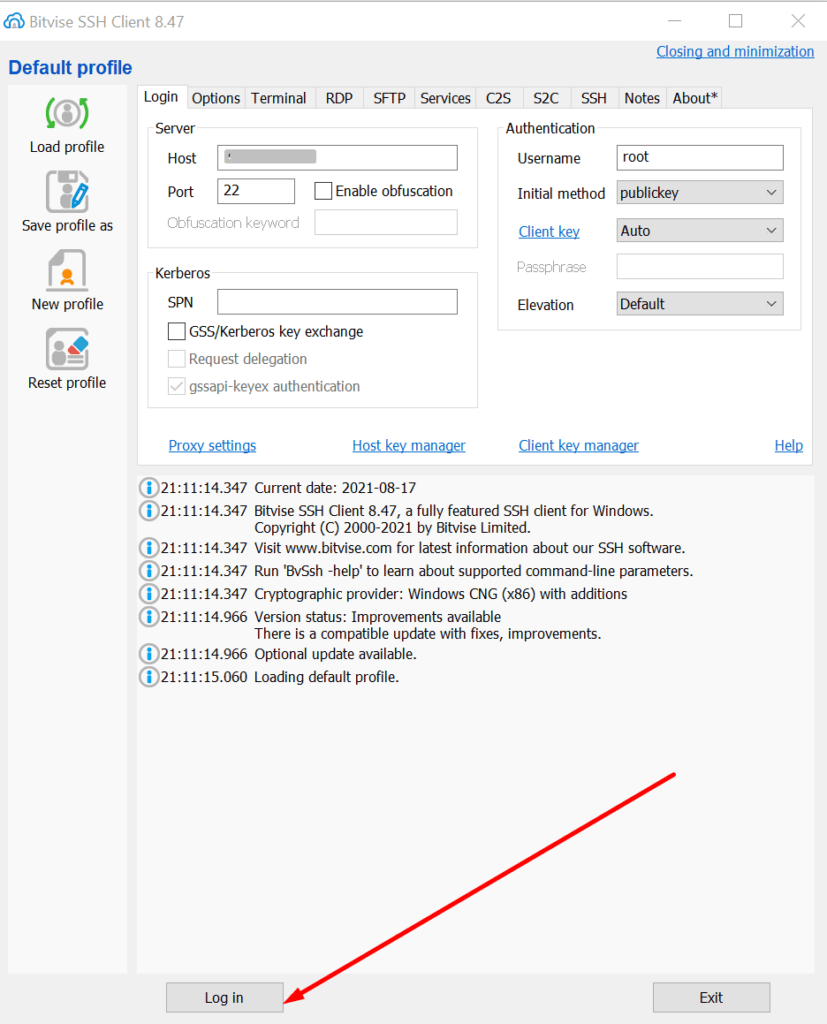
Step-1: Login to Root SSH
Open your root ssh client and log in then open the terminal
Step-2: Change Directory
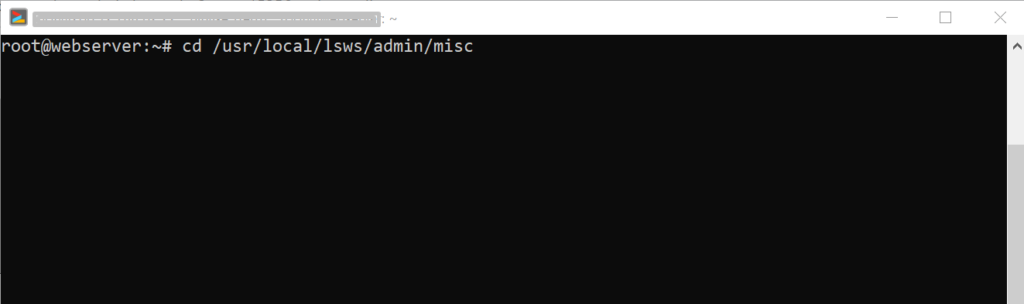
To change or reset the password you have to go to this directory /usr/local/lsws/admin/misc, so change the directory using this command:
cd /usr/local/lsws/admin/misc
Step-3: Reset LiteSpeed Webserver admin password
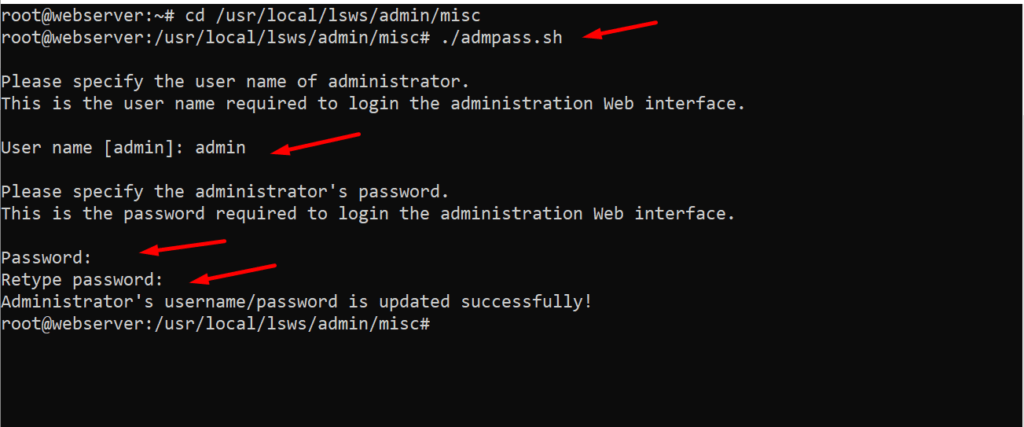
Once you changed the directory you can change the password. to change the admin password run this command:
./admpass.sh
Once you run the command it will ask you the username type the username (must be admin) and then press enter then it will show you an input password option enter the new password and then press enter it also requires you to retype the password, re-enter the password, and press enter. it will show you “Administrator’s username/password is updated successfully!”.
Your password is changed now access webserver using these credentials at:
Do you know how to change CyberPanel Admin Password? Read this short article to check and know how to change or reset the admin password on CyberPanel.
Methods to Change or reset CyberPanel Password:
Reset Cyberpanel Password using Command line.
Change Password From CyberPanel
Reset CyberPanel Password using Command line
Mostly you use this method when you don’t have your CyberPnael Credentials are forgotten your CyberPanel password. And you have root SSH access to your system.
To change the Cyberpanel password from the command line you just need to run a simple command.
adminPass Your_New_Password
This command helps you to reset your password easily without having any CyberPanel access.
Reset CyberPanel Password using Command line
Change Password From CyberPanel:
If you have your CyberPanel admin account access and you want to change it you just need to follow these easy steps.
Login to your cyberpanel account using your credentials on port 8090.
https://<your_ip>:8090
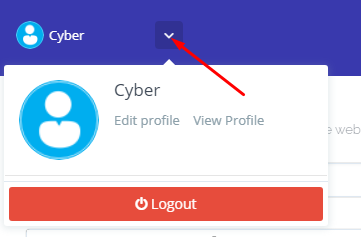
Once you login into your account clicks on the arrow on the top of your cyber panel account.
CyberPanel Profile
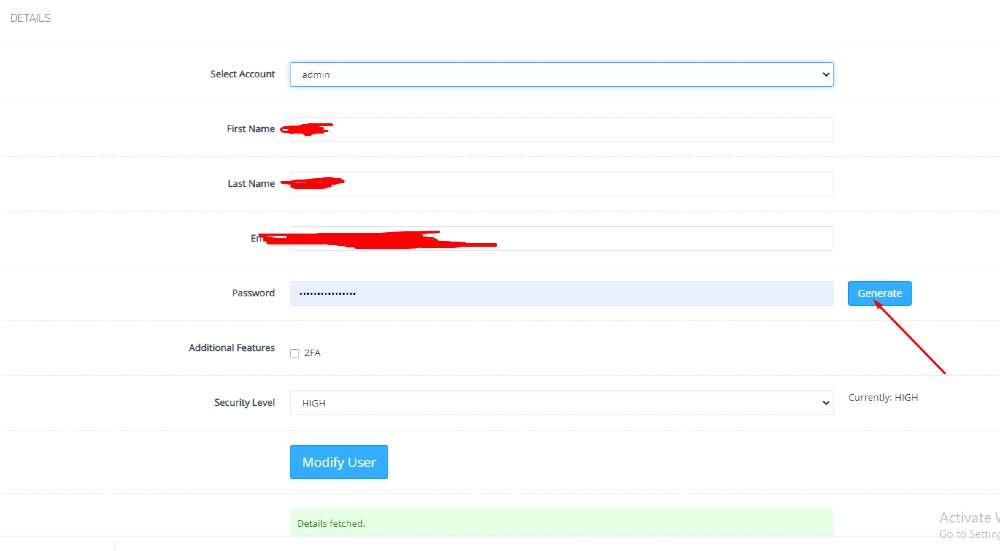
Then click the Edit Profile button. You can see a screen that ask you to select the account for which you want to change the password of CyberPanel.
Edit Profile
On this page, you can see you can change the password for your account and you can easily generate a password by clicking the generate password button.
Generating a password is a good move because CyberPanel auto-generate password will always generate a strong password.