Warning: Redis::get(): php_network_getaddresses: getaddrinfo for localhost failed: Name or service not known in /home/solveddoc.com/public_html/wp-content/plugins/litespeed-cache/src/object-cache.cls.php on line 674 Technologies Archives - Page 2 of 2 - Solveddoc
How to Install and Setup Wordfence Security Plugin in WordPress
Do you want to secure your website from hackers? You want a secure website? Do you want to install and setup Wordfence Security Plugin to make your website more secure?
If you need anything above here in this article you will get all this information.
Wordfence Security is the most popular WordPress Scanner and Firewall. Wordfence uses to scan, remove malware, firewall again attacks, IP securing, 2FA login, etc.
You have to follow these steps to install and setup Wordfence in WordPress:
Install and Activate Wordfence
Setup Firewall in Wordfence
Scan your site from Wordfence
Login Security Setup
Other Security tools
Install Wordfence Plugin:
installation of Wordfence is just like any other WordPress Plugin. You can easily install Wordfence Plugin from the Plugin directory or you can download it from the Wordfence site and upload it.
After installation activate this Wordfence security plugin to configure it.
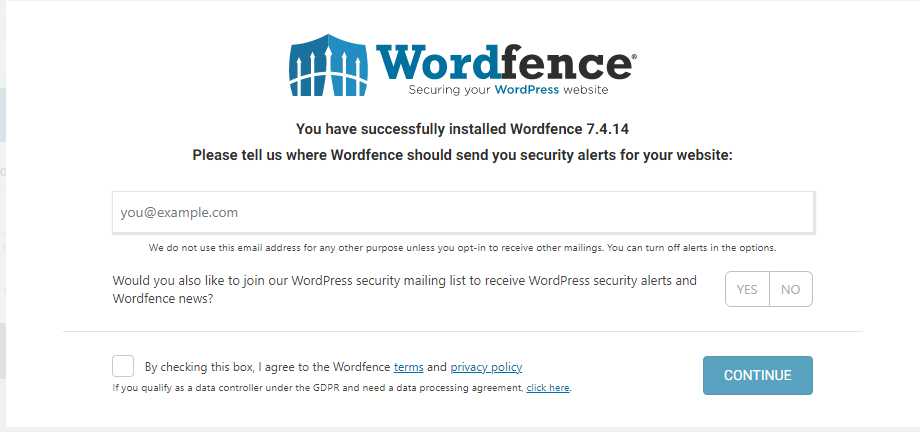
Install Wordfence Plugin
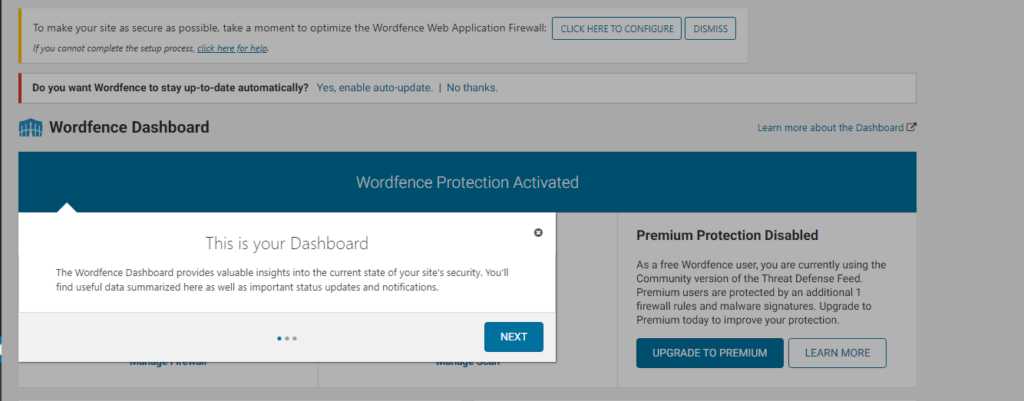
Once you completed the installation and check this privacy policy and terms link you can see the Dashboard of the Wordfence plugin by click on it from Wordfence -> Dashboard.
Wordfence Dashboard
They guide you through these steps and you can follow these but follow another part of this article in order to understand better.
Setup Firewall in Wordfence:
Wordfence Firewall saves your website from malleolus access of the website. The firewall has general real-time security and secures your website from brute force attacks on your website.
The free version of the Firewall of the workforce does most of the things for you but in the premium version, you will get all the advanced features also.
Premium versions include Real-time IP blocklist, Real-time firewall rules, and malware defense.
The firewall has two-level f protection one is basic and the other one is advanced level protection. The basic level of protection covers the threads and attacks on the website but may miss some plugin and themes attacks. Advanced level covers all these.
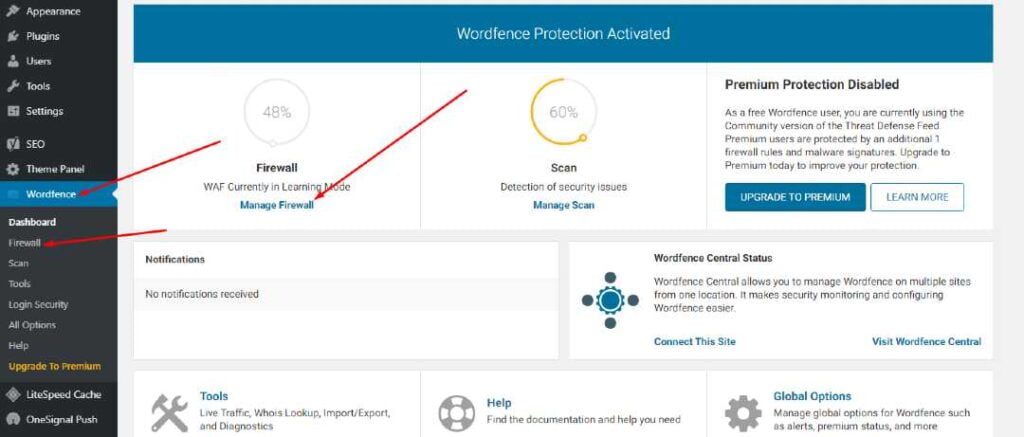
On the Dashboard page of your Wordfence plugin, you can see the firewall percentage.
Wordfence plugin
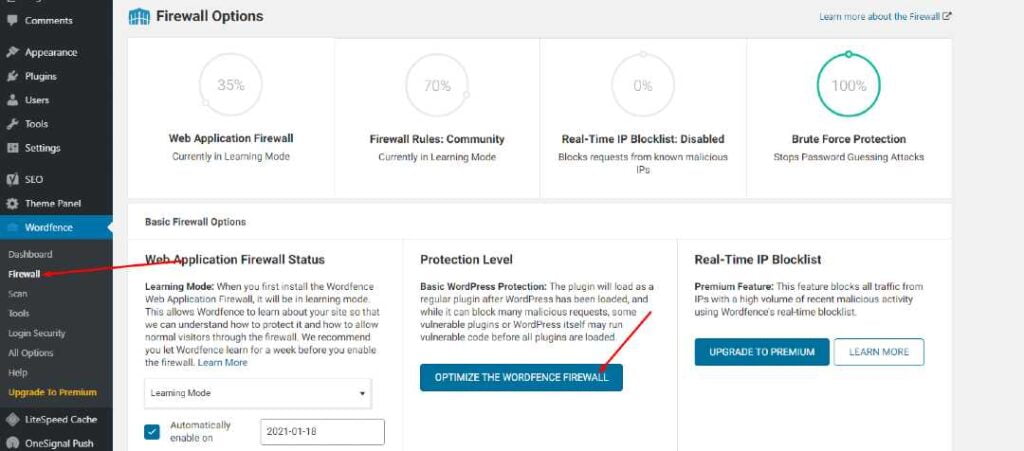
To configure your Wordfence firewall go to Wordfence->Firewall option.
Configure your Wordfence firewall
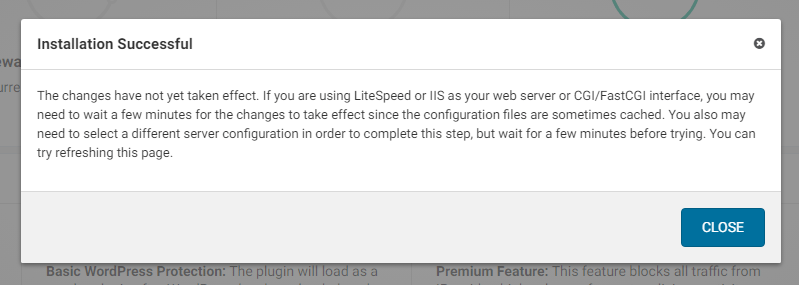
Once you click the Optimize The Wordfence Firewall you will see a notice click Continue and you can see your firewall is successfully installed.
Done
You can also see extended mode is enabled. if you check your firewall performance is also increased.
Scan your site from Wordfence:
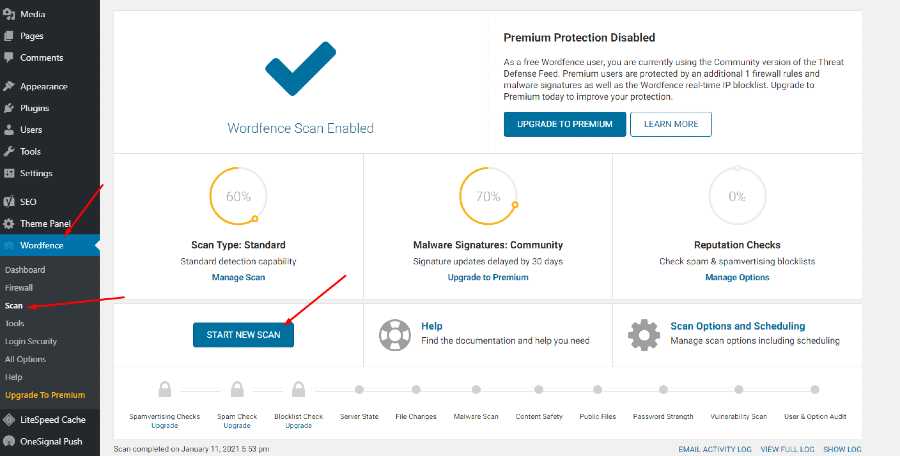
You can scan your website using the Wordfence security plugin. To scan your website go to the Wordfence->Scan->Start Scan.
Scan your site from Wordfence
After clicking start scan you can see that your site starts scanning and now wordfence goes into the file of your WordPress site.
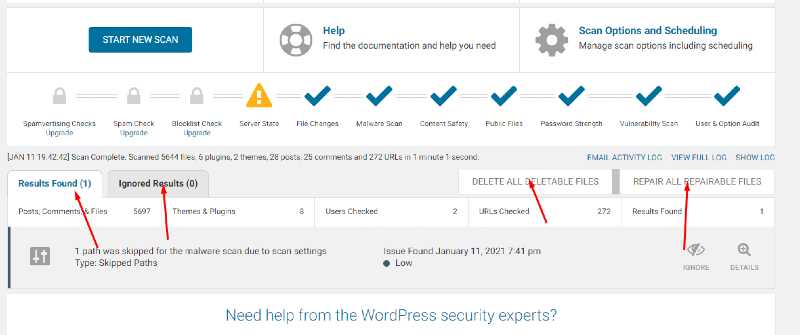
Basically, wordfence goes into the files of your websites and scans all the files present on your website directory. Note all changes that happen in that file and write those on your screen.
Wordfence tells you that which issue and changes of files are critical, which are ignorable, which files need to delete and which can be ignored.
The scanning process does not go into just one step it complete in a number of steps.
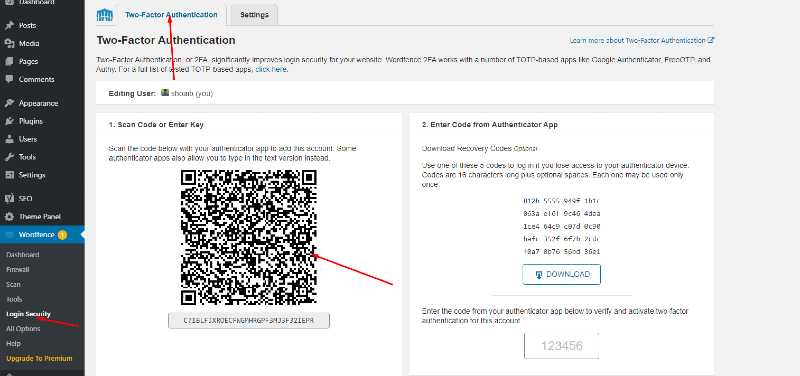
The coolest feature of worfence is that it has a Login security feaster also use this plugin you can set 2FA. Now your question is how to set up a 2FA login using wordfence security plugin?
To set 2FA login go to the Wordfence->Login->2FA scan code.
Login Security Setup
You can also go to settings and check for the other settings too like whom you want to 2FA for.
Other Security tools:
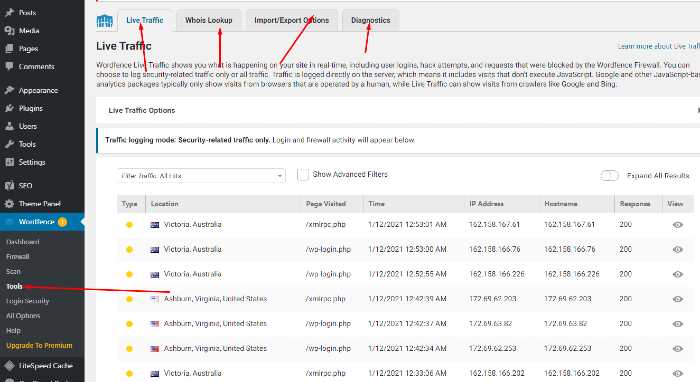
There are also other security tools like Live traffic, Whois Lookup, Import/Export Options, and Diagnostics.
These option also help user in security as well as performance.
Other Security tools
Security of your website is very important you have to secure your website no matter you use this plugin or use any other matter but the point is your site must be secure.
From this guide, How to Install and Setup Wordfence Security Plugin in WordPress you got a good idea to configure your Wordfence plugin with your website.
Here in this article we are going to discuss Factors Affecting WordPress website page Speed.
Do you like websites which take some time to load? Do you want to visit again on site on which you wait for page to open?
I think no one like to wait for loading of slow sites. Users always want a quick response from the website. After clicking the link they don’t want to wait and waste their time.
Above is the user perspective now if we come to the website owner’s view, the owner never wants to lose his/her visitor from the site. But we know there are a large number of things which affect page speed and load of our website. We know it is not possible to list all but we mention a few things that are common for this.
Irrelevant, extra, and outdated Plugins and themes
Cache Plugin and its configurations.
Extra and unoptimized CSS and JS.
Hosting server
How to check Page speed?
How to solve the problems stated above?
What is page load time and speed?
Page speed is the loading speed for your page. It mean that how fast your page loads for your user. Acutely the time between the click by user and the view of page.
You can say that page speed is the page load time or time taken for the first bit. Site speed and page speed are two different things but sometimes we mixed both as one.
Now if we look at load time, Load time is the total time taken to download whole page and display it. When the whole content is there then we can say that this is the load time for our page.
Why Page speed and load is important?
As we know that now the internet is going fast and fast every day. With the increasing speed of the internet websites also need to be fast. As we no if your site is slow then there is no space for your website.
Now users want that website to load fast. So he can get his result as soon as possible. The important issue with having a slow website is that your users will often lose patience and leave. But this is not your user that wants this there are a lot of other important things for which your page speed is important.
Website ranking depends upon different things and these all relate to your page speed. If you want to rank high your site you need to improve your bounce rate, SEO, etc. Google as well as other search engines check all these things.
If your website is fast google always prefer fast site. In this way your SEO score will improve and when your SEO took you up visitor come and they will navigate between the page if your site is fast. This will improve your bounce rate.
There are a large number of factor that affects your website page speed and make it slow here we will discuss the most common factor that affects the page speed. So stay with us to check these:
1: Unoptimized images
The most common mistake that people makes which cause there site slow Is the use of unoptimized images you create an image and upload it without optimizing it is not a good move. You must optimize your image before upload it on your site.
Use of unoptimized images is one of the common mistake made by most of us. We will also discuss how to overcome this issue later.
2: Irrelevant, extra, and outdated Plugins and themes
One of the big reason of getting site slow in WordPress user. The use of irrelevant, extra, outdated and pirated plugins. Sometime people see any new plugin and install it to test and they didn’t remove it, this thing slow down your site. There are also some user who like to use pirated plugin because they don’t want to pay for it that thing is very bad for their speed and security.
Many of us usually don’t like to update plugin scar of being destroy settings. More you have these thing more your site is slow.
When you install WordPress some Default themes also come with that. Most of the user never touch them and also never delete that make more load on server and cause site slow.
3: Cache Plugin and its configurations:
Use of cache plugin is very important to speed up your site. There are a lot of Cache plugin in market you can use them. There are a lot of free and also paid too. Use of cache plugin is is good but the important thing you have to configure it in right way. if you don’t know how to configure it then using this cause extra plugin only.
4: Extra and unoptimized CSS and JS:
The main function or propose to use cache plugin is to optimize extra and unoptimized CSS and JS. But where did it come. Acutely most of WordPress users like to buy ready made themes instant of making there own and all. They buy theme and plugin from any where and use it.
But the bad thing is that themes are not according to your requirement theme and plugin fulfill yours but also have a lot of extra and unoptimized JS and CSS files that caused the slow site issue.
6: Hosting server:
Chose of hosting is one of another important affect on site speed. If you have a big and high traffic site and you host it at a shared plan. then you cant get the required speed.
There are also other things which you need to keep in mind while selecting host. Like if your visitor are from India and your site is hosted in US then this is also a very bad move.
How to check Page speed?
There are a lot of ways to check Page speed of your website. Here we discuss some common page speed tools with are commonly used to check the performance of your website.
Google PageSpeed Insights:
Google PageSpeed Insights
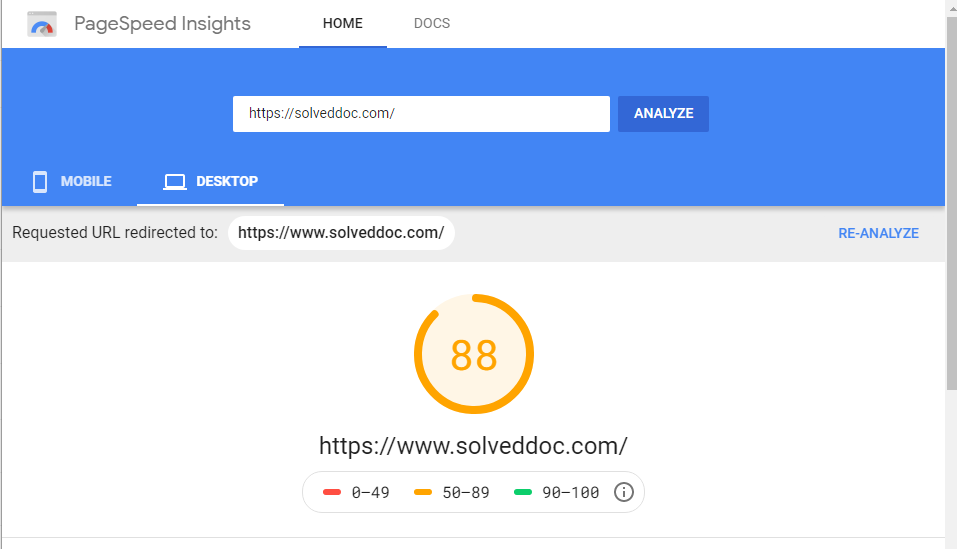
Google PageSpeed Insights is one of the simple and most powerful tool to check the page speed of any website. It gives you both Mobile and Desktop page speed score. So you can easily check and compare the performance of your website.
This Google PageSpeed Insights also give you the issues details and this is very important for your SEO term.
GT Metrix:
GT Metrix
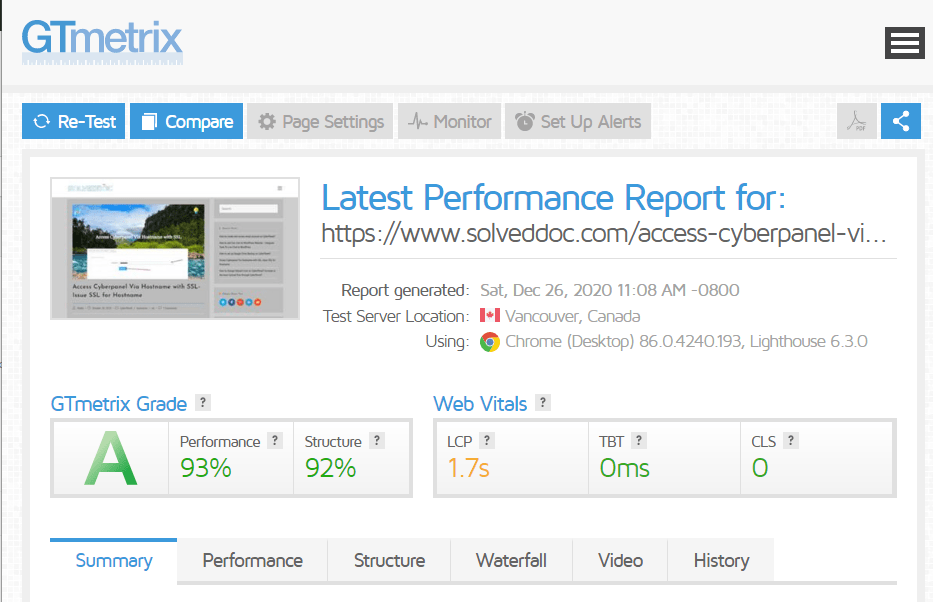
This is an other tool that helps you to check your page speed and helps you to improve you site speed and ranking. GTMatrix is also a great tool to check the performance of you site click here to visit GTMatix and check you page speed.
Pingdom Speed Test:
Pingdom Speed Test
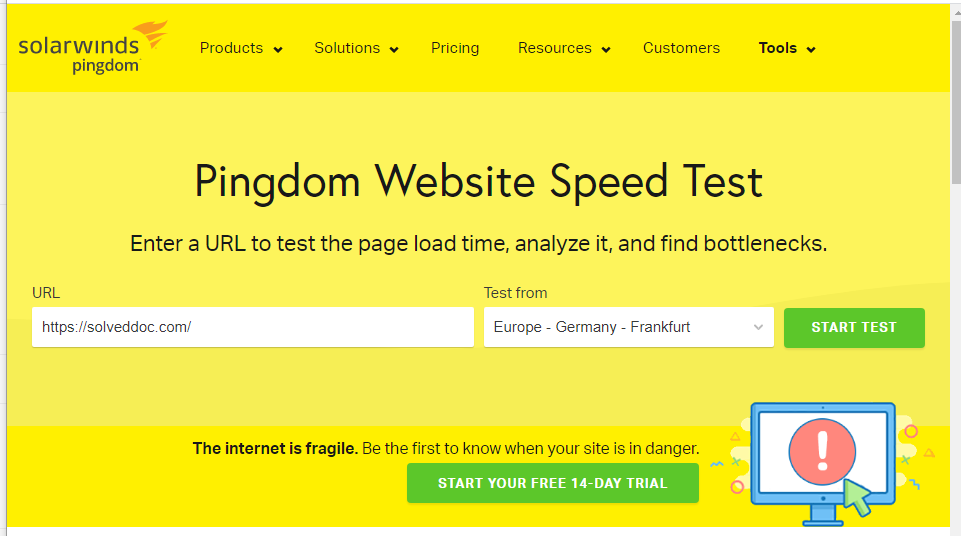
Pingdom Speed Test is also a speed test tool. They says that they are cost effective and reliable uptime and performance monitoring provider for your website. They give you a kind of brief and detailed report about your website.
Web Page Test:
Web Page Test
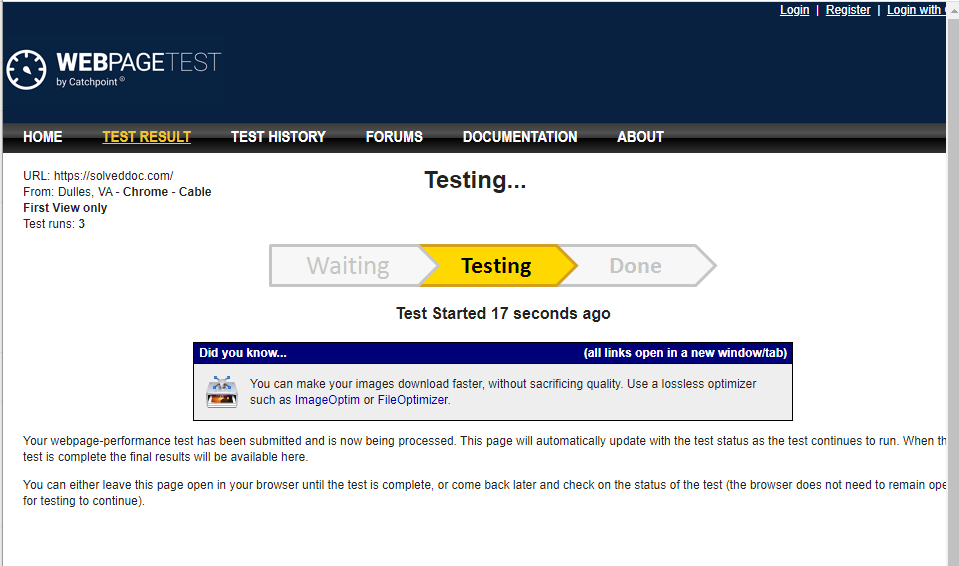
This tool is not simple as other this a a tool which give you a detailed view about your website. But this tool worth look. This will give you information about the Security, First Byte, Keep-Live, Compress transfer, Cache static etc.
There are also many other tools but for now we will discuss only these.
How to solve the problems stated above?
AT the last of this article we will tell you how you can solve the problem stated above.
Optimize your Unoptimized images:
You have a lot of options to optimize your images, you can optimize you images using different ways like you can optimize before and after uploading we will give you name of some plugins and methods through which you can optimize your images before and after uploading to the site.
Optimize your images before upload:
You can optimize your images before uploading. This is one of the core factor from the factors affecting WordPress website page Speed.
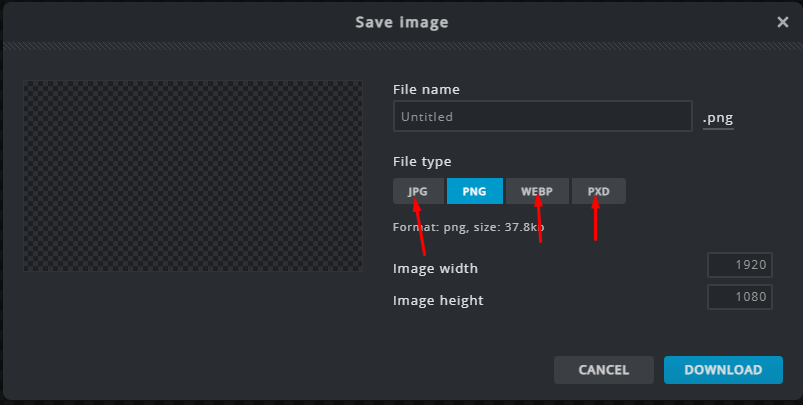
The optimize your images there are few basic thing you have to take care of, Like always use JPG, webp, etc. versions of image files instant of using PNG.
This is a good and intelligent move to optimize images before uploading it on live site. You can optimize your Images before upload using differnt tools. I will state some of them here.
You can optimize your images before uploading using these tools and editors. there are large number of tutorials to do so. Go get any of these tools and optimize your image before upload.
Optimize your images before upload
Optimize Images Through Plugins:
Better move is you can upload optimize images but if you didn’t do that and after upload you fell that you have to optimize these so in this case you can now optimize your images using plugin.
Here I will mention some plugin through which you can easily optimize your images. Even you have old images and you want to optimize them.
Using these plugins you can easily optimize your images by just following some steps.
Optimize Images Through Plugins
Remove Irrelevant, extra, and outdated Plugins and themes:
This is one of the main reason and it is very easy to solve this issue.
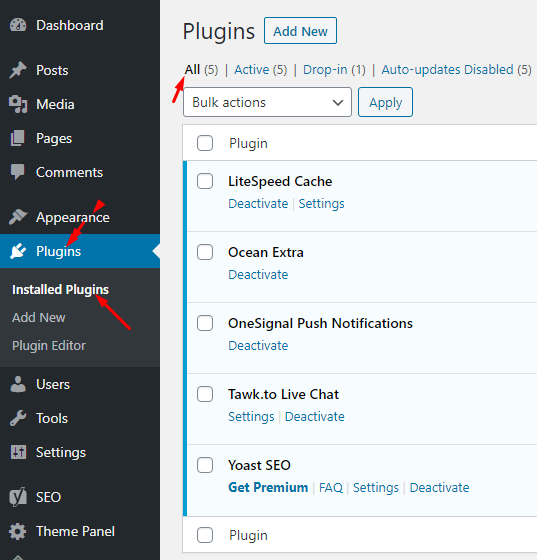
Just need to login to your system and check how many plugins need Updates. Also check which are the inactive or extra plugins which you don’t need or without those you can easily do your work.
One of the best thing to remember in this section is to remove the default theme mostly people do not remove default theme and keep those.
GO to the admin dashboard and check the inactive plugins under PLUGIN->INSTALLED PLUGIN->INACTIVE.
PLUGIN->INSTALLED PLUGIN->INACTIVE
Cache Plugin and its configurations:
Now a days there are a lot of cache plugins which you can use to get a speed on your site but the question is how to use these plugins on your site.
I must say configuration of a cache plugin is an important and critical phase. Here are some popular cache plugins.
Using above plugins you can optimize extra CSS and JS but the question is where it came from. Extra CSS come in the Ready made themes so to avoid these better to use a custom theme that gives you the css and js that you needed.
Chose a Good Hosting server:
The best thing and the hard decision to make is the chose of good and reliable server.
If you have a big sized WordPress site and you bought a shared plan that is not a good move at all. There are some things which you need to take care of before buying a server.
Your target location and server location
Your site content and your server capacity
Selection of Server providers
Shared, VPS or dedicated server choice.
These are some steps and thing you need to take care of before doing and looking for speed. these are Factors Affecting WordPress website page Speed. And we also stated how you can remove Factors Affecting WordPress website page Speed.
How to create and access email account on CyberPanel?
In this article i am going to explain a simple way to create email account on CyberPanel and access your email on CyberPanel.
So basically here we only discuss how to create and access email on CyberPanel. We do not going in to any other details like setup the whole procedure.
This article has following steps:
Create New Email account on CyberPanel
Access through rainloop desk
Change password for email
This guide is for basic user so if you are an expert you can comment if we miss any thing in article.
Create New Email account on CyberPanel:
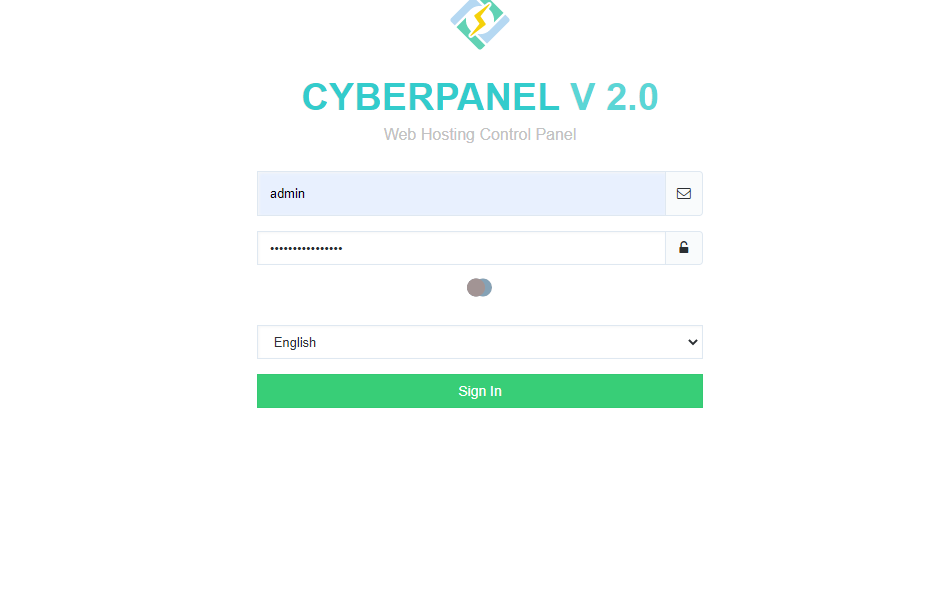
To create a new email account in CyberPanel log into your CyberPanel account using credentials.
Visit this your CyberPanel URL looks like:
https://<server ip>:8090
CyberPanel
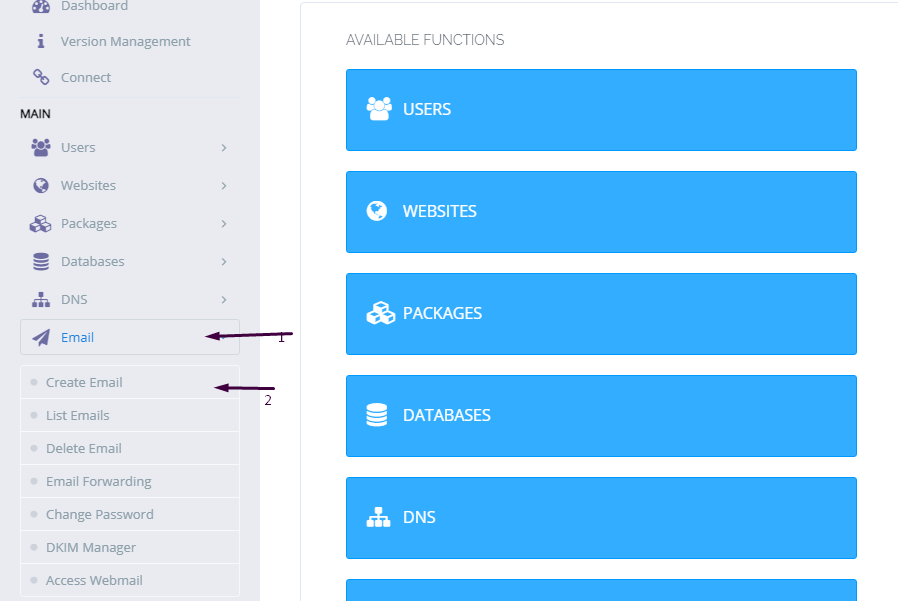
Now go to the EMAIL-> CREATE NEW EMAIL option in side menu.
EMAIL-> CREATE NEW EMAIL
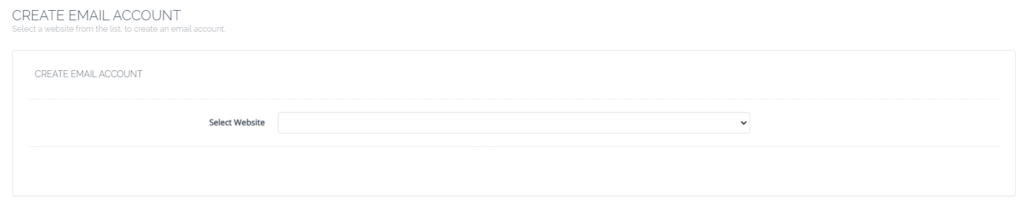
On the Create new email screen you need to select the Website for which you want to create email account.
select the Website
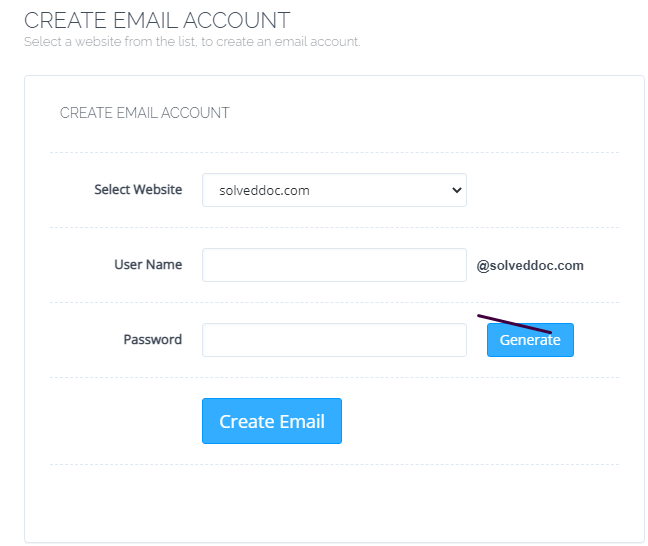
Now add the required details. like:
User Name
Password (better to generate random password from button)
Provide Information
Provide details and Press Create Email button you can see the massage.
Email with id : test@solveddoc.com is successfully created.
Access through rainloop desk:
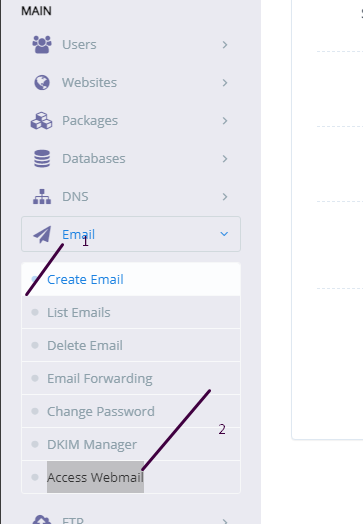
To access your email account you need to got to the:
Email-> Access Webmail
Access Webmail
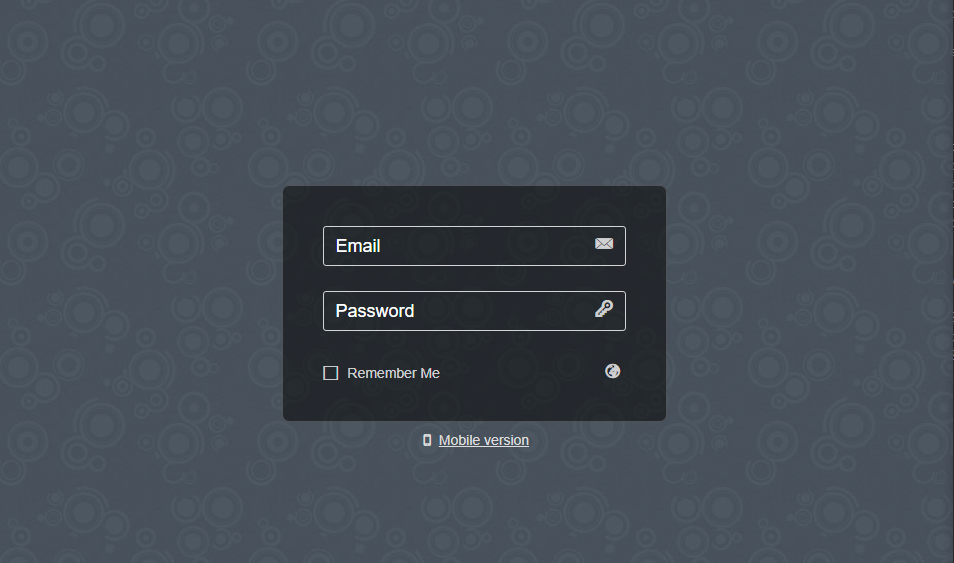
When you click on Access webmail it will navigate you to the:
https://<server ip>:8090/rainloop/index.php
Here you can see this screen.
RainLoop
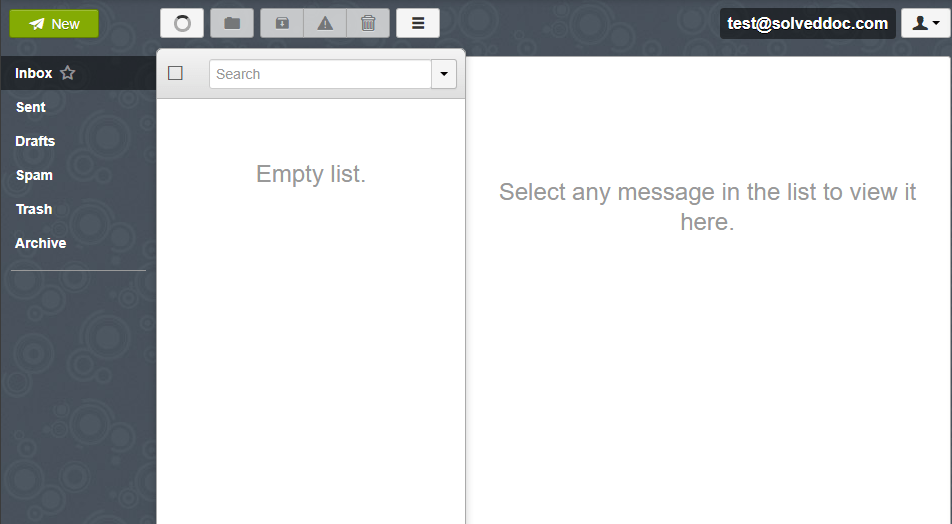
Provide the required details and get login. Here is the dashboard you see once login.
RainLoop DashBoard
This is a tutorial to create and login not the whole setup is included in it.
Change password for email:
If you want to change the password of any existing mail this is very easy using CyberPanel.
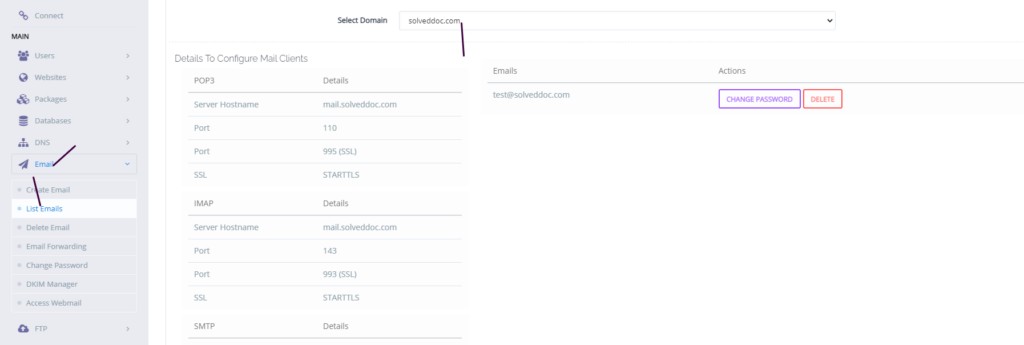
Go to the EMAIL->LIST EMAIL select the website for which the email password you want to change.
Email Password
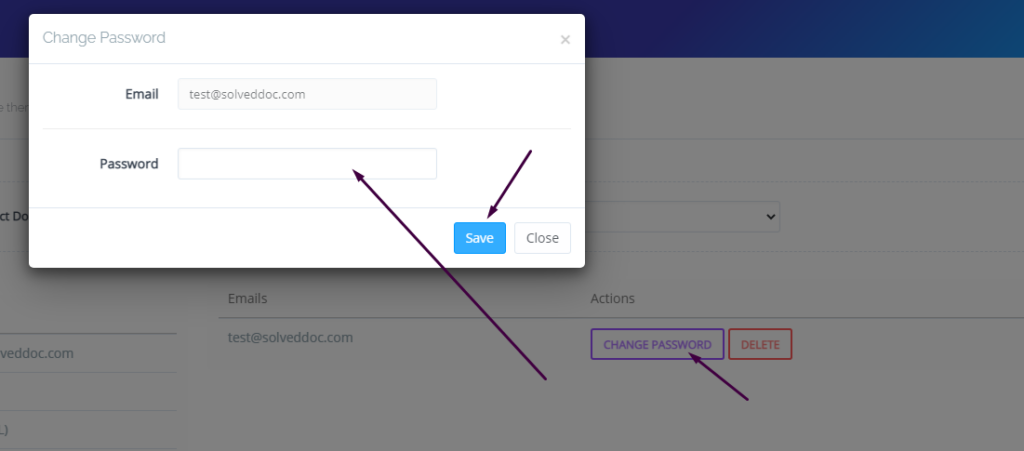
You can see the change password button IN front of the the mail press that. When you press a prompt appears and ask for new password provide new password and click save.
New Password
This is a basic tutorial for email creation and access. Please leave your comment below if we need to change any thing in this article.
CyberPanel is next generation hosting control panel. CyberPanel is powered by LiteSpeed Technologies.
In CyberPanel you can create new users easily and allow them access so they can manage their website settings there.
CyberPanel allow three types of user access ADMIN, USER, and RESALLER. You can easily create new account of any type according to the requirement of user.
How to create a new user account in CyberPanel:
The process of creating user, admin and reseller account is same i will tell you where the difference is during creation steps.
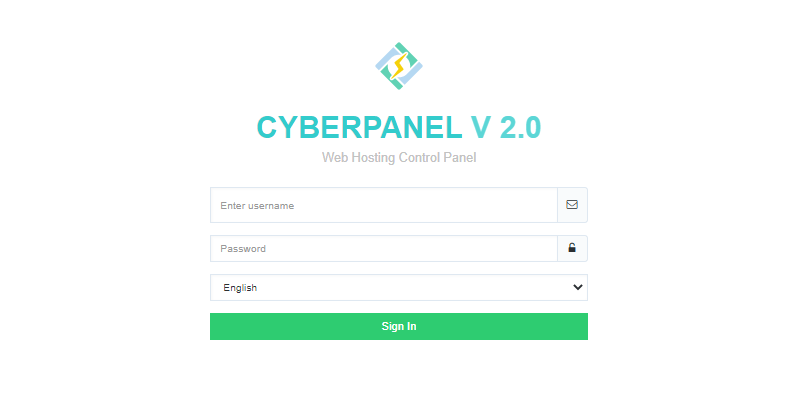
Login to your cyberpanel using port 8090.
Step 1:
In left menu go to Users-> CREATE NEW USER or navigate to this URL
https://<Yourip>:8090/users/createUser
Step 2:
Now Provide the information that need to create new user:
First Name
Last Name
Email
Select ACL ( admin, reseller, user)
Websites Limit (Put 0 for unlimited)
Username
Password (Press Generate for strong)
Security Level (High or Low)
Here in Select ACL you can create the admin, user or reseller permissions. Admin has access for every thing, reseller has less access then admin and at last user has some specific access.
Step 3:
After providing these required information press create a user and user is created successfully now you can see your user by navigating to USERS->LIST USERS. Or visit this URL