Warning: Redis::get(): php_network_getaddresses: getaddrinfo for localhost failed: Name or service not known in /home/solveddoc.com/public_html/wp-content/plugins/litespeed-cache/src/object-cache.cls.php on line 674 server techniques Archives - Solveddoc
Vultr Cheapest VPS Plans in 2025 – Best Budget Options Compared
In this article i am going to tell he vultr cheapest VPS plans that vultr offers. We already have an article on the Vultr vps in detials in which everything about vultr vps is explained but this is special for the low bughet vps from vultr.
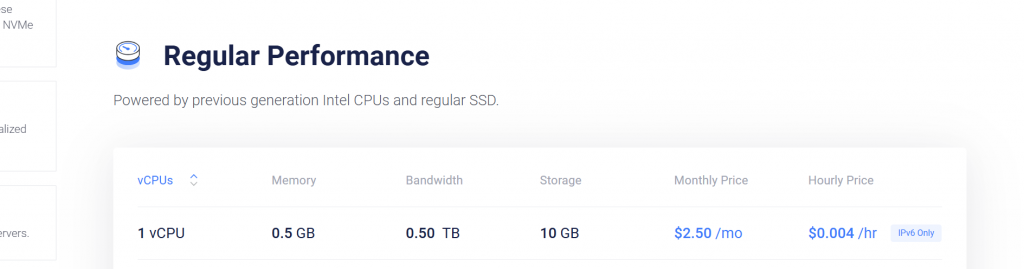
in this section we will see only one plan that is the cheapest and i can see no one offer price below then that. This plan cost you only 2.50$ a month.
vCPUs: 1
Memory: 0.5 GB
Bandwidth: 0.50 TB
Storage: 10 GB
Monthly Price: $2.50 per month
Hourly Price: $0.004 per hour
Notes: IPv6 Only (no IPv4 support)
vCPUs
Memory
Bandwidth
Storage
Monthly Price
Hourly Price
Notes
1 vCPU
0.5 GB
0.50 TB
10 GB
$2.50 /mo
$0.004 /hr
IPv6 Only
There is only one thing that will attract you in this plan is the cost nothing else.
⚠️ What You Should Know Before Choosing Vultr Cheapest VPS Plan
If you’re considering Vultr’s cheapest VPS plan, it’s a super budget-friendly option — but it does come with a few limitations you should be aware of:
No IPv4 – Only IPv6 This is a big one. Most websites and services still rely on IPv4. Since this plan only includes IPv6, many things (like websites, emails, or APIs) may not work out of the box unless you pay extra for an IPv4 address or set up workarounds.
Very Low RAM – Just 0.5 GB With only half a gig of memory, you’ll be limited to running very lightweight applications. Trying to run WordPress or a database on this might be tough unless you heavily optimize everything.
Single CPU Core One virtual CPU means limited processing power. Fine for small tasks, but not ideal if you’re expecting any real traffic or running anything CPU-heavy.
Small Storage – 10 GB SSD The storage is tight. It’s enough for a tiny project or static website, but don’t expect to store much beyond basic files.
Limited Bandwidth – 500 GB/Month Half a terabyte might sound like a lot, but if your site or app serves large files or media, you might hit that cap faster than expected.
No DDoS Protection Included At this price point, don’t expect built-in security features like DDoS protection — it’s more of a DIY approach here.
No Backups or Snapshots If you want to back up your server, you’ll need to handle that manually or pay for Vultr’s backup services separately.
Not Great for All Software Due to the limited resources, some software might not even install properly — especially ones that expect a bit more RAM or disk space.
✅ Best Use Cases:
This plan is great for developers who want to experiment, set up a small IPv6-only project, or learn Linux on a tight budget. But for anything serious or client-facing, you might want to step up to a slightly higher plan that includes IPv4 and more resources.
This is the Vultr cheapest vps. but if you want low price vps is any other catagory of vultr other then the regular minimum cost per month will ve the 6.0$.
But the 6$ vps is not a bad choice or not bad for your site that will give you high performce then this.
Cloud Compute Easy-to-use and affordable virtual machines (VMs) suitable for a wide range of everyday workloads.
Optimized Cloud Compute High-performance VMs featuring NVMe SSDs and isolated environments — no “noisy neighbors” impacting your performance.
Cloud GPU Access virtualized NVIDIA GPUs at affordable rates — great for machine learning, AI, and graphical workloads.
Bare Metal Dedicated single-tenant servers giving you full hardware control with no virtualization layer.
Direct Connect A secure way to privately connect your services within the Vultr ecosystem — ideal for hybrid cloud environments.
Kubernetes Engine Managed Kubernetes clusters to deploy, scale, and manage containerized applications easily.
Databases Fully managed databases that are ready to use right out of the box — no setup or maintenance needed.
Block Storage Scalable NVMe-powered network-attached storage for high-speed and reliable data storage needs.
How to Deploy and Configure a Vultr VPS in Minutes?
f you’re searching for a powerful, flexible, and affordable VPS hosting solution, Vultr VPS deserves your attention. Whether you’re a developer, small business owner, or running high-performance applications, Vultr offers a global cloud infrastructure designed for speed, reliability, and full control. With data centers in over 20 locations worldwide, scalable resources, and competitive pricing, Vultr has become a go-to choice for users looking to move beyond shared hosting.
In this article, we’ll explore everything you need to know about Vultr VPS—from features and setup to performance and pricing—so you can decide if it’s the right fit for your next project.
Introduction to Vultr VPS
If you’re stepping into the world of virtual private servers, Vultr is one name you’ll likely come across—and for good reason. Vultr offers a simple yet powerful platform for anyone looking to host websites, run applications, or even experiment with personal projects. Whether you’re a seasoned developer or just starting out, Vultr’s VPS (Virtual Private Server) solutions are designed to give you full control, speed, and reliability—without breaking the bank.
Imagine having your own private corner of the internet where you can build and manage things your way. That’s exactly what a Vultr VPS offers. With data centers spread across the globe, a clean user interface, and a variety of OS and app deployment options, it’s a go-to choice for tech enthusiasts and businesses alike.
In this guide, we’ll walk you through the basics of Vultr VPS—from what it is, to how it works, and why so many people are choosing it for their cloud hosting needs. Whether you’re hosting a WordPress site, setting up a game server, or launching a startup app, Vultr makes it easy to scale and grow on your terms.
Why Choose Vultr?
With so many hosting providers out there, choosing the right one can feel overwhelming. So why do so many people turn to Vultr? Simply put—Vultr strikes a perfect balance between power, simplicity, and affordability.
One of the standout features is control. Vultr gives you full root access to your VPS, meaning you’re free to install anything you need, tweak settings to your liking, and run your server exactly the way you want. Whether you’re a developer looking to spin up a quick environment, or a small business needing reliable performance, Vultr doesn’t box you in.
Then there’s speed. With 30+ global data centers, your websites and applications can live closer to your users, ensuring faster load times and smoother experiences. It’s like bringing your content to your audience’s front door.
Vultr also makes getting started incredibly easy. With one-click app deployments, a clean dashboard, and flexible pricing that scales with your needs, you don’t have to be a sysadmin to feel confident here.
And let’s not forget transparency. You pay for what you use—no hidden fees, no confusing contracts. Whether you’re running a hobby project or a mission-critical application, Vultr delivers the tools you need, with the clarity and support you deserve.
So, if you’re looking for a VPS provider that’s fast, flexible, and user-friendly, Vultr is definitely worth a look.
Types of Vultr VPS:
Vultr offers a variety of VPS (Virtual Private Server) options tailored to fit different needs—whether you’re just launching a basic web app or managing heavy workloads. Here’s a quick rundown of what you can choose from:
1. Cloud Compute These are the go-to VMs for everyday tasks. They’re affordable, easy to set up, and perfect for running common workloads without any fuss.
2. Optimized Cloud Compute Need more power and privacy? These VMs are built for performance, featuring NVMe SSDs and zero “noisy neighbors.” That means you get consistent speed and reliability.
3. Cloud GPU If you’re into machine learning, rendering, or gaming-related workloads, Vultr’s Cloud GPU option gives you access to virtualized NVIDIA GPUs at a budget-friendly price.
4. Bare Metal For those who want full control, Bare Metal servers offer dedicated physical hardware. No sharing, just raw power—ideal for demanding projects.
5. Direct Connect This feature lets you privately link Vultr services, which is great for setting up secure internal networks between your cloud resources.
6. Kubernetes Engine Prefer containers? Vultr’s managed Kubernetes clusters make it super easy to deploy and scale containerized apps without handling all the backend complexity.
7. Databases Want a database that works right out of the box? These managed databases save you time on setup and maintenance, so you can focus on building your app.
8. Block Storage Need more space? Vultr’s block storage gives you fast, NVMe SSD-based storage that you can attach to your VMs as needed.
If you’re just getting started or looking for a reliable VPS without breaking the bank, Vultr’s Regular Performance plans are a solid choice. These plans are powered by previous-generation Intel CPUs and regular SSDs, making them ideal for basic workloads, websites, and testing environments.
Here’s a quick look at what you can expect:
Starting at just $2.50/month, you can get 0.5 GB RAM, 10 GB storage, and 0.5 TB bandwidth. That’s perfect for small projects or learning Linux on a budget.
For a bit more power, $5/month gets you 1 GB RAM and 25 GB of storage—still very affordable and great for running lightweight apps.
As your needs grow, you can scale all the way up to 24 vCPUs with 96 GB RAM and 1,600 GB of SSD storage, priced at $640/month.
Here’s a general breakdown of the options:
vCPUs
Memory
Storage
Bandwidth
Monthly Price
Hourly Price
1
0.5 GB
10 GB
0.5 TB
$2.50
$0.004/hr
1
0.5 GB
10 GB
0.5 TB
$3.50 (IPv6 only)
$0.005/hr
1
1 GB
25 GB
1.0 TB
$5.00
$0.007/hr
1
2 GB
55 GB
2.0 TB
$10.00
$0.015/hr
2
2 GB
65 GB
3.0 TB
$15.00
$0.022/hr
2
4 GB
80 GB
3.0 TB
$20.00
$0.03/hr
4
8 GB
160 GB
4.0 TB
$40.00
$0.06/hr
6
16 GB
320 GB
5.0 TB
$80.00
$0.11/hr
8
32 GB
640 GB
6.0 TB
$160.00
$0.219/hr
16
64 GB
1280 GB
10.0 TB
$320.00
$0.438/hr
24
96 GB
1600 GB
15.0 TB
$640.00
$0.877/hr
Whether you’re running a small blog or spinning up larger deployments, these plans let you scale at your own pace while keeping costs manageable.
💸 Vultr High Performance VPS Pricing (AMD Plans)
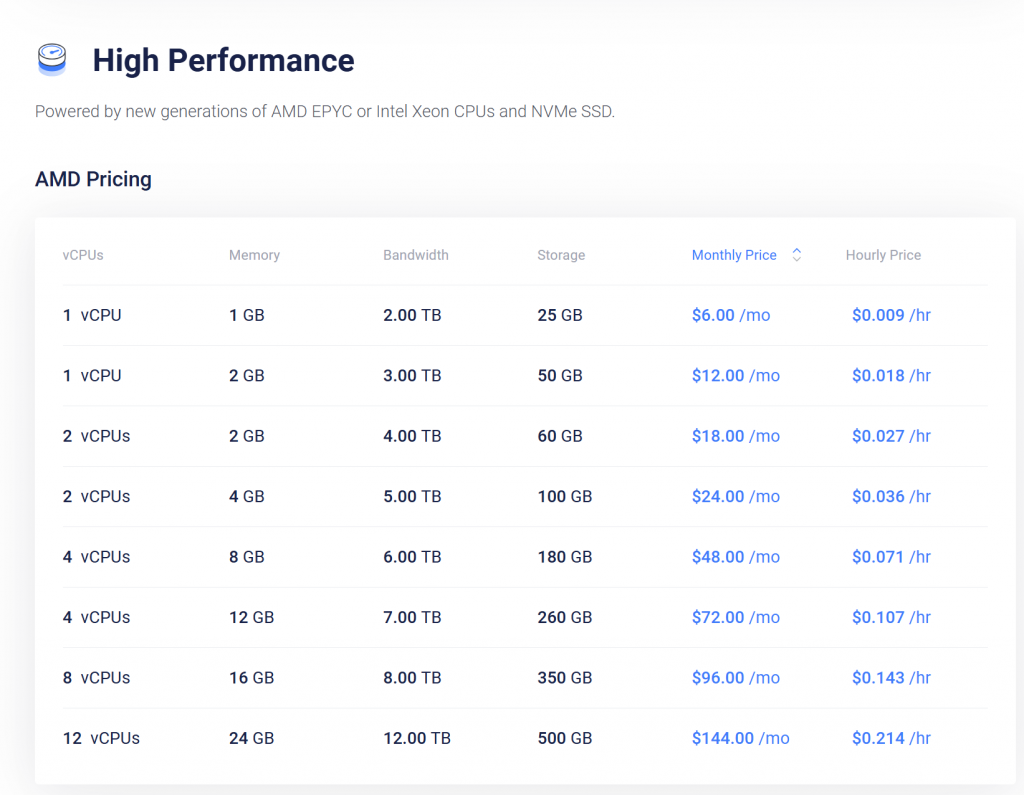
Vultr’s High Performance plans, powered by AMD EPYC or Intel Xeon CPUs with blazing-fast NVMe SSD storage, are designed for users who need serious speed without the enterprise price tag.
Here’s a simplified look at what you get:
Plan
vCPUs
Memory
Bandwidth
Storage
Price (Monthly)
Hourly Rate
💡 Starter
1 vCPU
1 GB RAM
2 TB
25 GB
$6/mo
$0.009/hr
Basic Boost
1 vCPU
2 GB RAM
3 TB
50 GB
$12/mo
$0.018/hr
Developer Duo
2 vCPUs
2 GB RAM
4 TB
60 GB
$18/mo
$0.027/hr
Performance Plus
2 vCPUs
4 GB RAM
5 TB
100 GB
$24/mo
$0.036/hr
Team Power
4 vCPUs
8 GB RAM
6 TB
180 GB
$48/mo
$0.071/hr
Pro Setup
4 vCPUs
12 GB RAM
7 TB
260 GB
$72/mo
$0.107/hr
Scaling Giant
8 vCPUs
16 GB RAM
8 TB
350 GB
$96/mo
$0.143/hr
Enterprise Build
12 vCPUs
24 GB RAM
12 TB
500 GB
$144/mo
$0.214/hr
🧠 Quick Thoughts:
✅ Budget Friendly: The $6/mo plan is a great entry point for developers, learners, or small apps.
🚀 Scale As You Grow: Flexible scaling makes it ideal for startups and businesses that want to start small and grow big.
💾 NVMe SSD Storage: Ensures lightning-fast I/O performance—perfect for databases, apps, and websites with real-time needs.
Want help choosing the best plan based on your project type? Or shall I compare these with DigitalOcean and Linode pricing for you?
Check out the Intel plan options:
vCPUs
Memory
Bandwidth
Storage
Monthly Price
Hourly Price
1
1 GB
2.0 TB
25 GB
$6.00
$0.009/hr
1
2 GB
3.0 TB
50 GB
$12.00
$0.018/hr
2
2 GB
4.0 TB
60 GB
$18.00
$0.027/hr
2
4 GB
5.0 TB
100 GB
$24.00
$0.036/hr
4
8 GB
6.0 TB
180 GB
$48.00
$0.071/hr
4
12 GB
7.0 TB
260 GB
$72.00
$0.107/hr
8
16 GB
8.0 TB
350 GB
$96.00
$0.143/hr
12
24 GB
12.0 TB
500 GB
$144.00
$0.214/hr
Vultr High Frequency Plans
For users who want extra performance and faster speeds, Vultr’s High Frequency VPS plans are a fantastic option. These are powered by 3GHz+ Intel Xeon CPUs and come with blazing-fast NVMe SSDs, which makes them ideal for performance-critical applications—think high-traffic websites, databases, and more responsive apps.
Here’s what makes them stand out:
Starting at $6/month, you get 1 vCPU, 1 GB of RAM, and 32 GB of NVMe storage—plenty for speedy small projects.
Need more juice? Mid-tier plans like 3 vCPUs with 8 GB RAM and 256 GB storage come in at $48/month and are great for busy workloads.
If you’re all in on performance, the top plan offers 16 vCPUs, 58 GB RAM, and 1 TB of storage for $320/month—ready for some serious computing.
Here’s a quick breakdown of the plans:
vCPUs
Memory
Bandwidth
Storage
Monthly Price
Hourly Price
1
1 GB
1.0 TB
32 GB
$6.00
$0.009/hr
1
2 GB
2.0 TB
64 GB
$12.00
$0.018/hr
2
2 GB
3.0 TB
80 GB
$18.00
$0.027/hr
2
4 GB
3.0 TB
128 GB
$24.00
$0.036/hr
3
8 GB
4.0 TB
256 GB
$48.00
$0.071/hr
4
16 GB
5.0 TB
384 GB
$96.00
$0.143/hr
6
24 GB
6.0 TB
448 GB
$144.00
$0.214/hr
8
32 GB
7.0 TB
512 GB
$192.00
$0.286/hr
12
48 GB
8.0 TB
768 GB
$256.00
$0.381/hr
16
58 GB
9.0 TB
1024 GB
$320.00
$0.476/hr
Whether you’re running real-time apps or just want to shave off every millisecond possible, these high-frequency plans give you that edge—without needing to manage hardware.
These are some general plans you can check out here.
Getting Started with Vultr VPS
Deploying a Virtual Private Server (VPS) on Vultr is a straightforward process. Here’s a step-by-step guide to help you set up your VPS:
After registration, log in to your Vultr dashboard.
Add Billing Information:
Before deploying a server, you’ll need to add a billing method. Navigate to the ‘Billing’ section in your dashboard and provide the required payment details.
Deploy a New Server:
In your dashboard, click on the ‘Deploy New Server’ button.
Under ‘Choose Server’, select ‘Cloud Compute’.
Choose the CPU & Storage Technology that fits your needs, such as AMD High Performance or Intel High Frequency.
Select Server Location:
Pick a server location closest to your target audience to reduce latency. Vultr offers multiple locations worldwide, including cities in the USA, Europe, Asia, and Australia.
Choose an Operating System:
Under ‘Server Image’, select your preferred operating system. For instance, you can choose Ubuntu 22.04 LTS for a stable and widely-supported environment.
Select Server Size:
Determine the server plan based on your requirements. Vultr offers various plans with different CPU, memory, and storage capacities. For example, a plan with 1 vCPU, 2 GB RAM, and 50 GB NVMe storage is suitable for small to medium applications.
Additional Features (Optional):
Enable features like Auto Backups for data protection, IPv6 support, or DDoS Protection based on your needs.
Set Server Hostname and Label:
Assign a hostname (e.g., myserver.example.com) and a label to easily identify your server in the dashboard.
Deploy the Server:
Review your selections and click on the ‘Deploy Now’ button. Vultr will initiate the deployment, which typically takes a few minutes.
Access Your Server:
Once the server is deployed, navigate to the ‘Products’ section in your dashboard to view your instance.
Click on your server to find details like the IP address, username, and password.
Use an SSH client (e.g., Terminal on macOS/Linux or PuTTY on Windows) to connect to your server: ssh root@your_server_ip
Enter the provided password when prompted.
For a visual walkthrough, you might find this tutorial helpful:
Who Should Use Vultr VPS?
The beauty of Vultr is that it caters to a wide range of users—from curious beginners to seasoned tech pros. Whether you’re building something small or scaling something big, Vultr has a place in your toolkit.
✅ Developers & Programmers: If you love getting your hands dirty with code and need a customizable, no-limits environment, Vultr is a dream. You get full root access, a choice of operating systems, and the ability to deploy development stacks or frameworks with just a few clicks.
✅ Small Business Owners: Running a growing website, eCommerce store, or app? Vultr offers reliable performance and uptime without the expensive price tag. You can start small and scale up as your traffic grows—no headaches, no surprises.
✅ Tech-Savvy Hobbyists: Want to host a personal blog, set up a VPN, or play around with game servers or automation tools? Vultr makes it easy to explore and experiment without needing a PhD in networking.
✅ Agencies & Freelancers: Managing multiple client sites or web applications? Vultr’s intuitive control panel, snapshot features, and scalable instances help streamline your workflow and reduce turnaround time.
✅ Startups & Entrepreneurs: If you’re launching a new product or service, time and flexibility are everything. Vultr gives you a stable, powerful environment to iterate fast, test ideas, and push updates without delays.
In short, Vultr VPS is for anyone who wants control, performance, and peace of mind—without the usual complexities of traditional hosting.
Pros & Cons of Vultr VPS
No platform is perfect—but Vultr comes pretty close for many users. Here’s a balanced look at the ups and downs, so you can decide if it’s the right fit for your needs.
✅ Pros
1. Global Data Centers With over 30 locations worldwide, you can host your server close to your audience for faster performance and lower latency.
2. Full Root Access You get complete control over your server—perfect for developers and power users who like to customize and configure everything.
3. Flexible Pricing From budget-friendly plans to high-performance compute instances, you only pay for what you use. Great for scaling as your project grows.
4. One-Click Apps & OS Installs Quickly deploy WordPress, LAMP stacks, Docker, and more with a single click—saving time and hassle.
5. Fast SSD & NVMe Storage Blazing-fast storage means better site speed and quicker application performance.
6. Clean User Interface Their dashboard is modern, easy to use, and doesn’t overwhelm you with clutter or complexity.
❌ Cons
1. No Free Tier Unlike some competitors (like AWS or Google Cloud), Vultr doesn’t offer a free plan—though their cheapest plans start at just a few dollars a month.
2. Limited Support on Lower Plans Basic support is available, but more advanced help (like hands-on troubleshooting) may require paying extra for their premium support.
3. Manual Backups (Unless Paid) Automated backups are not included in base pricing and must be added as a paid feature, which can add up if you manage multiple instances.
4. Learning Curve for Beginners While the UI is user-friendly, VPS hosting still requires some technical knowledge—especially if you’re coming from shared hosting environments.
🔍 FAQs Inspired by Popular Search Queries
1. Vultr Pricing 💡 Topic idea: “Vultr VPS Pricing Explained – Plans, Add-ons & Cost Breakdown” Include current pricing tiers, hourly vs monthly billing, and what each plan includes.
2. Vultr Pricing Calculator 💡 Topic idea: “How to Use Vultr’s Pricing Calculator to Estimate Your Hosting Costs” Walk through setting up custom configurations and calculating costs based on traffic and storage needs.
3. Constant Charge on Credit Card 💡 Topic idea: “Why Vultr Keeps Charging Your Card – What You Need to Know” Explain Vultr’s prepaid balance system, auto-refill behavior, and how to manage billing preferences.
4. Vultr Bandwidth Pricing 💡 Topic idea: “Understanding Vultr Bandwidth Usage & Pricing” Cover bandwidth limits on plans, overage costs, and how to monitor or optimize bandwidth usage.
5. Vultr Locations 💡 Topic idea: “Where Are Vultr’s Data Centers? Full List of Global Server Locations” Talk about latency, choosing the best location for your audience, and how to deploy to specific regions.
6. Vultr Refund Policy 💡 Topic idea: “Does Vultr Offer Refunds? Their Policy Explained” Discuss how Vultr handles refunds (short answer: typically non-refundable), and what users can do if they’re unsatisfied.
7. Vultr Alternatives 💡 Topic idea: “Top 5 Vultr Alternatives for VPS Hosting (2025)” Compare providers like DigitalOcean, Linode, Hetzner, UpCloud, and AWS Lightsail, based on price, support, and features.
8. Vultr + GitHub 💡 Topic idea: “Using Vultr with GitHub – A Quick Deployment Guide” Show how developers can connect GitHub repos to Vultr instances for CI/CD workflows or auto-deployment.
🏁 Final Verdict: Is Vultr VPS Worth It?
If you’re looking for a balance of power, flexibility, and affordability, Vultr hits a sweet spot.
It’s not just for hardcore sysadmins or DevOps pros—even small businesses, startups, and curious learners can find great value in what Vultr offers. From its globally distributed data centers to its easy-to-use dashboard and competitive pricing, Vultr makes VPS hosting surprisingly accessible.
That said, it’s not a fully managed solution out of the box—you’ll need to be comfortable managing your own server (or at least willing to learn). But if you’re up for it, you’ll get far more control and performance than traditional shared hosting ever could provide.
💡 Bottom line? If you want to launch fast, scale smart, and stay in control—without breaking the bank—Vultr is absolutely worth a try.
Ultimate Power of DigitalOcean VPS: 5 Steps to Set Up Your VPS
DigitalOcean VPS clients need not look elsewhere when it comes to value offered for the price paid. When compared with industry competitors, DigitalOcean VPS stands our as a host with unparalleled performance, reliability, as well as flexibility.
Why Choose DigitalOcean VPS?
1. Speed
Speed and uptime are critical factors in website success. DigitalOcean VPS boasts state-of-the-art infrastructure and globally distributed data centers while other don’t, giving your website exposure to fast and efficient loading no matter where visitors are located. Do away with slow loading times and frustrated users, with Digital Ocean VPS, speed is on your side.
2. Complete Control
DigitalOcean VPS Options & Flexibility control puts you in control of your server fully. The customers are free to choose an Operating system, and configures the server to the preferred specifications. Would you like to scale resources to meet demand during peak traffic hours? Wish to install a specific software package? There is nothing in customer’s way with Digital Ocean VPS.
3. Advanced Security Features
One does not need any verification with DigitalOcean VPS, as this host keeps security as their utmost priority, offering built-in DDoS protection together, robust firewalls, and updates maintaining security for the clients’ websites.
How to Set Up a DigitalOcean VPS
Setting up a VPS on DigitalOcean is straightforward and efficient. Follow these steps to get started:
Create a Droplet – Choose your preferred operating system and server specifications.
Access Your Server – Use SSH to connect to your VPS securely.
Configure Security Settings – Set up firewalls, SSH keys, and security patches.
Install Required Software – Install a web server, database, and any additional tools you need.
Deploy Your Website or Application – Upload your files and configure your domain.
Who Can Benefit from DigitalOcean VPS?
Whether you’re a budding entrepreneur launching your first website or a seasoned developer in need of a reliable hosting solution, DigitalOcean VPS has everything you need to succeed. Don’t settle for mediocre hosting when you can have top-tier performance and reliability.
Make the Switch Today
In summary, DigitalOcean VPS offers the speed, control, and security necessary to take your website to the next level. Say farewell to slow load times and unreliable hosting providers—choose DigitalOcean VPS and experience the difference for yourself.
Your website deserves the best. Make the switch today and watch your online presence thrive!
Here’s a detailed article on setting up a VPS on DigitalOcean. Since I can’t include actual images here, I’ll describe what each image should contain so you can take screenshots while following the steps.
Setting up a Virtual Private Server (VPS) on DigitalOcean is a straightforward process. Whether you’re launching a website, a web application, or a personal server, DigitalOcean provides a user-friendly interface to deploy your VPS quickly. This guide will walk you through creating and configuring a VPS on DigitalOcean.
Confirm your email address and enter your billing details.
Step 2: Create a Droplet (VPS Instance)
Log in to your DigitalOcean account.
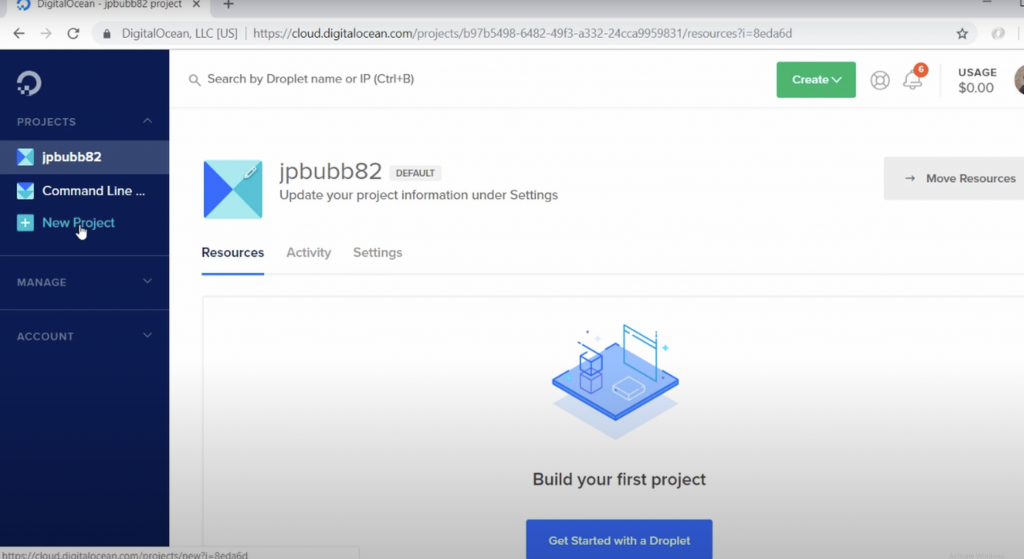
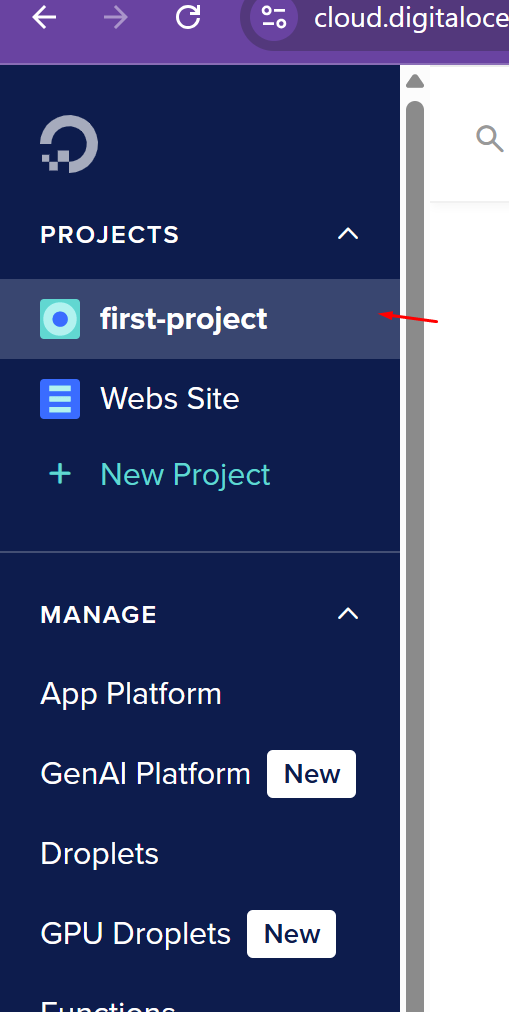
2. Select the project in which you want to deploy VPS.
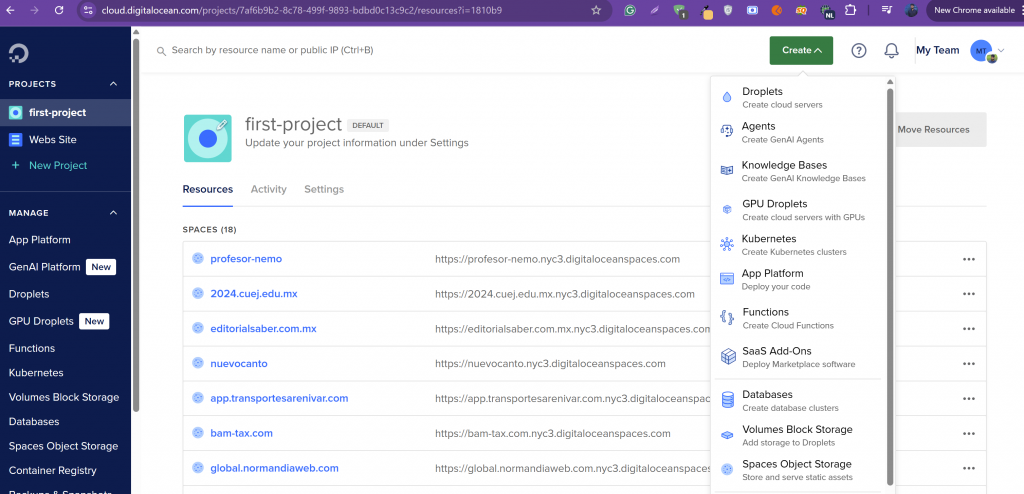
Click on Create → Droplets in the top-right corner.
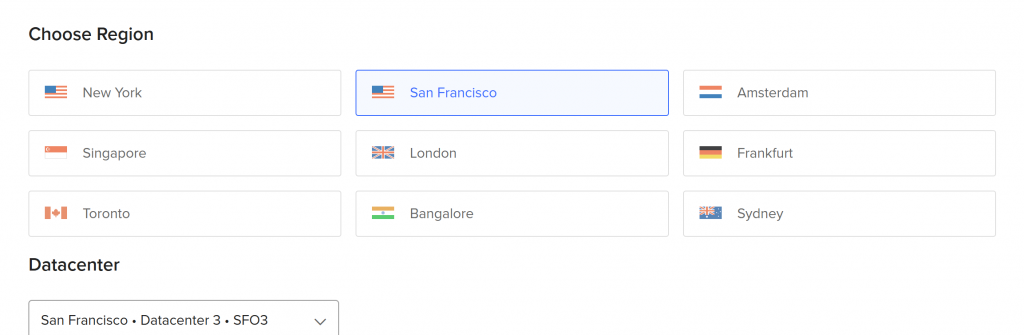
3. Choose Region:
You can choose any region that you want and also that suits you.
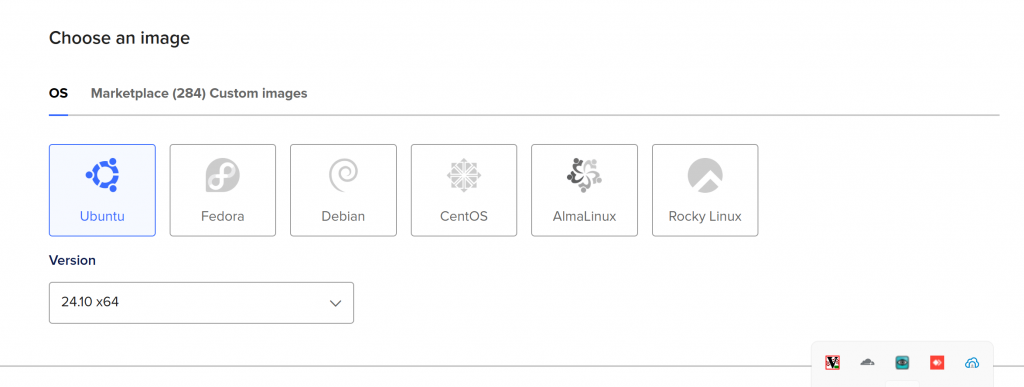
Choose an image (OS): Ubuntu, AlmaLinux, CentOS, Debian, etc.
Choose Size:
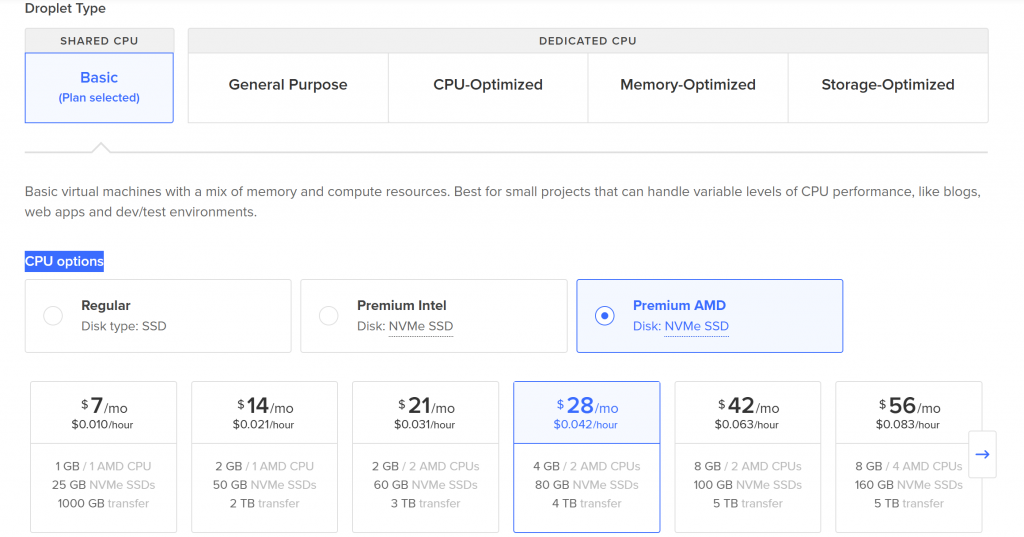
In this section you can choose few things, Droplet Type, CPU options.
Droplet Type
Shared CPU
Basic (Plan Selected)
Dedicated CPU Options (Not Selected)
General Purpose
CPU-Optimized
Memory-Optimized
Storage-Optimized
CPU Options
Regular (Disk type: SSD)
Premium Intel (Disk: NVMe SSD)
Premium AMD (Disk: NVMe SSD) (Selected)
Pricing and Specifications
Price
Hourly Rate
RAM
CPU
Storage
Bandwidth
$7/mo
$0.010/hour
1 GB
1 AMD CPU
25 GB NVMe SSDs
1000 GB transfer
$14/mo
$0.021/hour
2 GB
1 AMD CPU
50 GB NVMe SSDs
2 TB transfer
$21/mo
$0.031/hour
2 GB
2 AMD CPUs
60 GB NVMe SSDs
3 TB transfer
$28/mo
$0.042/hour
4 GB
2 AMD CPUs
80 GB NVMe SSDs
4 TB transfer
$42/mo
$0.063/hour
8 GB
2 AMD CPUs
100 GB NVMe SSDs
5 TB transfer
$56/mo
$0.083/hour
8 GB
4 AMD CPUs
160 GB NVMe SSDs
5 TB transfer
Would you like help in choosing the best plan for your needs?
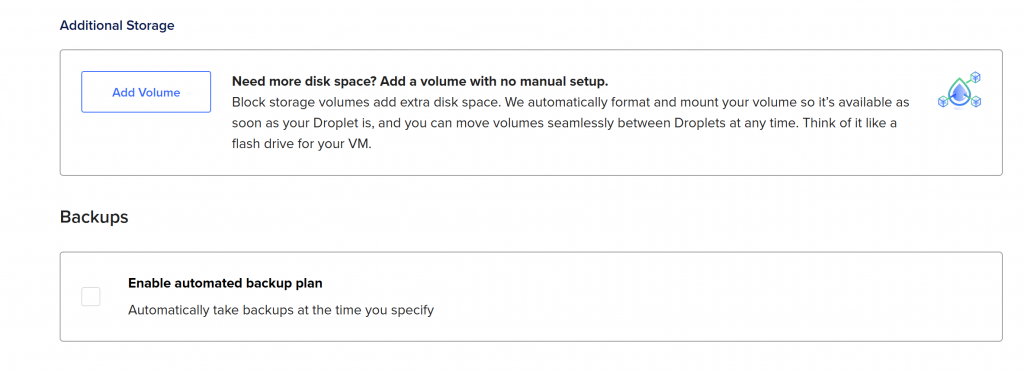
Additional Storage
Option to Add Volume
Provides extra disk space using block storage volumes.
Automatic formatting and mounting for immediate availability.
Volumes can be moved seamlessly between Droplets.
Functions like a flash drive for the virtual machine (VM).
Backups
Option to Enable Automated Backup Plan
Automatically takes backups at a specified time.
The checkbox for enabling backups is currently unchecked.
Would you like recommendations on whether to enable backups or add storage?
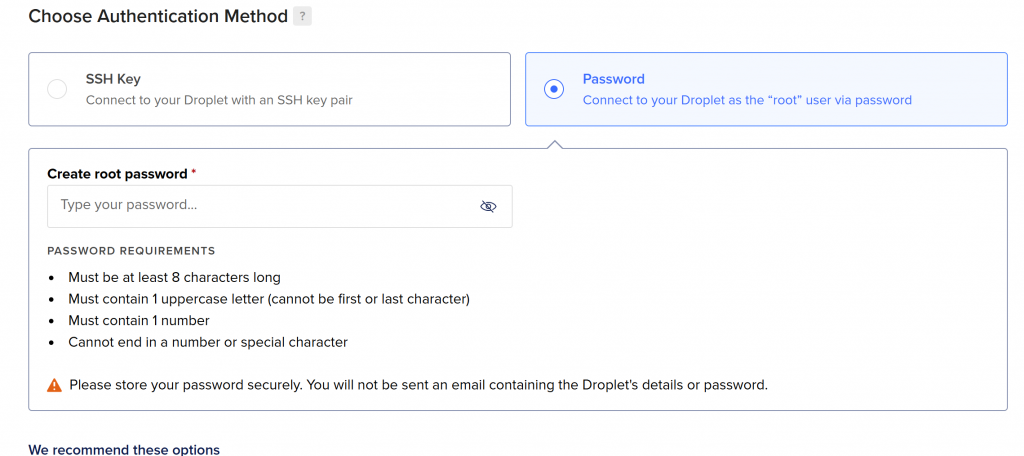
Choose Authentication Method
SSH Key (Not selected)
Connect to the Droplet with an SSH key pair.
Password (Selected)
Connect to the Droplet as the “root” user via password.
Root Password Requirements
Must be at least 8 characters long.
Must contain 1 uppercase letter (cannot be the first or last character).
Must contain 1 number.
Cannot end in a number or special character.
⚠ Important Notice:
Store your password securely.
You will not receive an email containing the Droplet’s details or password.
Would you like recommendations on securing your Droplet or choosing the best authentication method?
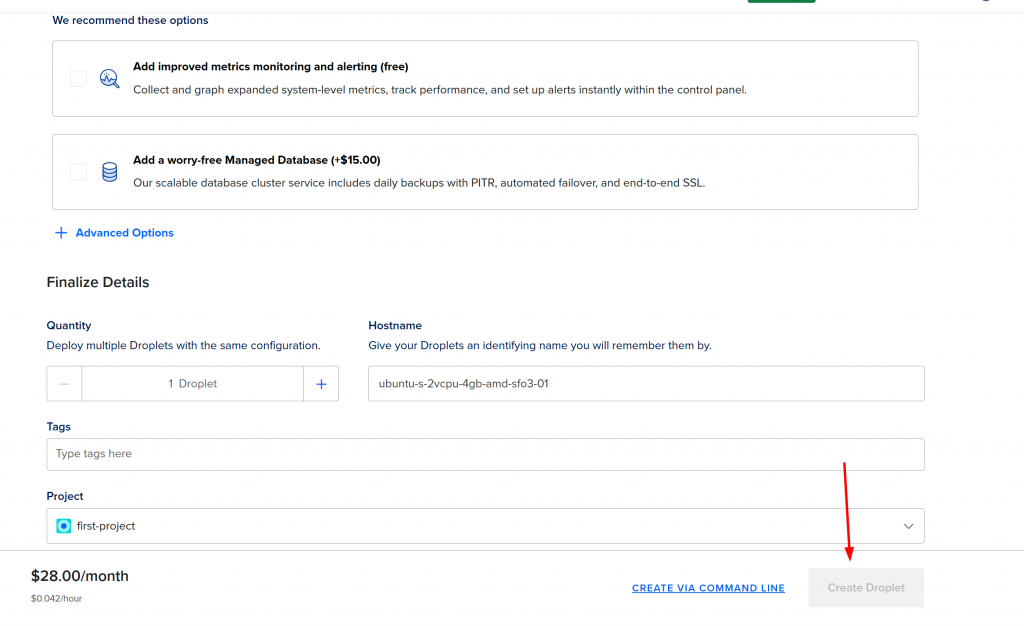
Here are the details from this final Droplet setup screen:
Recommended Options (Optional Add-ons)
Improved Metrics Monitoring and Alerting (Free)
Collect and graph system-level metrics
Track performance and set alerts instantly
Worry-Free Managed Database (+$15.00)
Scalable database service
Includes:
Daily backups with PITR
Automated failover
End-to-end SSL
Finalize Details
Quantity:
1 Droplet (default, can increase if deploying multiple instances)
Hostname:
ubuntu-s-2vcpu-4gb-amd-sfo3-01
This is an auto-generated name that you can change to something more meaningful
Tags:
Empty field for adding tags (optional)
Project:
first-project (selected project for organizational purposes)
Create Droplet Button
The “Create Droplet” button is disabled (grayed out), likely because the root password hasn’t been set yet (as seen in your previous screenshot).
✅ Once the password is set (and meets all the criteria), the “Create Droplet” button will be enabled.
Would you like help picking a hostname or deciding on monitoring/database options?
Step 3: Connect to Your VPS
Once your droplet is created, you’ll see an assigned IP address.
Using SSH (For Linux/macOS): Open the terminal and enter: ssh root@your_droplet_ip If using an SSH key, no password is needed. Otherwise, enter the root password.
Using PuTTY (For Windows):
Download and open PuTTY.
Enter your Droplet’s IP address.
Click Open and log in as root.
📷 Image Suggestion: Screenshot of a terminal connected to the VPS.
Step 4: Update and Secure Your VPS
After logging in, update the system:
apt update && apt upgrade -y  # For Ubuntu/Debian
dnf update -y  # For AlmaLinux/CentOS
Set Up a New User (Optional but Recommended)
adduser yourusername
usermod -aG sudo yourusername  # For Ubuntu/Debian
usermod -aG wheel yourusername  # For AlmaLinux/CentOS
Set Up a Firewall (Recommended for Security)
ufw allow OpenSSH
ufw enable
📷 Image Suggestion: Screenshot of a successful SSH login and system update in progress.
Step 5: Install a Web Server (Optional)
If you’re hosting a website, install a web server like Apache or Nginx.
📷 Image Suggestion: Screenshot of the Apache or Nginx welcome page when accessed via the VPS IP address.
Conclusion
Your DigitalOcean VPS is now set up and ready to use! From here, you can configure databases, deploy applications, or set up a control panel like cPanel.
Would you like a downloadable version of this guide with images? Let me know! 🚀
How to setup hetzner dedicated server?
Hetzner is one of the known server providers. In this article, we will check how you can set up Hetzner Dedicated Server.
About Hetzner:
Hetzner is one of the most known companies for providing different types of web hosting servers like VPS and dedicated. Hetzner is a Germany-based web hosting company known for dedicated servers, cloud hosting, colocation & VPS registration services. Well, they provide high-performance servers at reasonable prices.
Key Features of Hetzner:
Dynamic Discount Cloud Services: Scalable cloud instances with flexible pricing.
Colocation — Take space in a data center to house your own server hardware Statusworte Meers, SALE!
Networking & Security: Includes DDoS protection, private networking, and both IPv4/IPv6 support.
Data Centers: Germany (Nuremberg, Falkenstein) and Finland (Helsinki).
Why Choose Hetzner?
Affordable price: Economical server plans compared to other providers.
Stable Infrastructure: New high-performance data centers.
Green: Energy-efficient hosting options.
Customizable Hardware: Tailor-made server configurations.
Type of servers Hetzner offers:
Hetzner has different types of servers to suit different needs. Here are the main types:
Hetzner Dedicated Servers
Standard Dedicated Servers – High-throughput bare metal servers.
Server auction – Older dedicated servers at a discount.
AMD & Intel Servers – best for different workloads.
Hetzner Cloud Servers
General Purpose — Optimizes both performance and cost.
Dedicated vCPU – Allocated CPU resources for demanding workloads.
Storage Instances — Well-suited for storage of large amounts of data.
Load Balancers – Efficiently distribute traffic.
Hetzner VPS (Virtual Private Servers)
This is what we call a Virtual Private Server (VPS), which provides private resources at a lower price.
Hetzner Colocation Services
Let you put your own hardware into Hetzner’s data centers.
Hetzner Storage Solutions
Storage Boxes – A cloud storage that is both secure and scalable.
Backup Storage — Remote backup for data protection.
Hetzner Web Hosting (Starting from €1.76/month)
Shared hosting solutions for beginners and businesses.
Includes domain hosting, email services, and website management tools.
Hetzner Managed Servers (Starting from €34.00/month)
Fully managed dedicated servers.
Ideal for users who need high performance without handling server administration.
Hetzner Servers location:
There are currently four network zones and six locations:
eu-central
us-east
us-west
ap-southeast
DE Falkenstein fsn1
US Ashburn, VA ash
US Hillsboro, OR hil
SG Singapore sin
DE Nuremberg nbg1
FI Helsinki hel1
How to Setup Hetzner dedicated server?
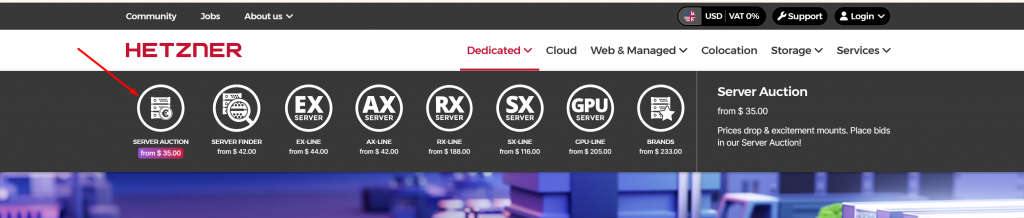
Hetzner’s Dedicated Server section, where they offer different types of Hetzner dedicated server. Here’s a breakdown of the various server categories shown in the image:
1. Server Auction (from €31.00)
These are used servers available at discounted prices.
Prices drop over time, allowing users to place bids.
Ideal for those looking for affordable dedicated servers.
2. Server Finder (from €37.30)
A tool to find dedicated servers based on specific requirements.
Helps customers filter available servers based on CPU, RAM, and storage.
3. EX Server (from €39.00)
Part of the Enterprise (EX) series.
Balanced performance servers for general business and hosting needs.
Uses high-performance CPUs (Intel or AMD) and fast SSD/NVMe storage.
4. AX-Line (from €37.30)
AMD-based dedicated servers offering great price-to-performance ratio.
Best for applications needing multi-core performance.
Usually features Ryzen or EPYC processors.
5. RX-Line (from €169.00)
Designed for high-performance workloads.
Uses AMD EPYC or Intel Xeon processors.
Ideal for databases, virtualization, and high-demand applications.
6. SX-Line (from €104.00)
Storage-optimized dedicated servers.
Equipped with large HDD or SSD storage arrays.
Best for backup storage, large datasets, and file hosting.
7. GPU Server (from €184.00)
Dedicated servers with NVIDIA GPUs.
Designed for AI, machine learning, rendering, and GPU computing.
Typically high-end configurations for enterprise use.
Now you can see all types of dedicated servers that Hetzner is providing you have to select the dedicated server type that you want to deploy. Different types of servers have different deployment time frames. For this, I will select the auction one.
The first thing is to select which type of dedicated server you want to deploy with the hetzner. Like for now from all the above I am going to select the hetzner auction dedicated server.
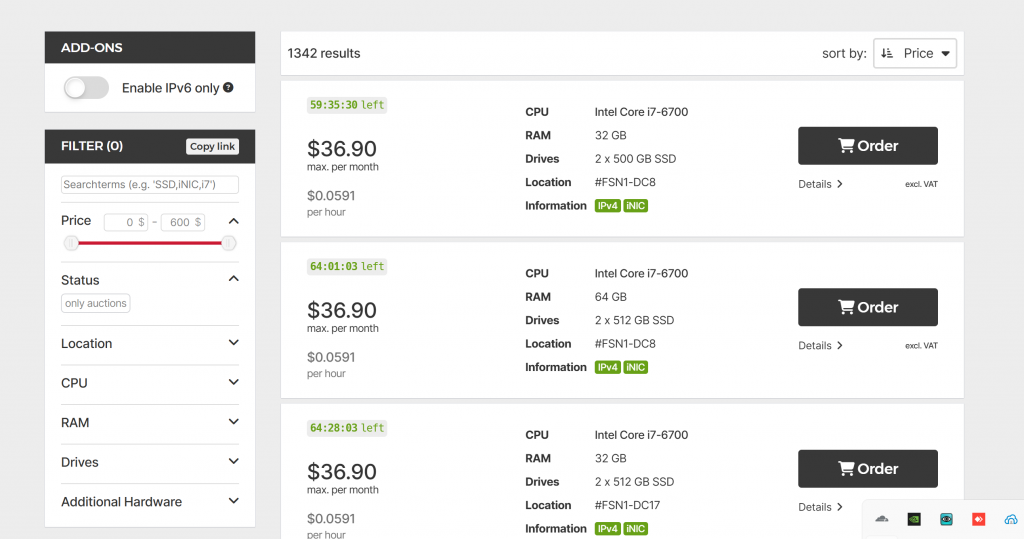
Now you can see below on the auction page all of the servers that are available in the Hetzner auction can be seen. Like right now for me I can see 1342 servers are available in the list.
Now here hetzner provides a very cool filter to get the server of exact your choice. Using this filter you filter the server according to your needs like CPU, RAM, location, etc as explained below.
This is the filter panel for searching and selecting Hetzner dedicated servers (especially in the Server Auction section). Here’s what each option means:
1. Search Terms
You can enter keywords like CPU model, RAM size, SSD type, or network card (e.g., i7, SSD, iNIC).
Helps in quickly finding servers that match your specifications.
2. Price Range
A slider lets you set a price range from 0 to 600 USD.
Helps filter servers within your budget.
3. Status
Shows only servers available in auctions.
Servers in auctions reduce in price over time until someone buys them.
4. Location
Lets you select a data center location (e.g., Germany, Finland, USA).
Useful if you need a server close to your target audience.
5. CPU
Filters based on CPU model and cores.
Example: You can select Intel i7, AMD Ryzen, or Xeon processors.
6. RAM
Lets you choose the amount of RAM (memory) you need.
Options typically range from 8GB to 512GB+.
7. Drives
Filters based on storage type:
HDD (for large storage)
SSD (for better speed)
NVMe (for ultra-fast performance)
8. Additional Hardware
Select special hardware options like:
iNIC (Intelligent Network Interface Card)
RAID controllers
Extra GPU (for AI/ML tasks)
How to Use It?
Set your budget with the price slider.
Choose the CPU and RAM based on your needs.
Pick storage type (SSD/NVMe for speed, HDD for large capacity).
Select a server location for better latency.
Use additional filters for GPUs, network cards, etc.
Click Search to find the best matching server.
Would you like help picking the best Hetzner server for your needs? 🚀
Buy Your Hetzner dedicated server Now:
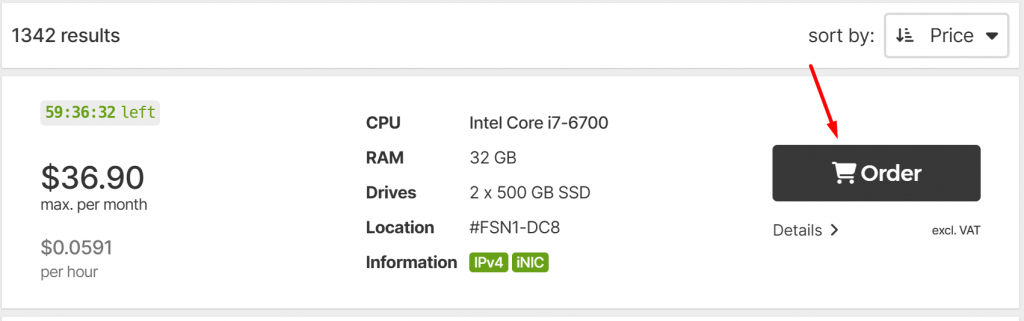
Just select your server and click on the cart button
Once you click on cart button your server is select and you need to pay now.
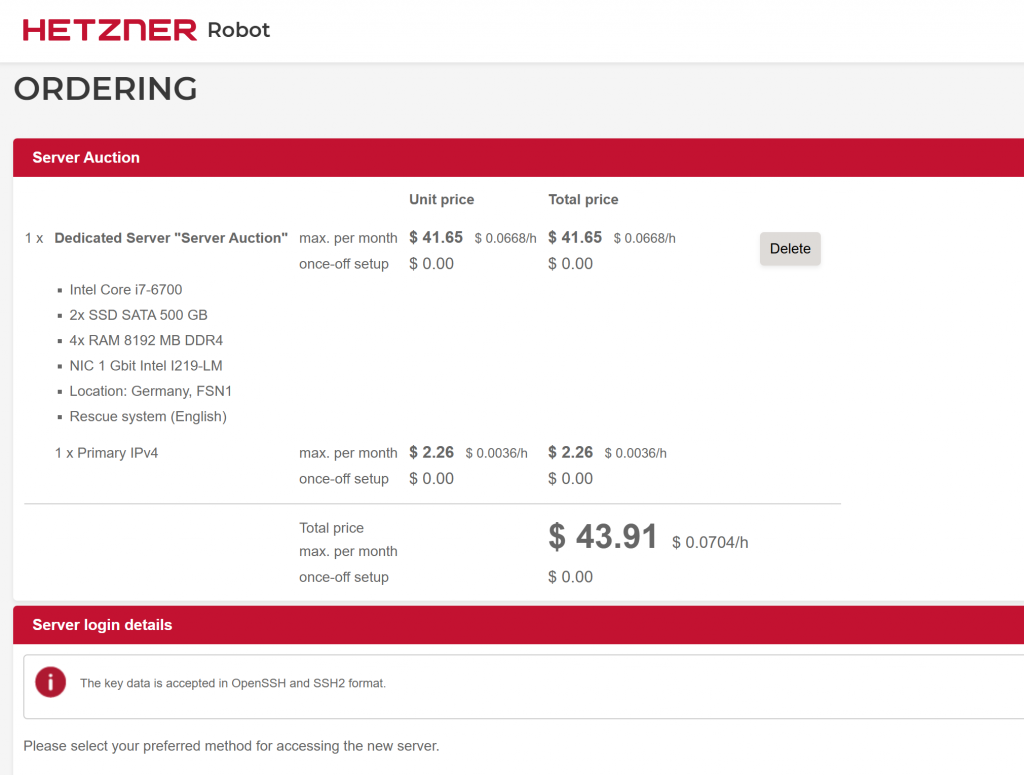
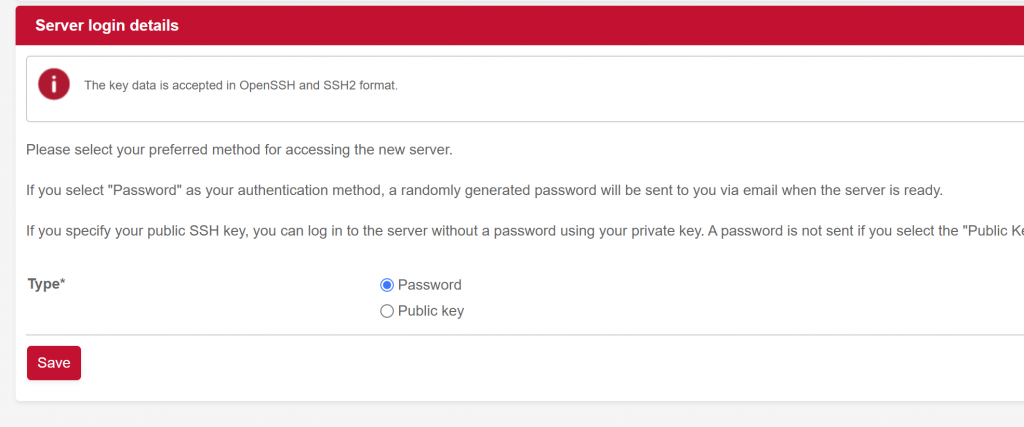
Now click on the Save button now and move on next button. Now one important thing you have to take care you should select password or public key on this screen.
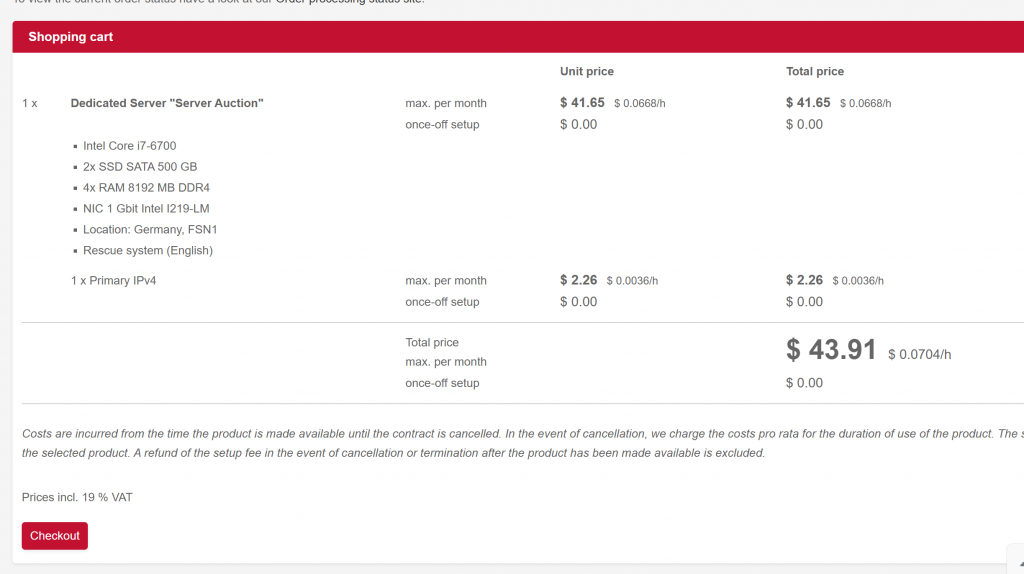
All done to get a dedicated server just click on the checkout button now.
Here if you are already logged in that will be great otherwise you will be redirected to https://accounts.hetzner.com/login here provide your logins and log in or you have to create a new account from here https://accounts.hetzner.com/signUp
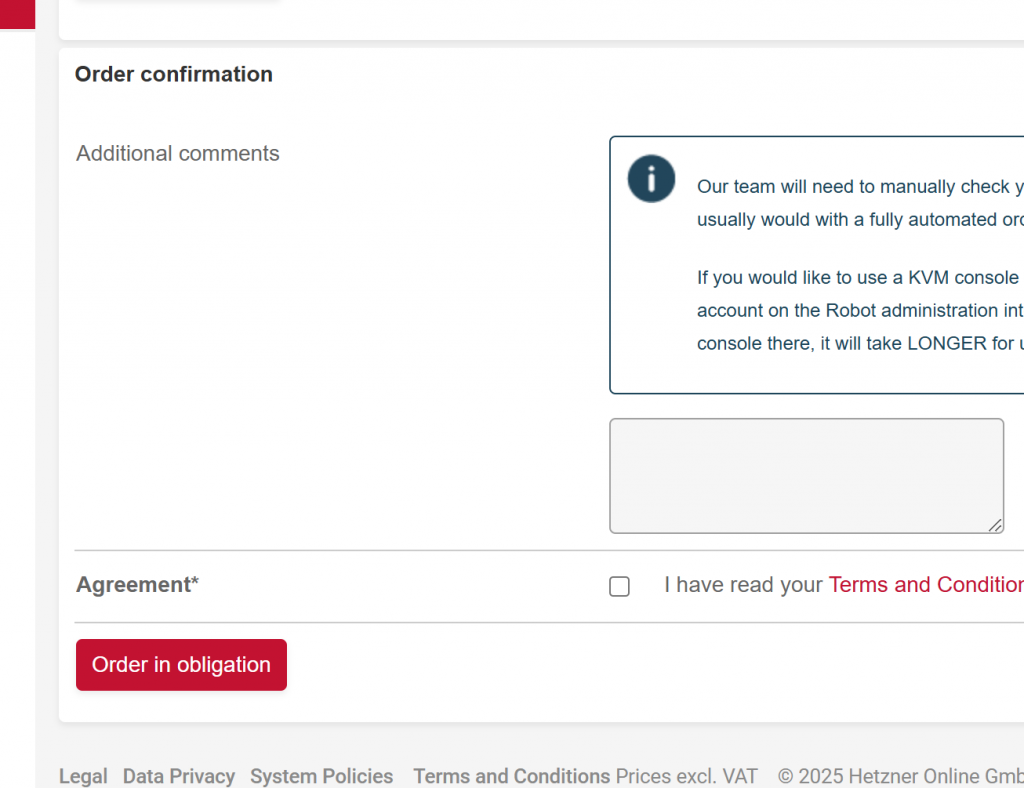
Just click on order confirmation now and all will be done.
How to add your SSH key in CyberPanel?
In some cases, you need to change the SSH port and create and use an SSH key. Securing SSH is one of the most important tasks of a system administrator. CyberPanel allows you to change SSH ports, disable root login, and save your SSH keys. In his article, we learn about how to add your SSH key to the server using CyberPanel
Step 1: Login to the CyberPanel dashboard
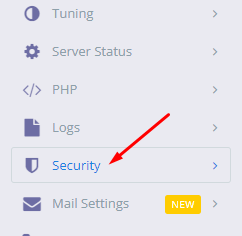
Step 2: On the left side menu scroll down Click on the Security
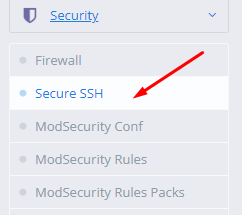
Step 3: Go to the Security->Secure SSH
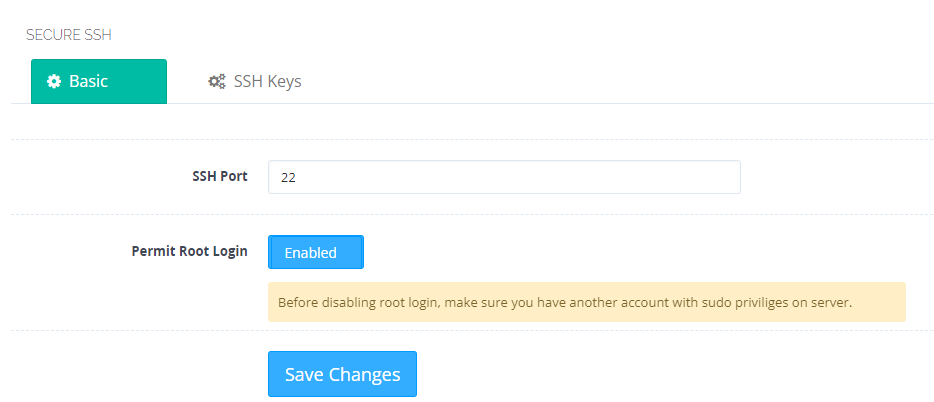
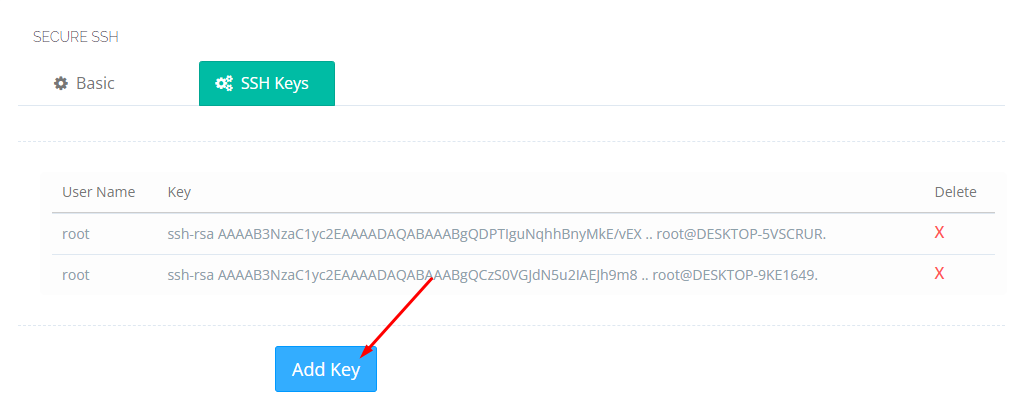
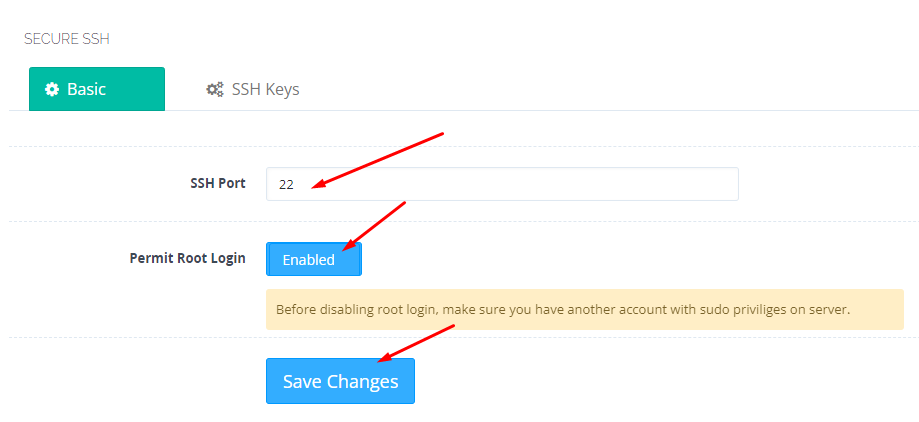
Now this page will be open. Here you can see the SSH port,permit root login
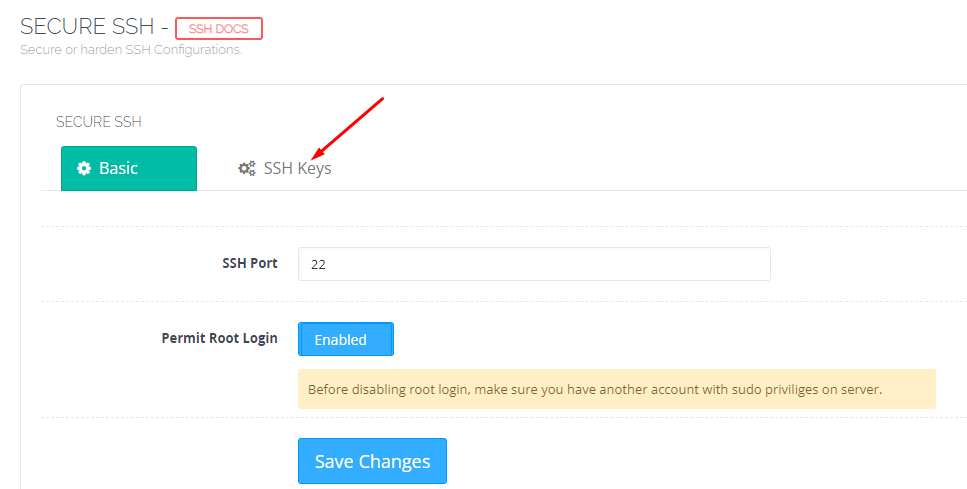
Step 4: Click on the SSh keys-> Add key
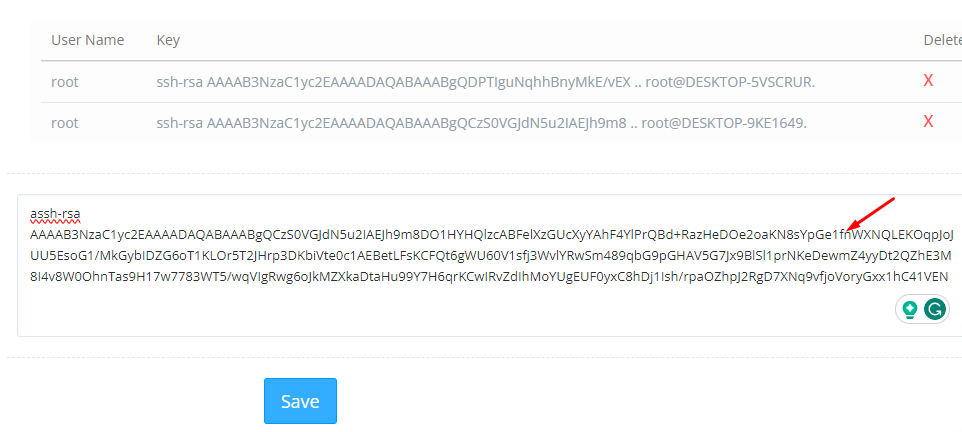
Step 5: After Clicking on the Add key you can paste your key and Click on save
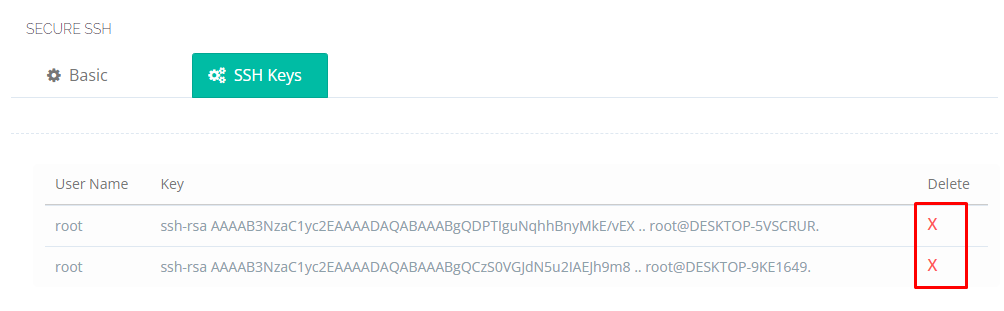
Step 6: You can delete your key By clicking on the ‘X’ button Listed here
Step 7: You can also change your port and enable or disable the permit root login after changing these Click on Save changes
What is Postfix and How to Install and Configure it?
In this article, we are going to be looking at Postfix. It is a Mail Transfer Agent (MTA) which is used to send and receive emails. It is currently used by 33% of internet mail servers. Let’s move on to installing the Postfix.
Installing Postfix
To install postfix you need to type in the following command:
You also need to install mailutils utility for Postfix to work correctly.
Configuring the Postfix
We need to configure the inet_interfaces in the Postfix main config file. The network interface addresses that this mail system receives mail on. Specify “all” to receive mail on all network interfaces (default), and “loopback-only” to receive mail on loopback network interfaces only
nano /etc/postfix/main.cf
When the file is opened, scroll down the page until you see the line:
inet_interfaces = all
Now it’s up to you on which interface you want to receive emails. You can either go with the default one this all which listens on all interfaces or you can replace it with loopback-only to listen only on localhost.
Another directive that we need to look at is mydestination, the list of domains that are delivered via the local_transport mail delivery transport. By default, this is the Postfix delivery agent which looks up all recipients in /etc/passwd and /etc/aliases.
Mine is configured to:
mydestination = localhost, localhost.localdomain
After making changes, you need to restart the Postfix.
sudo systemctl restart postfix
Testing the SMTP Server
Now it’s time to test the Postfix whether it can send an email or not using the mail the command which comes with the package mailutils that we installed earlier.
echo "This is the body of the email" | mail -s "This is the subject line" your_email_address
In place of your_email_address, enter the valid email address to which you want to send the email. Now check the account on which you have sent the mail.
Creating a new Hetzner server is a very easy process. In this article, I am going to tell you how easily you can create a server in Hetzner? You can create a server on the Hetzner cloud easily by following this article.
Hetzner is a service provider that provides you Hetzner dedicated server, Hetzner VPS server, and all. YOU just have to create a Hetzner account and log in to Hetzner and deploy any type of server.
Hetzner supports many Operating systems like ubuntu, centos, Debian, etc. the location of this service provider is only in Germany.
Hetzner servers are known for their reliability, high performance, and cost-effectiveness. Whether you’re hosting websites, running applications, or managing complex workloads, Hetzner offers a solid infrastructure with powerful hardware and excellent network connectivity. With flexible configurations and competitive pricing, it’s a go-to choice for businesses and developers looking for a dependable hosting solution.
Now follow these steps to set up a Hetzner server for you.
1. Login to Hetzner account:
first of all, you have to log in to your Hetzner account if you already and click here and log in if you don’t have then create an account and then log in.
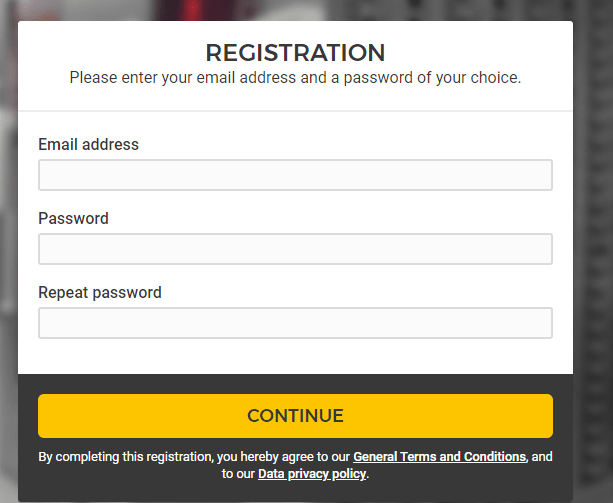
Provide all information to create an account and click the continue button to process for the creation of an account.
2. Go to you project
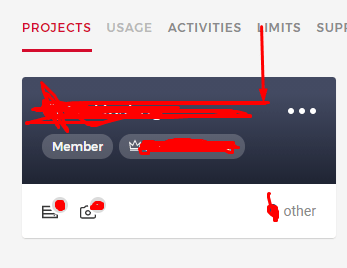
Once you created or logged in to your Hetzner account now have to go to any project that you have created in your account.
Click on the project and go to the project dashboard to create a new server.
3. Create a server
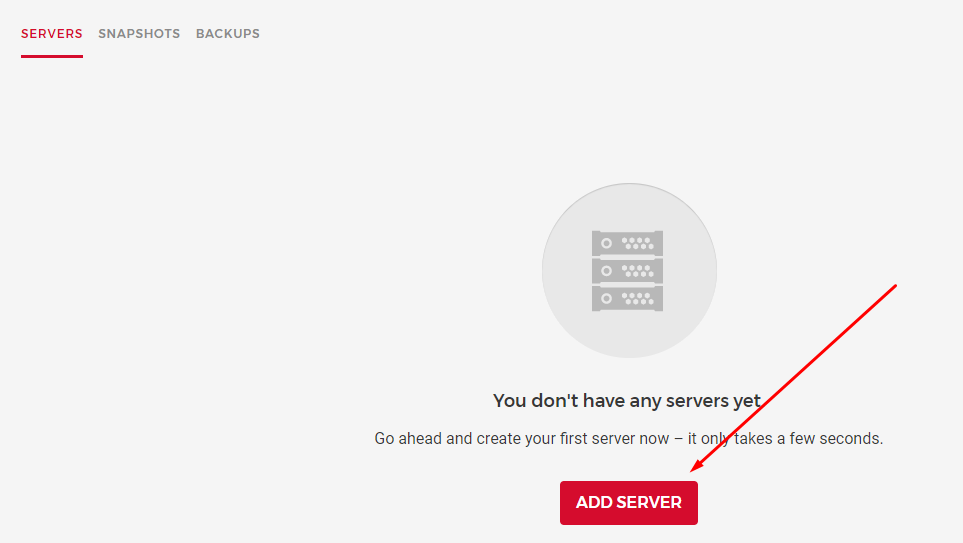
once you are in the project dashboard you can see a create a server button there. Click on that.
And it will redirect to the page where you have to provide and do all the setup.
Now you have to provide and select all information to create a server. This is the basic information that you need to provide while creating Hetzner dedicated server or Hetzner VPS.
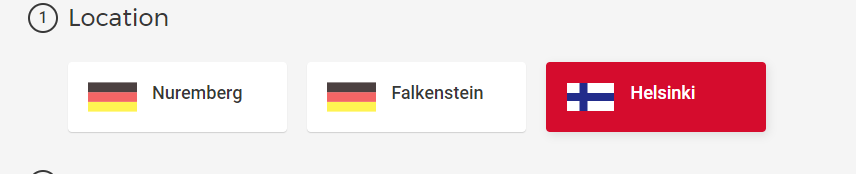
3.1 Location:
In first here you have to select the location where you want to take your server. Hetzner has only Germeny locations.
there are Nuremberg, Falkenstein, and Helsinki. You can go with any you are comfortable with.
3.2 Image:
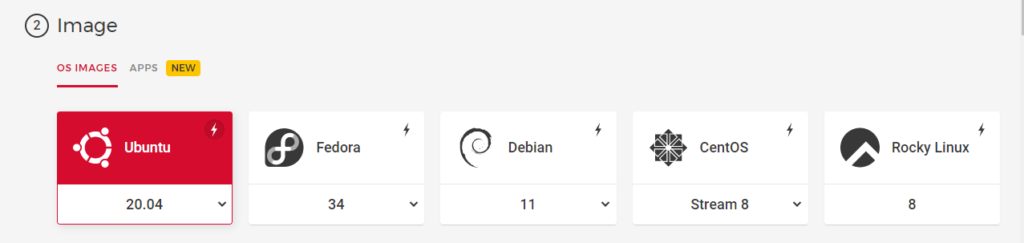
After selecting the location now select the Operating system for your server. You can select any OS on hetzner that you want to use for the server.
Hetzner Operating systems are:
Ubuntu 20.04
Fedora
Debian
CentOS
Rocky Linux etc
You can get any according to your choice.
3.3 Type:
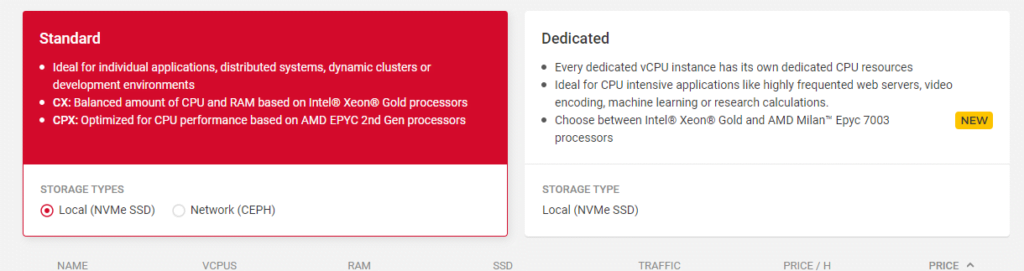
In this step you can choose a dedicated Hetzner server or a standard Hetzner VPS. You also have to choose the specification which you want for your server. like how many CPUs, RAM, etc
3.4 Volume:
if you want any extra volume you can attach it from here.
3.5 Network:
This option will allow you to create a Network for your server. DO if you want.
3.6 Firewalls- BETA:
The firewall is right now in Beta but if you want to order and use
3.7 Additional features:
Use Hetzner’s additional features in this option
3.8 SSH key:
Integrate the user SSH key that you want to access and use on the server.
3.9 Name:
Give a name to your server and press the Create button all done to create a Hetzner server.
While transferring your website from one server to another you may need to export your database in some cases. In this article, I am going to show you how to export Database from PHPMyAdmin.
Exporting a database is just a few-click process. Just login to your PHPMyAdmin dashboard providing username and password. to export Database from PHPMyAdmin
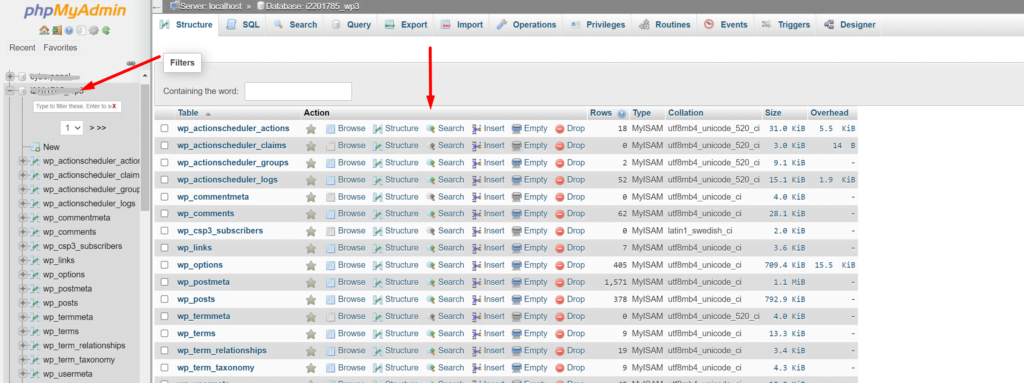
You can see all the database you have created In your database is there.
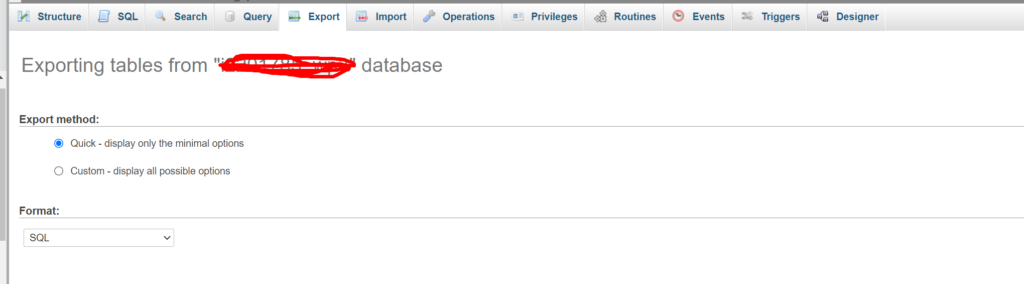
Select the database you want to export. To select a database click on it. And you can see all the tables of your database on your screen.
Now from the top bar click on the Export button to start theexport database.
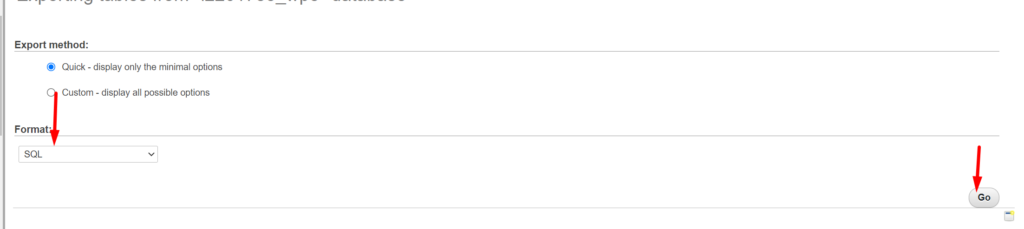
Now you have to select the type of file in which you want to export your database. After selecting file type click on the Go button on the right bottom side.
on clicking the Go button process will start and you can see the download progress on your browser.