Warning: Redis::get(): php_network_getaddresses: getaddrinfo for localhost failed: Name or service not known in /home/solveddoc.com/public_html/wp-content/plugins/litespeed-cache/src/object-cache.cls.php on line 674 Home - Solveddoc
Google Drive Connection Error in CyberPanel — Fixed
If you’re using the latest version of CyberPanel and encounter the following error while connecting your Google Drive account:
This issue occurs because the previously authorized access tokens are outdated or have mismatched scopes after a recent update.
How to Fix the Issue
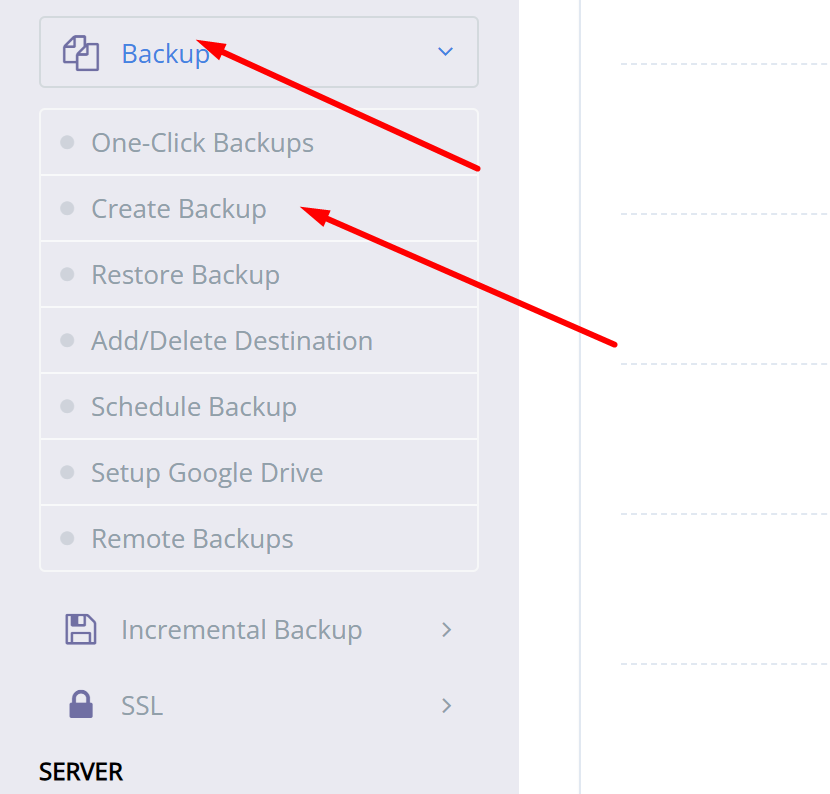
Go to your Google Account → Security → Third-party apps with account access.
Find and remove CyberPanel’s access to your Google Drive.
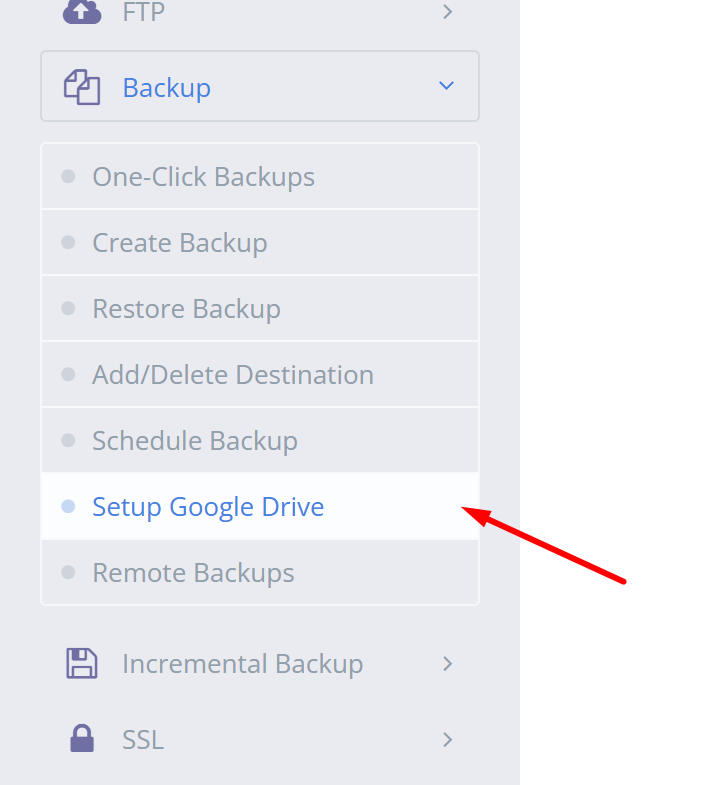
Return to CyberPanel and try connecting Google Drive again.
CyberPanel will now request the correct access scopes, and the connection should succeed.
top 11 Web Hosting Providers in Northern Ireland
Choosing the right web hosting service in Northern Ireland can feel overwhelming, but with the right approach and a look at the top 11 Web Hosting Providers in Northern Ireland, the decision becomes much easier it becomes manageable. Over the years, I’ve seen many businesses grow by partnering with reliable providers that understand both global standards and local market needs. Whether you run a small website or manage multiple sites, you’ll want tailored plans that offer real value—including uptime, fast speed, fair price, and responsive support.
In Belfast, the hosting scene is full of trusted companies that focus on performance, security, and customer care. From 24/7 assistance to cost-effective tools that help you manage your online presence, the best hosting teams ensure your site is always running efficiently, even during high traffic. Their customer-first mindset and dependable service help ease the burden, especially for small business owners handling everything on their own.
Many of these companies also help you connect globally without compromising local engagement. From launching a new idea to expanding an existing project, the benchmark for great hosting starts with approachable, high-quality services designed to adapt and grow with your needs.
Benefits
Local support teams in Belfast ensure faster response times for urgent issues.
Tailored plans are designed for small business owners and regional markets.
Adherence to global standards while maintaining a customer-first approach.
Reliable uptime, strong performance, and optimized site speed.
Ideal for new, expanding online ventures looking for stability and growth.
Drawbacks
Some plans come with price limitations that may not suit early-stage startups.
Not all providers offer advanced scalability features for growing websites.
A strong local focus can sometimes lack essential global integrations.
Support quality may vary depending on the specific company.
Larger enterprises might need more than what regional providers typically deliver.
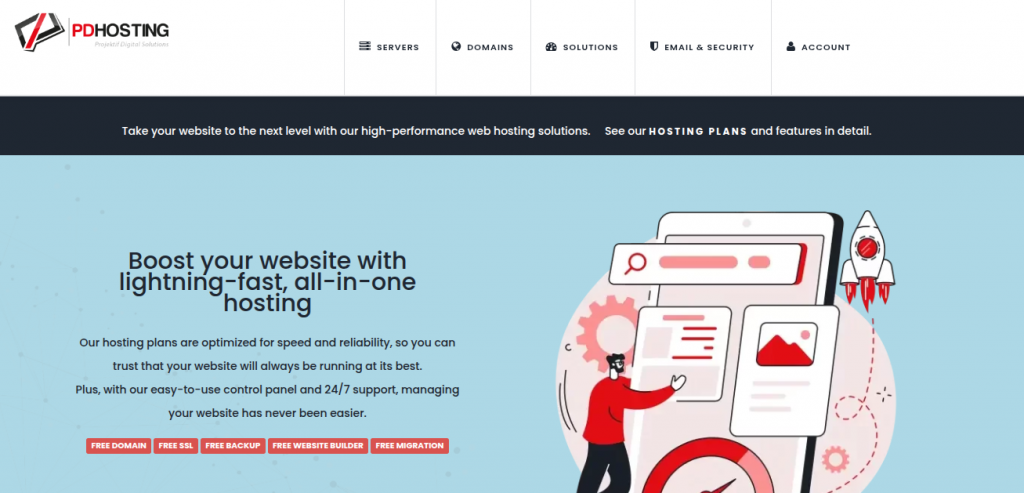
PD Hosting
While exploring the Northern Ireland web hosting scene, I worked with many local providers, but PD Hosting quickly became a top pick for its balance of budget-friendly plans and advanced features. It’s an ideal choice for startups, small businesses, and solo creators looking to scale their business steadily. What impressed me most was the scalability and how well their support team handled even minor concerns.
The clear, affordable packages might have limitations in the lower-tier, but they’re still a reliable offer in a competitive market. Though it may not match the global reach or wide integrations offered by larger enterprises, it brings a strong focus on quality, simplicity, and tailored solutions that actually help your website grow.
Benefits
Affordable and budget-friendly options make it perfect for startups, solo creators, and small businesses.
Advanced features and clear plans are designed for better scalability as your business grows.
Strong support with fast response times ensures smooth running of services.
Focused on quality service within the Northern Ireland market, backed by a reliable offer.
Great value through tailored offers and thoughtful pricing that prioritize simplicity.
Drawbacks
Lower-tier packages come with serious limitations that affect performance.
It lacks extensive integrations, which limits compatibility with third-party tools.
Global reach is missing, making it hard for businesses targeting international markets.
The platform is not ideal for larger enterprises with robust needs.
Companies needing more advanced setups may struggle with available solutions.
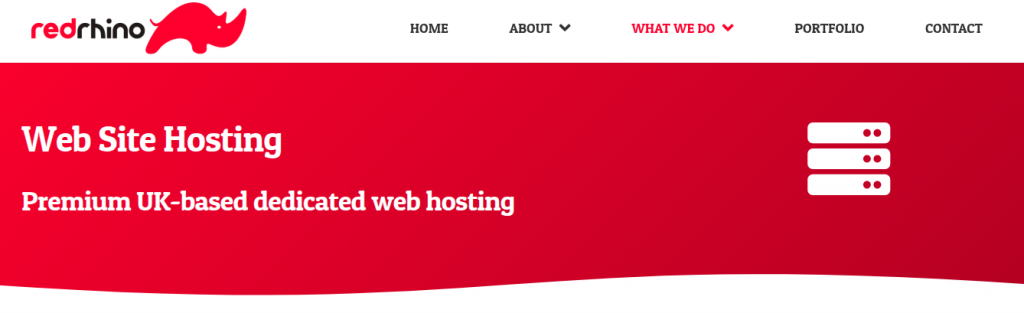
Red Rhino Web Design & Hosting
Working on various web projects across Northern Ireland, I’ve seen how vital dependable hosting and clear services can be for digital growth. Red Rhino Web Design & Hosting delivers outstanding support with quick response times, ensuring every client receives top-notch service. Their tailored plans help startups and solo creators confidently launch without stress, thanks to fair pricing and practical features.
I’ve personally appreciated their focus on simplicity, while still offering the reliability needed to avoid the common bloat found elsewhere. Their transparent offers and flexible plans are designed to scale as your business grows, making them a smart option in the local market. Red Rhino delivers real value for your money through thoughtful design and service execution.
Benefits
Support is fast and helpful, with quick response times that keep your sites running smoothly.
Ideal for startups and solo creators who want to launch stress-free without worrying about value for money.
Their clean simplicity is backed by rich features and dependable reliability, avoiding the usual bloat.
Strong infrastructure lets your business scale confidently as it grows in the Northern Ireland market through trusted hosting services.
Drawbacks
Global coverage is limited due to fewer data‑center locations, affecting sites for international visitors.
Lack of advanced developer tools may not suit users comparing with bigger competitors in the hosting space.
Premium add‑ons increase overall pricing when more features are needed.
Fast expansion beyond medium size can force a switch to another provider.
Migration often brings unexpected stress, especially during high-scale migration phases
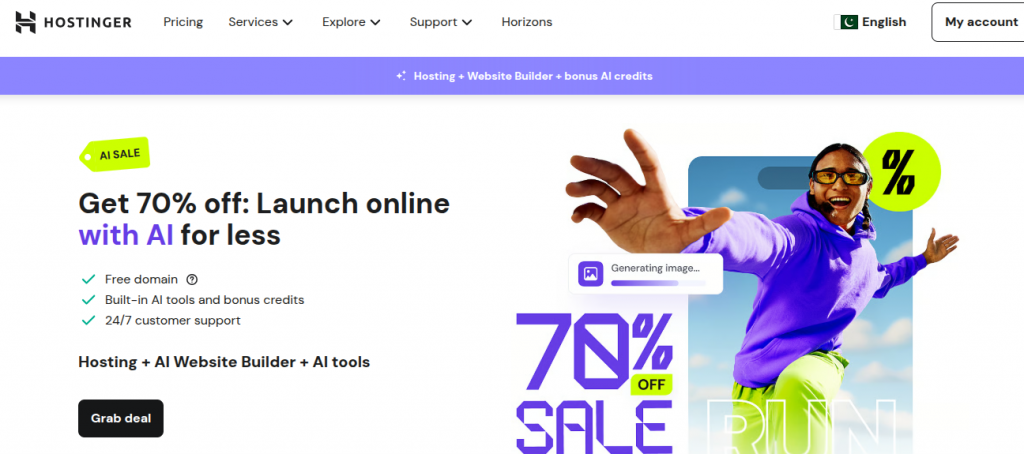
Hostinger
I’ve personally seen howHostinger fits well for startups and solo creators in Northern Ireland who want to launch without spending too much. The plans are budget-friendly yet come packed with advanced features and fast response times, making it ideal for small businesses aiming to grow.
What impressed me most was the clear pricing, a focused support team, and the kind of quality service you’d expect from top-tier hosts. With its reliable performance, excellent scalability, and overall value, it offers real simplicity and strong customer care in a competitive market.
Benefits
Budget-friendly option designed for startups and solo creators launching online.
Delivers advanced features with fast response times to keep things running smoothly.
Offers clear pricing and avoids hidden surprises, which builds user trust.
Supports small businesses to grow with excellent scalability in every plan.
A strong support team and consistent performance make hosting stress-free.
Drawbacks
Not great for large enterprises needing customized solutions or high-end control.
Limited phone support can be a barrier for those who prefer voice help.
Mostly chat-based assistance might not suit all customer needs.
Some features are locked behind upgrades to higher-tier plans.
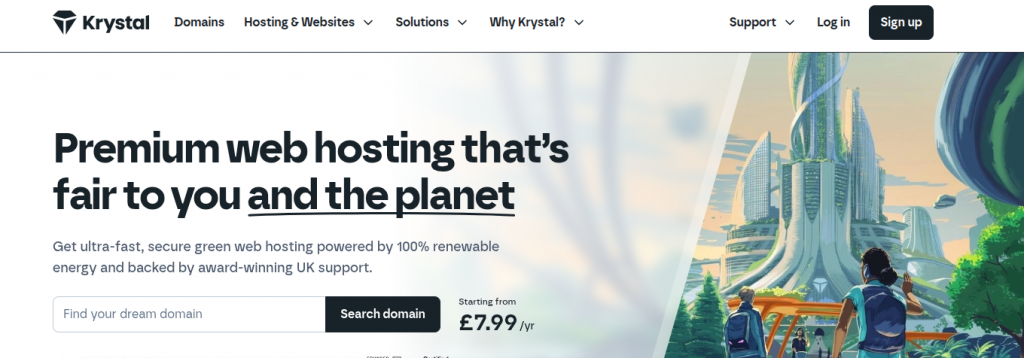
Krystal Hosting
In my experience using Krystal Hosting, their customized solutions work well for both small enterprises and large enterprises aiming to grow online smoothly. The chat-based system offers quick help, although some may prefer more than just limited phone support.
Their features are strong, and with flexible upgrades, the higher-tier plans easily support scaling. The platform’s structure helps maintain steady growth while avoiding tech stress, making it a solid choice for long-term hosting needs.
Benefits
Offers customized solutions that suit businesses of all sizes in Northern Ireland.
Its chat-based system ensures quick help when support is needed.
Includes advanced features with flexible upgrades as your needs grow.
Built on a strong structure that handles scaling smoothly.
Designed to support steady growth while reducing tech stress during expansion.
Drawbacks
Limited phone support can be an issue for users with specific preferences for live communication.
Getting higher value may mean investing more into higher-tier plans for better performance.
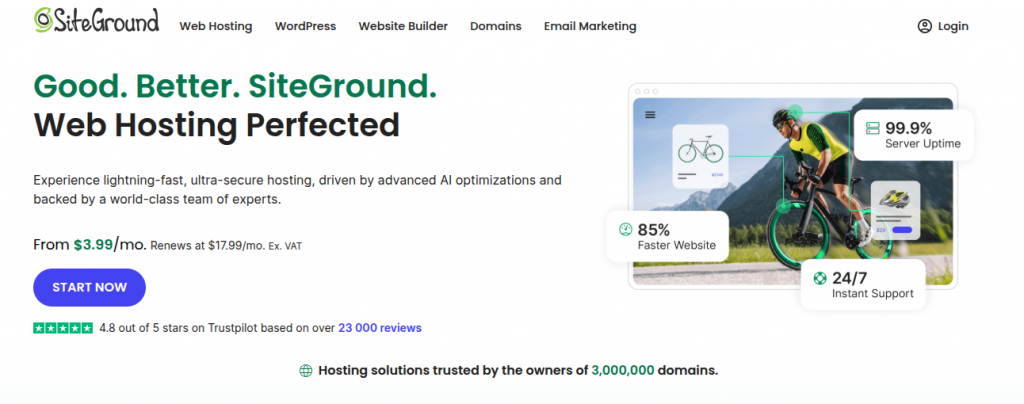
Site Ground
When I explored SiteGroundas one of the top 11 Web Hosting Providers in Northern Ireland, I found its ability to serve both individuals and large enterprises quite impressive. Their chat-based help system quickly solved my queries, though the absence of full phone support might matter to some. What stood out most were the rich features available even on basic plans, and how smoothly they promote upgrades to unlock more advanced tools.
For growing businesses aiming for better performance and greater capacity, their higher-tier plans offer excellent speed and smart resource management, making it a solid choice for scalable hosting needs.
Benefits
Offers customized solutions for beginners and large enterprises alike.
Fast chat-based help ensures a quick response time during setup or issues.
Includes rich features even in entry-level plans, ideal for small websites.
Simple upgrades open access to more advanced tools as needs grow.
Delivers consistent performance, reliable speed, and efficient resource management through higher-tier plans.
Drawbacks
Phone support is limited, which may not suit everyone needing voice assistance.
Higher-tier plans feel expensive for small projects or new businesses.
Some users find switching between features, tools, and upgrades a bit complex.
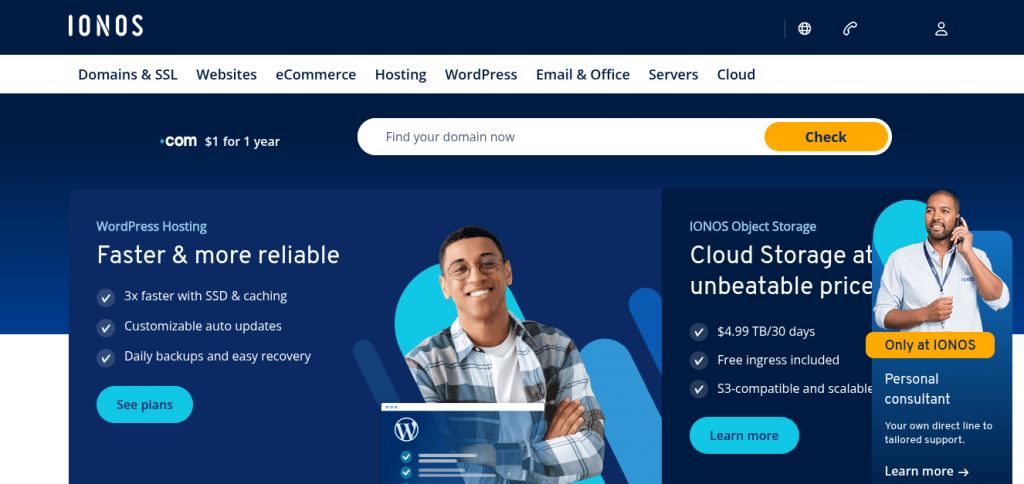
IONOS by 1&1
From my personal work with a client running a growing online store, I found IONOS by 1&1 to be a powerful choice for small and medium-sized users who are switching from basic platforms but still want a mix of control and simplicity. Its biggest strength lies in the range of tools that simplify website management, even for individuals without tech skills. The service delivers practical features like one-click installs and scalable storage, making room for upgrades as business needs evolve.
While the higher-tier plans offer more resources, they may seem expensive for new businesses with tight budgets. A common concern is the limited phone support, which might delay help for those needing instant help, but if you’re ready to grow, there’s undeniable value in its backend controls that keep things manageable and efficient.
Benefits
Tools and features help beginners and experienced users manage websites with ease.
Scalable storage and smooth upgrades support your business as it grows.
Perfect for small, medium-sized individuals and users switching from basic platforms.
Offers one-click installs and supports those with limited tech skills.
Great value with strong backend controls and responsive infrastructure.
Drawbacks
Phone support is limited, which can be frustrating when you need instant help.
Higher-tier plans are often expensive for new businesses with tight budgets.
Advanced upgrades can seem complex and take time to understand fully.
Instant help is not always available, making urgent issues harder to solve.
Some tight budgets may struggle with the cost of higher-tier plans and ongoing upgrades.
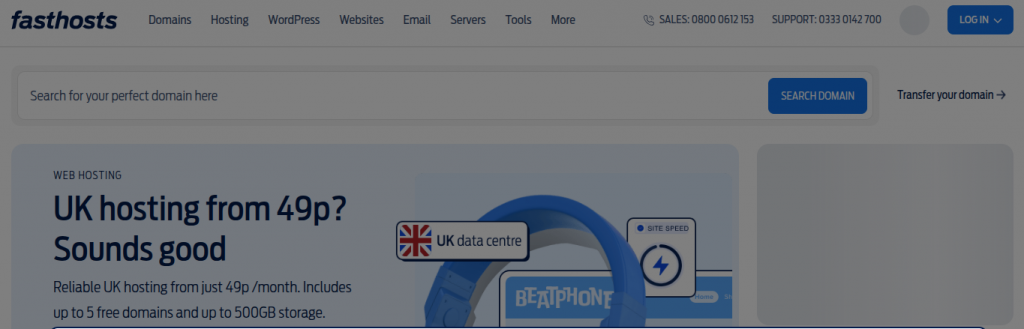
Fasthosts
While working with many startups and solo creators building their first websites, I foundFasthoststo be one of the most affordable and budget-friendly choices in the Northern Ireland hosting scene. Despite the competitive nature of the local market, their plans are ideal for those with tight wallets, and their pricing is clear and transparent, avoiding hidden fees that some other hosts might sneak in.
Though they don’t offer highly advanced tools, they make up for it with reliable support, quick response times, and real help when it’s needed most. This makes it a solid choice for small businesses aiming to grow steadily with scalability in mind.
Their service is focused on quality, offering value through simplicity rather than piling on unnecessary add-ons, and this kind of smart performance setup is exactly what I recommend when advising new clients in the region.
Benefits
Affordable and budget-friendly options are perfect for startups, solo creators, and small businesses in Northern Ireland.
Clear pricing with transparent plans helps avoid surprises like hidden fees.
Delivers solid performance with fast response times and dependable support.
Prioritizes simplicity, offering only essential tools without unnecessary add-ons.
Ideal for users seeking local, focused service with long-term scalability in mind.
Drawbacks
Lacks advanced and developer-level tools, which may frustrate tech-savvy users.
Not ideal for large, rapidly growing businesses needing complex hosting infrastructures.
Limited global reach and lacks specialized integrations for broader expansion needs.
20i Hosting
Working with 20i Hostingduring a high-scale website deployment for a client in Northern Ireland showed me how well it fits rapidly growing, enterprise-scale needs. Its platform offers advanced tools built for tech-savvy, developer-level users who manage multiple sites and demand scalable performance. The specialized integrations allowed seamless connecting of external services into our team’s workflow, which made handling complex hosting infrastructures far easier than expected.
I noticed the deployment process worked smoothly even for global projects, extending our client’s reach as they expanded internationally. However, beginners may find the dashboard a bit overwhelming, and the support expects a degree of technical know-how, which may not suit casual users. Despite these challenges, the benefits of using 20i for large businesses far outweigh the needs of a simpler setup.
Benefits
Powerful and flexible tools meet the advanced demands of developer-level needs.
Designed for rapidly growing, large teams handling complex hosting.
Ensures broad global reach with smooth deployment options.
Easily supports specialized integrations for custom setups.
Helps maintain speed and control for teams needing powerful, scalable infrastructure.
Drawbacks
Can feel complex for beginners stepping into web hosting for the first time.
Not well suited for basic setups or minimal configurations.
Built more for tech-driven environments, which may not suit casual users.
Simpler users may struggle with tools designed for advanced environments.
Kualo
From my experience working with Kualo, it stands out for its clean interface and ability to support both basic and advanced hosting needs. It works smoothly for startups and smaller projects, but also adapts well in complex environments requiring more robust tools. I found the clarity in its dashboard useful, especially when managing multiple websites or shifting between configurations.
It’s ideal for beginners exploring the hosting world, yet still satisfies professionals running tech-driven setups. One benefit is the smart bridge it creates between systems of different levels, but a drawback could be that some users might outgrow the platform if their infrastructure expands rapidly beyond what it supports.
Benefits
Perfect for beginners with a clean interface and smooth setups.
Offers robust tools made for tech-driven users who want control.
Works well for startups, small projects, and handling many websites.
Balances basic use with advanced features and complex functions.
Acts as a smart bridge between simple tools and powerful systems.
Drawbacks
Not built for fast-growing or large businesses with expanding needs.
Some professionals may find the advanced features a bit limited.
Enterprise-level solutions and deep customization may not suit all users.
cyber hosting.cloud
From my hands-on work with local digital businesses, I’ve seen cyberhosting.cloudbecome a solid choice for tech-driven teams who want simplicity but still need complex capabilities. What makes them stand out is their ability to support basic setups while scaling smoothly into more suited environments for developers or advanced users.
It’s a perfect fit for those who aren’t complete beginners but also don’t want to dive into heavy technical demands. Their platform feels clean and reliable, and if you’re running lightweight projects or experimenting in more complex environments, Cyberhosting adapts well, especially if you’re growing from basic needs into more tech-driven spaces.
Benefits
Perfect for semi-beginners who are exploring advanced hosting without being overwhelmed.
Supports evolving needs in varied environments, which is ideal as projects grow.
Offers flexible tools for small-to-medium projects with well-suited performance.
Handles both basic and complex setups for tech-driven users.
Smooth onboarding helps you get started fast without missing critical features.
Drawbacks
Too simple for highly experienced developers needing advanced, custom setups.
Not ideal for beginners who need guided tools or step-by-step help.
Limited specialized support and fewer options than established platforms.
Lacks deep flexibility in setup compared to other platforms used in advanced workflows.
FAQS
Which hosting providers are best for beginners or small local businesses in Northern Ireland?
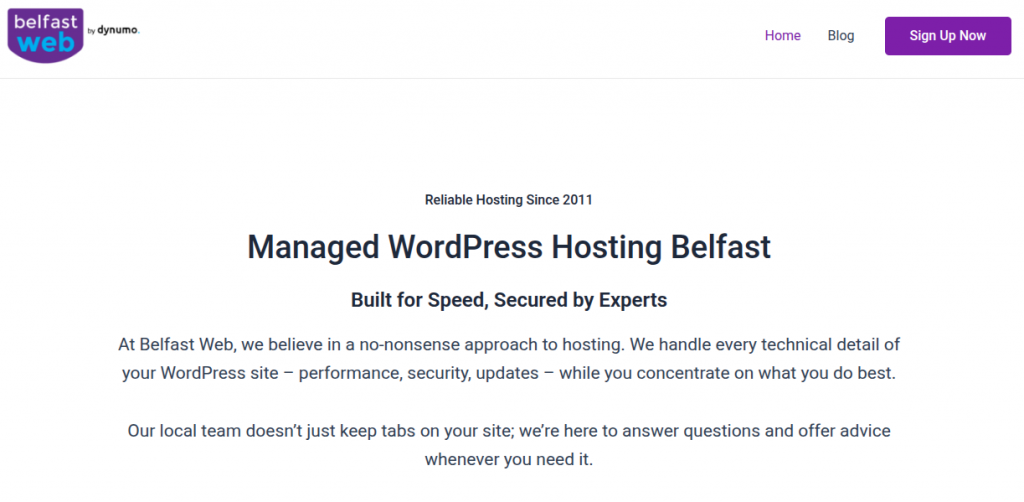
Services like PD Hosting, Red Rhino Web Design & Hosting, and Belfast Web (Dynumo Hosting) are great for beginners due to their local support, simple interfaces, and small business focus.
Are there any eco-friendly or green web hosting providers on this list?
Yes, Krystal Hosting and Kualo are known for offering eco-conscious, green-powered hosting solutions while maintaining high performance.
Which of these providers are suitable for advanced developers or fast-scaling businesses?
Platforms like 20i Hosting, Fasthosts, and cyberhosting.cloud cater to tech-driven teams with advanced tools, developer-level access, and flexible scalability.
Who offers strong international or enterprise-level hosting features?
IONOS by 1&1, SiteGround, and Hostinger provide global reach, premium features, and higher-tier plans suitable for large enterprises or international websites.
Can I find reliable support and uptime with these providers in Northern Ireland?
Most of these providers, including SiteGround, Hostinger, and Krystal Hosting, offer 24/7 support and solid uptime, but local hosts like Belfast Web and PD Hosting may have more personalized but limited support hours.
CONCLUSION
After working closely with local clients and testing different setups, I found that choosing a provider from Northern Ireland depends on your needs, budget, and technical level—whether you’re a beginner, a developer, or managing a large online store. From affordable options like PD Hosting to advanced, feature-rich platforms like 20i or SiteGround, each host comes with its benefits and drawbacks. If support, reliability, or custom setups matter to you, you’ll want to compare their tools, pricing, and real-world performance before making a decision. Many providers offer eco-friendly, scalable, or beginner-friendly plans, making it easier to find one that’s truly suited to your project goals.
9 Reasons Why Web Hosting Complaints Arise
Launching a business in today’s digital world means having a strong online presence. With the Internet rapidly expanding globally, countless businesses are now racing to establish themselves online. However, choosing the right hosting provider can be challenging due to increasing Web Hosting Complaints, as many services fail to deliver what they promise. This makes the process of selecting the right web hosting service even more overwhelming.
When I first started, I thought choosing a company was as easy as picking the cheapest option—but I quickly realized how important the right provider is. A website should run properly, just like electricity in a house—you only notice it when something goes wrong. Most people don’t consider their hosting until problems appear.
From my experience, the real trouble begins when your webhosting doesn’t support your requirements. I’ve had hosts that lacked support, which made me rethink my choices. When sites load slowly or crash, it’s often due to poor hostingservice or hostingcompanydecisions. I’ve come across companies that seemed perfect at sign-up but became a nightmare later.
It’s essential to look at options, not just settle for what looks good. Many new entrepreneurs don’t realize how much their technology, connection, and platform setup matters. Terms like electricityconnection, runningproperly, or even seldomthought often describe the nature of these issues—quiet until they break. It’s these typical issues that make peoplehosting hard to trust, and in some cases, push users to explore rethinkchoice or a new hostingright solution.
From my experience running multiple web projects, a slow website can ruin the user journey. If navigation is clunky or pages take too long to load, you instantly lose traffic. The performance of a site depends heavily on your hosting. A major reason many companies face web hosting complaints is due to reduced speed and poor accessibility.
When internal pages take time, search engines lower your listing, and results suffer. You must get a fast, reliable host to avoid this. From a strategic standpoint, your role is to ensure the part of tech that users don’t see—the hosting—is never the bound reason they leave.
From my experience, one major problem users face is reduced speed and poor accessibility. If your website takes too long to load, check if your hosting company has its data centers located nearer to your audience. High latency and delay in navigation often come from poor network setup or low-quality hardware. A good host should reduce these issues using strong support teams and proper tools.
Using a ContentDelivery Network helps serve cached versions of static content at optimized speeds across different locations, especially if people are visiting from across the world. Always check the quality, availability, and performance your provider promises. The amount of care and support they offer can make or break your site.
Lack of Website Protection
In my years working with websites, I’ve seen how ignoring security can invite hacking, identity theft, and other major issues. Many clients assume their web hosting service includes protection, but in reality, a lack of essential features like malware scans or firewalls puts their website at risk. If your site has already been hacked, it’s often a sign the service is weak or not properly providing what’s needed.
The level of protection must match today’s threats, yet I still see hosts that are outdated and don’t evolve with days like these.
A secure host must become a shield, not just a space. If it has holes, you could be exposed, even if everything seems fine with your setup. From element to case, each part plays a role—an ignored patch, a missed update, or simple user error. The need for strong layers is constant; of course, we want peace of mind, not panic.
I always tell clients: your hosting is the foundation, and if it’s unstable, the entire experience collapses. It’s why I never compromise on hosting, and neither should you—it’s more than a tool; it’s a digital lifeline.
A shared hosting plan offers the lowest level of security. If your business is growing, it’s important to think seriously about switching to VPS or dedicated hosting for better protection.
Know Your Needs
One big mistake I’ve seen people make—something I once did myself—is choosing a web hosting company without fully understanding their actual needs. When launching a project, it’s tempting to grab the first service that sounds good or offers a low price. But it’s vital to evaluate things like uptime, bandwidth, technical support, and disk space first. Your platforms might require specific software or hardware, so take the time to look closely at what’s included in the package.
I once ignored this and ended up with support channels that were barely reachable, even though I needed help urgently. A proper hosting plan should match your particular goals and be flexible enough for months ahead, even if you’re just starting. Before you select from the many hosting companies or providers, make sure to know what you want—down to every feature, no matter how small.
If your purpose is growth, you can’t afford to skip steps. A clear understanding of your true requirements leads to better decisions and avoids unnecessary complaints later. There are different types of hosting, and not all are good for every situation. Knowing your needs means you may not fall into traps that others do by taking offers that don’t suit them.
It’s not about choosing “whatever”—it’s about selecting what really fits your use case. And when things lead to problems, it’s often because the decision was made without considering the essential details.
Restricted Hosting Capabilities
In my early days of running an online business, I learned how crucial it is to avoid a fixed setup. Your needs and company constantly evolve, and without a flexible plan, you hit a wall fast. As your website begins to grow and expand, a rigid host can’t keep up. A good builder or host must let you scale easily—from shared to VPS or even dedicated plans—without bottlenecks. I once had to upgrade my service because I wasn’t getting enough data allowance despite paying more.
A smart choice is a hosting provider that offers many options tailored to usage, allowing you to use only what you need. That’s real flexibility. You should never feel boxed in—your service must adjust as your business progresses. In a nutshell, let your platform flourish without barriers. And yes, doing it easily makes a world of difference.
Heavy Traffic Impact
As someone who has managed multiple client sites, I’ve seen how high traffic—while great for business—can sometimes be too much of a good thing. When your website starts to generate more leads and the amount of traffic grows unusually, your server must be able to handle it properly. If not, it can slow your site speed, hurt its functionality, and result in a not so great experience for users.
What many forget is that when too much demand hits your site in a short period, even a “good” setup can struggle. Pages take longer to load, the whole site may go down, and the goal of a seamless experience is missed. That’s why it’s important to always be ready to scale and anticipate growth well in advance—trust me, I’ve learned this the hard way. If your host isn’t capable, you’ll face real issues, and you may end up losing traffic that once came in very eager.
To avoid complaints, invest in a setup that’s good, reliable, and can expand as needed. Functionality, after all, is just as important as visibility. So whether it’s during a campaign, sale, or viral moment—that rush shouldn’t be what breaks your platform. Keep it smooth, in control, and built for the unexpected.
Lack of Worth
From my experience, when people compare different web hosting services, they often get distracted by flashy offers from 2020-style pricing trends. It’s easy to ignore the real needs of your website and chase low prices, but that can lead to regret. I’ve seen many sign up with a company just because it was cheaper or simply marketed well, without realizing that a low price does not always translate to good value.
The real strategy is to pay only what’s necessary for reliable hosting, and nothing more, while avoiding being tempted by unrealistic deals.From my experience, many hosting companies lure customers with cheap introductory offers that seem attractive at first glance. However, when you go for renewing the plan, the price often doubles, making you pay the full amount, which feels unfair.
While looking at plans and costs, I always ensure to read the fine print to avoid surprises. Initially, this mistake cost me extra, but now I keep in mind to compare many options, have patience, and know when a deal truly benefits you.
Delays in Fixing Hosting Problems
From my own experience dealing with web projects, I’ve seen how hosting companies sometimes fail to disclose critical limitations in their packages. When unexpected issues occur, customers struggle to understand the full scope of the service they paid for. A company that doesn’t resolve site errors quickly risks long downtime, which directly impacts visibility on the Internet.
I always look for a provider that guarantees 99% uptime and stands behind the offered service without excuses.From my own experience, companies often fail to disclose critical information about how much time they take to provide solutions when a website faces issues. This situation can make clients repent their decision later if they encounter any limitation in the web hosting plans.
Before choosing a company, I always review all aspects of the plan and spend time selecting the right choice that meets my needs. It’s important to evaluate features and services carefully, as once you start subscribing, you must rely on them for support. Over time, I’ve learned to be better acquainted with these factors and make the right decisions after a thorough check
Hidden Limits in Hosting Plans
I once faced a problem when my website stopped running smoothly, and I had no option but to wait for my hosting service provider to fix it. The real issue starts when hidden restrictions suddenly occur, leaving you feeling helplessly stuck while hoping things get resolved quickly. From my experience, such moments of worry highlight how important it is to check the fine print of your plan before trusting your hosting company.
I’ve seen many people frustrated when they realize their web hosting plan has hidden restrictions. The company may not clearly explain how much support is actually available. While some companies promise 24/7 help, only a few truly deliver online assistance around the clock. From my own experience, the lack of quick help to resolve urgent queries wastes valuable time. If your support isn’t reliable, even the best features of the plan won’t save you.
From my experience, when companies only provide a contact form to register complaints, customers often wait endlessly for a solution. Even with promises of 24/7 support, the service can feel slow and lacking in quick responses during downtime. Some providers push users toward FAQ pages or forums, which rarely resolve urgent issues and only add to the problem.
This lack of reliable assistance turns a simple query into a frustrating experience, especially when every minute of waiting impacts your site and overall convenience.
Hidden Terms in Promotions
Over the years of working with different webhosting companies, I’ve noticed how some promotions with big discounts hide tricky clauses and unclear terms. Many customers expect unlimited features but later discover limits on bandwidth, storage, or support, which leads to frustration and frequent complaints.
I once guided a client who believed in “unlimited space,” only to find a limit on file counts that wasn’t mentioned in the fine print. Such hidden details make people feel misled, shake trust in the company, and push them to switch services, leaving behind negative feedback. Based on my review of various hosting packages, I now focus on reading every line before committing to avoid unpleasant surprises.
Solution of web hosting complaints
Complaint
Solution
Reduced Speed and Accessibility
Use a hosting provider with SSD storage, CDN, and caching tools to ensure faster loading and smooth accessibility.
Lack of Website Protection
Choose hosts that provide SSL certificates, firewalls, malware scanning, and automatic backups for better security.
Know Your Needs
Evaluate your website traffic, storage, and features to pick a plan that matches your current and future requirements.
Restricted Hosting Capabilities
Opt for hosting plans that allow add-ons, databases, and scalability; consider VPS or cloud hosting if needed.
Heavy Traffic Impact
Select providers offering scalable or cloud hosting to handle sudden traffic spikes without downtime.
Lack of Worth
Compare features vs. pricing and choose plans that deliver value with transparent policies and reliable services.
Delays in Fixing Hosting Problems
Go for hosts with 24/7 customer support and a proven record of fast technical issue resolution.
Hidden Limits in Hosting Plans
Carefully read terms and conditions to identify hidden restrictions like file or bandwidth limits.
Hidden Terms in Promotions
Always review fine print and renewal pricing to avoid unexpected costs after the promotional period.
FAQS
1. What are the most common web hosting complaints? The most common web hosting complaints include reduced speed, hidden limits in plans, poor customer support, and unexpected renewal costs.
2. How can I avoid web hosting complaints related to speed? To prevent web hosting complaints about slow speed, choose providers with SSD storage, CDN, and caching tools that ensure fast website performance.
3. Why do customers file web hosting complaints about security? Many web hosting complaints arise due to weak security measures. Always pick a host that offers SSL certificates, malware scanning, and DDoS protection.
4. How do hidden terms in promotions lead to web hosting complaints? Hidden terms in promotional offers often cause web hosting complaints when renewal prices rise unexpectedly. Reading the fine print helps avoid such issues.
5. What is the best way to resolve web hosting complaints? To resolve web hosting complaints, communicate with the provider’s support team, review their policies, or switch to a more transparent hosting company.
Conclusion
In my experience of dealing with different hosting companies, I have learned that many web hosting complaints arise due to small misunderstandings and ignoring the fine print in plans. Users often get attracted to flashy marketing offers but later face problems like hidden limits, unexpected downtime, or lack of proper support.
These issues usually happen when the hosting plan is chosen without understanding the key features and required services. A reliable host is not just about big promotions, but about stable performance, clear policies, and quick response during critical time. By paying attention to important points, we can save ourselves from frustration and ensure a smooth-running website.
9 Proven Steps to start a Profitable Web Hosting Business
Starting a web hosting business may seem simple, but it takes more than just a basic setup to succeed. I remember launching my own company with almost no budget — it was surprisingly cheap, yet taught me the value of providing reliable services. With every individual and business needing websites, there’s real room to grow, even in a space full of competition.
My first few clients brought significant returns, showing how safe and easy it can be to scale if done right. You must focus on generating value and supporting your clients as they grow — that’s where you’ll see the long-term rewards.
When I launched my web hosting business, it opened new revenue streams and helped me serve more clients with essential services. If you already run a company in IT, infrastructure, or design, adding a hosting platform supports sustainable growth and attracts upcoming businesses. It’s a smart way to offer valuable products while building strong connections and helping others get started in the digital space.
When I first launched my website, I had no prior experience and the process felt like climbing a mountain. But with the help of a builder offering a drag-and-drop editor, things became easier. I didn’t need to learn HTML, CSS, PHP, or JavaScript—the platform handled it all without code.
You can create a new, fully functional web-oriented site, even if you’re just starting with basic knowledge, and everything gets done visually—like creating blocks with purpose.
You don’t need to be highly tech-savvy to start a hosting business. Platforms like WordPress, Joomla, or Drupal make it easy to manage a website without deep technical skills. I started from scratch with just a passion to learn — having control over your setup, like sitting in the driver’s seat, gave me the confidence to grow.
Being in complete control helps you achieve better results, and tools today let you easily position your business ahead of the competition. In my experience, even without formal training, you can put things in place and move yourself forward. It’s not about being a pro, just knowing your way around the platforms.
With time, you’ll learn what yields the best outcome and what doesn’t. It’s not a negative to start with little knowledge — it’s just another instance where you learn as you go. All you need is the will, the right tools, and a mindset to do better than others. Trust your gut, stay consistent, and be ready to stand against the odds.
When I started my small business, I wasn’t sure if I had to be a tech genius. The truth is, even if you’re not deeply technical, you can still create a simple website that displays your products and a blog without too much hassle. All I needed was to know how to choose a reliable web hosting provider,pick a domain name, and upload my files to the internet.
Most of the time, user-friendly platforms guide you through the process, so you don’t feel lost. My advice? Focus on the projects you care about, use tools that do the heavy lifting, and take it step-by-step. If your goal is to get your content on the web, you only need to know the basics—to get your site on the web and grow your business from there.
Identify Your Site’s Objective
When I first creates a website for my small business, I didn’t realize how much the site would play a role in growth. Many new owners either underestimate or overestimate what they need, which can lead to paying for a hosting plan that’s either too basic or too advanced. It’s common to think you’ll need more from your hosting service early on, but the result is often a quick upgrade in just a few months, or worse, spending on a level of support you never use.
You should determine your site’s purpose before choosing a hosting plan.
Before launching my web hosting business, I realized that every site has unique requirements. A blog or promotional website might only need simple pages, while an eCommerce store with thousands of products demands more storage, databases, and a powerful server.
Whether you’re targeting traffic to a brick-and-mortar location or staying fully online, offer flexible plans with strong features to support retail, catalogue needs, and secure saving.
Blogs with lots of videos or images need more server resources than those with just a few text posts.
Before starting my web hosting journey, I had to determine how the site would function in my business. Choosing the right packages, rates, and resources meant considering factors like server, storage, and bandwidth. The intended use of the website guided all decisions and steps in creating a solid plan with trusted providers.
Choose the Best Hosting Plan
In a competitive marketplace, many companies are vying to be your go-to hosting provider. Focus on technology, monthly rates, and customer service—these factors truly help your business grow. Always choose a provider with strong differentiators that meet your customers’ needs and feel right for you.
Here are the things you should look for when choosing a web hosting plan:
The hosting company should offer different plans so you can pick one that fits your needs.
Getting your hosting up and running should be free with no setup costs.
Some web hosting providers include a free domain name with every hosting plan. Even though the cost is small, getting a free domain is always a nice bonus.
The provider should include free tools to build your website and a control panel to manage it easily.
Well-known CMS platforms like WordPress should be fully supported.
Hosting plans should run on high-performance servers to guarantee reliable website performance.
Customer support should be available through email and phone, preferably 24/7.
A simple website builder should be available so you can try creating pages and build your first website easily .
Starting a web hosting business means offering affordable, reliable options that meet various business needs. Many clients begin with shared hosting, where multiple websites run on one system and share server resources. But as traffic grows, so does the need for performance, security, and access.
That’s when VPS or Virtual Private Server solutions shine—providing fast, custom, and enhanced support without the high cost of dedicated servers.
Plans should include features like domain and email addresses, support for multiple sites, and disaster recovery tools. Avoiding limitations and restrictions is key for growing websites.
Offering flexible plans with options like Private setups, protection from malicious intent, and helpful guides or blogs helps clients opt for what fits best. Always be ready to help owners make smart choices and scale with ease.
Buy a Domain for Your Website
When I started my own hosting business, the first crucial part was securing a strong domain and name. Although it’s deeply associated with your website, this connection isn’t permanent—you can transfer it later if you desire a different direction or rebranding.
A domain name is like giving your website an easy-to-remember name, so people don’t have to deal with confusing number strings like IP addresses.
When I created my first website, I knew the domain and name needed to match my brand and reflect its digital identity. A unique IP address marks your site on the internet, but people remember words, not numbers.
I always recommend choosing a memorable, right name — it’s more than a technical task, it’s your online presence. With just a bit of pairing and planning, I made sure mine was marked, easy to type, and truly crucial for my business.
From my own experience, when you purchase a domain, make sure it’s relevant, short, and professional. Over time, I bought a different domain to reflect a business pivot — and with a simple redirect, I kept all the SEO value while rebranding smoothly.
It’s incredibly easy to connect a new name to your existing website, especially if your hosting provider supports seamless redirection.
Once your domain is associated with your site, it becomes the foundation of your online presence. Whether you’re just getting started or planning for future updates, always keep your address, created assets, and overall name strategy aligned.
Your official online identity should evolve with your business, not against it — and getting this step right means you’re building your web hosting venture on solid digital ground.
When I first started my business, I quickly realized how important a solid domain name is for building credibility. While platforms like WordPress and Squarespace offer a free subdomain such as yoursite.wordpress.com, they often don’t look professional to potential clients.
That’s why I chose to invest in a custom domain—it made my website stand out and showed I was serious about what I was doing. The right name is not just a label; it’s a statement. It gives your own brand a face and helps you get taken more seriously, especially when you’re up against other companies in the same space.
I spent time shaping my idea, made a substantial decision to purchase the domain, and treated it as part of my long-term investing strategy. The result? A stronger foundation that truly reflects my goals and commitment.
Determine which CMS to use
When I first decided to start my web hosting business, I quickly realized it’s not enough to just use a CMS like WordPress — you need to buy a domain, manage your website, and avoid doing everything manually with HTML, CSS, and custom scripts.
A content system makes the process much more advisable and helps you stay focused on what really matters: building a powerful web presence using professional tools and structured contents.
This powerful open-source platform is highly flexible, capable of running everything from personal blogs to full-scale online stores, and can be easily optimized for search engines using a variety of helpful plugins.
When starting your website, choosing the right CMS or builder like Wix helps you create and manage a professionally designed site with good-looking templates that work on all devices.
With excellent options, even those with no experience can succeed. A famous example might suit all, so choose what fits best. You’ll learn more as you go, and it’s enough to begin—even without knowing everything. Stay looking ahead.
Website builders come with built-in search engine optimization features, allowing you to focus entirely on creating your content.
When I started my web hosting business, one of the first key decisions was choosing which CMS to support. I explored various platforms like WordPress, Drupal, and Joomla, each offering different levels of performance and flexibility.
For small business owners and bloggers, WordPress stood out because it was much easier to manage and quick to launch websites. However, as I worked with more notable companies and enterprise clients, I realized that Drupal and Joomla had the edge in handling complex content, custom sites, and large-scale eCommerce setups.
Many clients already owned their preferred system, but understanding their unique needs helped me guide them better. Being able to work across such a wide range of worldwide clients and industries meant I had to stay adaptable and deliver reliable solutions through the right CMS choices.
Starting a web hosting business means picking the right CMS and package for high performance. A managed platform like WordPress offers built-in security, monitoring, and fast load speeds. You’ll expect reliability, safe data, and strong capabilities from optimized servers. Be sure to choose smart, as the plan you have can mean the most for you.
Set Up Your Site Design
When I first started building websites, I learned that design isn’t just about looking good — it’s about creating a functional and attractive experience that keeps visitors coming back. As a novice, I made the mistake of choosing wild fonts and clashing colour schemes, which made the site look unprofessional.
Over time, I realized a well-thought-out website should reflect your brand, work right, and help you engage with your audience. As a website owner, understanding how the digital world works helped me avoid common pitfalls and focus on the little things that make a big difference, like keeping the layout clean and the flow intuitive, encouraging users to return.
Select a Theme
When I started my own web hosting venture, choosing the right theme was key. A professional layout with a clean design helped build trust. I made sure the banner and image placement fit the brand style, and the size didn’t slow down the site.
Using a CMS or builder made it easier to manage the website appearance, from fonts and text to the colour scheme, giving my site a sharp, polished look. I always recommend customizing the elements and location of content when designing, even if you’re using a premade template.
TheAstra theme is a free and widely used WordPress theme known for its speed and flexibility. You can easily customize it to build any kind of website you want.
The Spectra pagebuilder plugin adds extra flexibility by providing custom building blocks with a variety of engaging features.
Build an Eye-Catching Page Structure
When I first started building web hosting sites, I realized how important it is to keep the layout clean and focused. A strong structure and intuitive hierarchy help visitors feel at ease and find what they need quickly. Your store’s top section should showcase products clearly with a clear call to action. This is especially important if you’re trying to boost conversion on an ecommerce platform.
The design should support both usability and visibility, ensuring that content is both attractive and easy to readable. I like to start by choosing a flexible theme that allows me to customization features like colour, fonts, and typography. These may sound small, but each plays a big part in your overall scheme. Don’t forget the basics—your responsibility is to stay within certain boundaries so users can navigate your content with ease.
Use text blocks that match your brand’s voice and offer real value. Modify and steer the action toward what matters: signups, sales, or learning more. Appear more professional by using a well-designed interface. When you build your page, plan for every section—even if it’s just a some minor detail. Always know where you want your owner or customer to go next. Trust me, getting this right makes all the difference.
That’s why I recommend you always test and refine your default settings, whether it’s a CTA, online form, or product layout. And if you’re thinking, “Do you really need to care this much?” — you’ll thank yourself later. Start with a fundamental structure and build up with purpose. Use your tools responsibly, and always design with your user in mind. It’s your chance to make that strong first impression.
Mobile-Friendly Design
When I first launched my own hosting service, I quickly learned how important it is to think about users who browse on phones, tablets, and other devices. A site that isn’t mobile-friendly will instantly lose access to a huge audience. That’s why I always focus on responsive layouts that display content differently based on the device being used.
To make your site stand out, ensure there’s only one version of your design that adapts well. It should feel smooth and intuitive, regardless of screen size. You must strive to make it simple for people accessing your platform anytime, anywhere — because the way people connect has evolved, and your content must follow.
Publish Content on Your Website
When launching your web hosting business, publishing content on your site with the right structure is key. From personal experience, using a CMS makes it easier, especially if you’re not ready to dive knee-deep into HTML and CSS code.
I once opted for a manual route and quickly realized how important it is to design and plan before uploading anything. A well-designed, proper setup helps avoid going back to fix things, saving time and headaches. Every word and layout decision should be important, because these early decisions shape how your customers see your brand.
If you run a blog, should you organize your posts by date or by topic?
What is the best way to organize product pages in an online store?
How can you make your FAQ or Privacy Policy page accessible, but only visible when needed?
Answering questions like these will help determine the most effective structure for your site’s content.
When I launched my first web hosting venture, I underestimated the power of content. It’s not just about filling space — your site should represent your brand with a voice that feels familiar and trustworthy. Clear messages, delivered with consistent tone, help visitors quickly understand your business and what sets you apart.
Think from the user’s perspective: they arrive looking for reliability and professionalism. What you communicate must reflect your values and handle concerns before they’re even voiced. This is your opportunity to build connection and trust through solid structure and storytelling.
Set Up Helpful Plugins
When I launched my first web hosting site, I quickly learned how vital plugins and add-on tools are to streamline management and improve your website’s functionality. Whether you’re using a popular CMS or a homegrown setup, integrating the right applications can truly extend your service capabilities.
Start by exploring feature-rich tools that match your niche — from helper scripts to security systems — and make sure they’re tied into your platform. I always choose options that are not just powerful but also easy for clients to use. With so many categories out there, you’ll find what fits — from content control to site backups.
Don’t ignore the significantly growing demand for smooth UI and smart automation. You can employ these tools to handle called tasks like auto-setup and billing. The right setup lets you support every, any, or most clients without getting overwhelmed.
Even if you’re building something similar to others, use what you know, test what your users need, and customize what you can. If you’re wondering where to begin — just pick one plugin and go from there. You’re not in this alone — another web host has likely faced your challenge before — and that’s the beauty of open tools: they’re for everyone, and built to help you scale to more.
Capture audience
When I first decided to build my own website, the most important step was choosing the right domain to set my site apart. A good domain helps your visitors connect instantly, especially when your design is clean, attractive, and easy to remember. Before anything else, I made sure the site was running smoothly and up 24/7, as this builds trust and encourages people to stay longer.
I’ve found that a simple, well-structured platform can quickly turn visitors into loyal customers, especially when you attract them with a professional look. If you can generate interest early, you’ll notice more engagement and leads. That’s why I always suggest to buy a domain that feels meaningful, is easy to remember, and reflects your purpose clearly. Every little detail counts, from the steps you take early on to the effort you put into making your online presence strong.
The list below outlines common methods for increasing the number of visitors to your website.
Grow Your Brand on Social Media
When I started my own hosting venture, I quickly realized how powerful social media is for building visibility. Platforms like Instagram, Twitter, and Facebook helped me connect with real people in the world who needed hosting, even before they searched on Google. Sharing regular posts with my profile link and adding a direct path back to my website made my business feel more present and professional.
I used platforms that fit my target audience. If you’re a creative like a make-up artist, you’ll shine on Instagram, but if you’re going after professionals, LinkedIn might be your space. I kept my content featured and prominently shared with the right reach in mind.
It’s not just about being online—it’s about being visible with strategy and tactic. A proven way to stand out is showing up daily, staying part of the conversation, and using platform tools smartly.
Once you start doing this, your brand becomes part of a bigger web of influence. That’s how I grew my business—by choosing the right platforms, building audience trust, and staying consistent, not just with what I posted, but also when I posted.
Focus on seo
When I first launched my web hosting venture, I underestimated how important SEO, or search engine optimization, would be for getting real organic traffic. To attract the right audience to your site, you need to craft content packed with relevant, semantic keywords that align with user intent and high-value queries. I learned to avoid stuffing or overuse, as that hurts readability and triggers penalties from Google’s algorithm. Instead, I focused on contextual placement—putting phrases into natural text, optimizing metadata, headings, and anchor tags with a healthy density of high-volume, competitiveness-balanced terms.
Another tip that helped boost my ranking on SERPs was understanding indexing and crawl behavior, ensuring my descriptions, on-page structure, and positioning all improved visibility. As I refined my strategy, I noticed how even updates to engine behavior or changes in searcher habits could affect results, so adapting content and staying discoverable became second nature. The right strategy, supported by clear focus and a balanced use of keywords, helped increase engagement and kept my platform ranked well in a competitive space.
Build high-quality backlinks
In my early days, earning backlinks from high-authority websites helped my site appear trustworthy. I made sure to include well-placed links from external sources to bring visitors and boost ranking on search engines. When another site links to you, it plays a significant role in your growth. You must have authority, target the right audience, and not overlook those details — they’re key if you want to truly stand out.
Communicate with a Steady and Clear Brand Tone
Keeping your message clear and steady helps give visitors a smooth, connected experience and builds a stronger presence for your brand online. Whether someone finds you through a social media post, a backlink, or an ad, they expect the same value and tone when they land on your site.
Implement Billing and Support Systems
When I launched my hosting business, setting up automated billing was a game-changer. Using integrated software and trusted payment tools like PayPal helped manage invoices, improved cash flow, and simplified account setup with seamless provisioning. A strong support structure with a ticket system, 24/7 assistance, and a dedicated desk ensured clients always had help. With a solid CRM, I could track user activity, respond fast, and offer personal, efficient service—building trust through real-time communication and smooth management of subscriptions, processes, and tools like the hosting panel.
FAQS
Start web hosting business from home and earn money?
Yes, you can start a web hosting business from home with low investment and earn good money. All you need is a strong plan, internet, and a reliable reseller hosting provider. Stay dedicated, build trust with clients, and grow step-by-step.
How to start a game server hosting business?
You can start a game server hosting business from home with the right strategy and tools. Focus on a strong foundation—choose popular games, reliable hardware, and know your market. Stay dedicated, follow a step-by-step plan, and keep building trust to see real results.
You can start a VPS hosting company by first building a solid foundation with strong servers and virtualization tools. Study the market, set clear goals, and craft a smart strategy. Stay dedicated, grow step-by-step, and always review your progress. Earning trust brings lasting results.
conclusion
Building a web hosting business taught me that success comes from a solid foundation and clear goals. At the start, I focused on understanding the market and shaping my strategy to fit real needs.
Being dedicated every day helped me stay on track, even when challenges came up. I followed a step-by-step process and stuck to my plan, adjusting it with each new result I got.
The key is to build trust—with customers and with yourself. Always review your actions, learn from mistakes, and improve slowly but steadily.
Every part of this journey matters. If you keep showing up, your hard work will lead to success in the web hosting world.
7 proven Ways to Tech Gamify Fitness for Kids
Many kids aren’t naturally drawn to being active, but with the right Tech Gamify Fitness for Kids, they can learn to enjoy it. By turning movement into a game, even those who usually prefer hobbies like art or writing can start to play, exercise, and have fun. I’ve seen children who would despise PE become excited when you introduce something playful.
Whether it’s an outside adventure or a room-based challenge, they begin to involve themselves more. Tech gamify fitness for kids by making it fun and engaging—so even the most reluctant ones start moving without feeling like it’s a chore. With creativity, sports and motion can feel like play, and they start to move without even realizing it’s physical
Technology and devices use fun tools and platforms to make fitness more engaging for kids. These smart options drive children to make exercise a game, offering a variety of ways to keep kids active and excited. Combining technology with movement helps children enjoy staying healthy naturally.
Wearable Tech gamify Fitness Tracker for kids
When it comes to helping kids stay active, I’ve found that wearable devices like the Garmin Vivofit Jr. 3, Fitbit Ace 3, and Apple Watch SE are great tools. These trackers are designed specifically for children, making it easier to monitor their activity levels, steps, and even sleep patterns. What I really like about them is the gamified features that turn fitness into a fun challenge, encouraging kids to keep moving without feeling like it’s a chore.
Tokens and Gifts: Kids earn tokens for completing step goals, which can unlock virtual badges or in-app gifts.
Game Rounds: Are simple tasks that kids complete to earn points, badges, or fun rewards after each level.Like exploring a virtual jungle by completing daily activities.
Family Control: Parents can monitor growth and set targets to help keep kids motivated.For example, the Garmin Vivofit Jr. 3 gives badges for completing missions, like exploring the “Underwater Kingdom,” turning fitness into a fun journey.
Tech Gamify for kids Fitness Apps
Apps like Pokémon GO, Zombies, Run!, and GoNoodle,Glooko(designed for kids with diabetes) turn exercise into an immersive experience. These apps use stories, fun tasks, and social tools to keep kids active.
Story-Based Workouts: Zombies, Run! puts kids in a post-apocalyptic setting where running helps them escape zombies, turning cardio into an exciting adventure.
Team Connection: Apps like Strava let kids join leaderboards and give “likes” to friends, helping them feel connected and part of a fun community
Adjustable Goals: Kids and parents can create their own fitness goals, like running a set distance or finishing fun daily tasks
Exergames and Consoles Help tech Gamify Fitness for Kids
Exergames are video games that involve physical exercise. Consoles such as the Nintendo Switch (with games like Ring Fit Adventure) and Xbox Kinect provide interactive ways to keep kids active.
Fitness Quest Game: This Switch game mixes role-playing and exercise, requiring players to squat, jump, and stretch to beat enemies
Groove and Move Games: Groove and Move Games like Just Dance and Zumba Fitness: World Party inspire kids to dance, boosting their coordination and cardio health.
Virtual Reality Workouts: Virtual reality (VR) games like Beat Saber engage kids in high-energy movements, combining fun and fitness.
Augmented Reality Fitness Fun
As a fitness tech educator, I’ve seen how augmented reality (AR) can truly transform how kids view physical activity. Apps like Pokémon Go use AR to motivate children to walk outside, explore the real world, and stay active without even realizing they’re exercising. These games blend virtual and real environments, where players must catch creatures in their surroundings, turning movement into fun and engaging play.
When I introduced Pokémon Go in a kids’ summer camp, their screen time turned into steps tracked by their mobile app, showing how technology can support healthy habits. A 2016 study even showed the game boosted children’s daily physical activity by an average of 20%, proving how effective this form of gamified fitness can be. With clever gameplay and interactive tracking, AR continues to lead a new era of playful, tech-powered wellness.
Benefits of Tech Gamify Fitness for Kids
Integrating fitness technology for children provides many benefits, supported by both research and real-life examples.
Improved Body Activity: A 2023 study revealed that gamified tools boosted children’s step counts by up to 15% compared to regular, non-gamified trackers.
Healthier Mindset: Gamified exercise helps lower stress and anxiety in teens, boosting their emotional strength.
Enhanced Communication Skills: Multiplayer challenges and leaderboards encourage teamwork and friendly competition, helping kids develop enhanced communication skills.
Unique Experiences: Apps and wearables let kids set tailored targets based on their interests, making fitness feel more fun and less like a chore.
For example, Orangetheory Fitness uses heart rate monitors to build a competitive group setting, which can be modified for kids’ fitness classes to promote teamwork.
A Significant Drawback of Tech Gamify Fitness for Kids
When tech gamify fitness for kids, it’s important to consider a significant drawback despite its beneficial effects. Traditional fun games like obstacle courses, nature walks, and tag promote activity, but adding technology often increases screen time. From my experience, kids enjoy the excitement technology brings but sometimes focus more on screens than moving.Parents and teachers should balance technology use with active play to keep kids engaged and healthy
When kids are playing fitness games on an Xbox or following along with workouts on their smartphones, they end up staring at a screen a lot. Even with fun interactive games on smartwatches, the downside is the extra screen time involved in these activities.
Using technology to gamify fitness for kids often leads to increased screen time, which brings several problems. From what I’ve seen, this extra screen exposure causes a shorter attention span and makes kids more irritable. It can also cause physical discomfort like neck pain and shoulder pain from sitting too long. The constant exposure to harmful blue light from screens adds to these issues and may trigger behavioral problems. These effects show why it’s important to control screen time when combining tech and fitness for children.
kids who participate in gamified fitness routines can spend too much screen time. From my experience, setting a time limit keeps them engaged while avoiding negative effects on their eyes. Using blue light glasses or filters helps protect kids’ eyes from strain caused by screens. It’s best to limit screen use to keep fitness fun and safe.
Choose the Best Games
As a parent and someone who’s explored a lot of tech Gamify fitness for kids, I’ve learned that choosing the right games and consoles can truly transform how kids see exercise. When technology is used to gamify movement, fitness feels more like fun than a routine. The key is to make smart choices—pick a game or console that gets children involved in physical activity rather than just sitting still. These interactive tools don’t just encourage motion—they make it exciting and natural for kids to stay active.
Here are some great console choices to get you started:
Nintendo Switch: with games like Ring Fit Adventure and Just Dance
Xbox One with Kinect: featuring Kinect Sports Rivals and Shape Up
Nintendo Wii: with classics like Wii Sports and Wii Fit Plus
Quell Fitness Gaming Console:, designed for immersive, resistance-based workouts
VR Headsets: (like Meta Quest) with games such as Beat Saber, Supernatural, and FitXR
How Parents Can Find the Best tech Gamify Fitness Tools for kids
Choosing the best gamified fitness apps or devices for kids needs careful thought. Here is a simple step-by-step guide for parents.
Understand Your Child’s Interests: Does your child enjoy gaming, storytelling, or competing? Pick tools that match their likes “for example, AR games for explorers or leaderboards for competitive kids”.
Look for Age-Appropriate Choices: Make sure apps and devices suit your child’s age. For example, the Garmin Vivofit Jr. 3 is perfect for kids aged 4-12.
Test Before You Purchase: Go to stores to try wearables or download free app trials to check if your child enjoys them.
Define Clear Goals: Help your child set reachable fitness goals, such as walking 5,000 steps a day or finishing a weekly challenge.
Keep Track of Progress: Use parental dashboards to monitor activity and make sure the tool stays motivating for your child.
How to Sustain Engagement Over Time
To keep kids interested in tech and gamified fitness, parents and developers can use these strategies.
Switch Up Activities: Alternate between apps, games, and outdoor challenges to keep activities exciting.
Include Family and Friends: Set up family fitness challenges or invite friends to join leaderboards to build a sense of community.
Recognize Achievements: Give kids non-digital rewards, like a park visit, for reaching their fitness goals.
Refresh Content: Pick apps that update often with new levels or challenges to keep excitement high.
The Future of tech Gamify Fitness for Kids
The future of tech Gamify fitness for kids is bright with AI-driven personal trainers and augmented reality workouts that make exercise fun and immersive. Gamified eSports leagues and other emerging trends help kids stay active by making fitness a seamless and personalized part of their lives. As technology keeps evolving, these tools create exciting ways for children to enjoy workouts and develop healthy habits. For example “With AI-driven trainers, a child can get a workout plan that fits their pace, while augmented reality games turn running and jumping into fun challenges. Gamified eSports leagues let kids compete and stay motivated, making fitness feel like play”.
FAQS
What Is Gamify Fitness for Kids?
Gamification uses points, badges, leaderboards, and challenges to make activities fun. In tech gamify fitness for kids, apps, wearables, and interactive games turn exercise into play. Kids can enjoy virtual quests, compete with friends, or care for digital pets by staying active.
This fitness technology taps into kids’ love for games and technology, with smartwatches rewarding steps and augmented reality (AR) games encouraging outdoor movement, changing how kids view fitness.
Why Gamify Fitness Matters for Kids?
Gamify fitness matters for kids because it makes exercise fun and engaging. By turning workouts into games with challenges, points, and rewards, kids stay motivated to be active. This helps build healthy habits early while using technology they enjoy, making fitness feel like play instead of a chore.
Which Android apps help gamify workouts for kids?
Apps like Zombies, Run!, Pokémon Go, and Sworkit Kids are great Android options that make workouts fun for children. These apps use storytelling, rewards, and challenges to turn exercise into play. This is exactly how Tech Gamify Fitness for Kids—by blending movement with engaging game elements.
How to Gamify Walking?
To Tech Gamify Fitness for Kids, turn walking into a fun game by setting step challenges, using apps with rewards, and adding friendly competitions. This makes walking exciting and motivates kids to stay active daily while tracking progress with wearable devices. Simple goals and digital prizes keep them engaged, healthy, and eager to move more every day.
Conclusion
Starting with the right tech Gamify fitness tools and strategies can make a huge difference in keeping kids moving and excited about fitness. Using popular gamify fitness apps like Fitbit Ace, Pokémon Go, or Ring Fit Adventure turns exercise into a favorite game, helping children enjoy every step, jump, or dance they take. From my experience, when kids see fitness as fun and adventurous, rather than a chore, they naturally develop healthy habits and a more active lifestyle.
Parents play a crucial role by encouraging theirchild through challenges while managing screen time and privacy carefully. This balance supports not only the physical but also the mental health and social skills of kids, which are essential for long-term engagement. The combination of wearables, apps, and exergames with AR creates a dynamic environment where kids can grow healthier and happier every day.
Seeing the positive changes in my own family has convinced me that gamified fitness is a powerful tool for improving overall physical activity and fostering joy in movement.
12+ Free MS Word Alternatives You Can Use Today (Mostly Free & Powerful Tools)
For years, I relied on Microsoft Word for all my document and content needs, thinking no other application or software could match its efficiency. But as my tasks grew and my workflow became more demanding, I began exploring alternatives that could better support creation, conversion, and upload capabilities—all without the cost of Microsoft Office.
To my surprise, I found a range of free MS Word Alternatives , downloadable tools that work seamlessly on any local computer. Tools like Able2Extract Professional let me convert and import PDF files into other processors, delivering accurate results and allowing me to stay productive without compromise. Many of these MS Word Alternatives are smartly designed to enable smooth switching between formats, giving you full control over your documents and daily work. They feel incredibly natural, fitting perfectly into your lineup of tools while helping you stay focused on real value. I found MS Word Alternatives that were not just available and accessible, but also impressively powerful for everyday use.
Best Microsoft Word Alternatives that you can use (MS word Alternatives)
Xodo
When you’re away from your laptop or using shared devices, Xodo is a real lifesaver. This online, browser-based document editor is a smart alternative to Microsoft Word and needs no software installation. Whether managing team tasks or revising a report solo, Xodo’s intuitive interface and lightweight, powerful platform make editing easy. It supports Docx files and lets you edit, revise, and make changes with ease.
To check more about thexoxo software you can visit their site here.
With a comprehensive suite of tools, it offers more than just text formatting, font, spacing, and colour—it delivers a full word processing experience like traditional processors. Ideal for individuals or business use, it provides fast, responsive and efficient editing. You can save, download, or convert documents to PDF, even with larger files under pressure
I found it smooth even on the weak internet during traveling. Its clean design, reliable performance, and rich features make it a top pick among free editors. Simply visit the Xodo website to start, or download the app for offline use—an excellent choice for anyone needing productivity tools.
Dropbox Paper
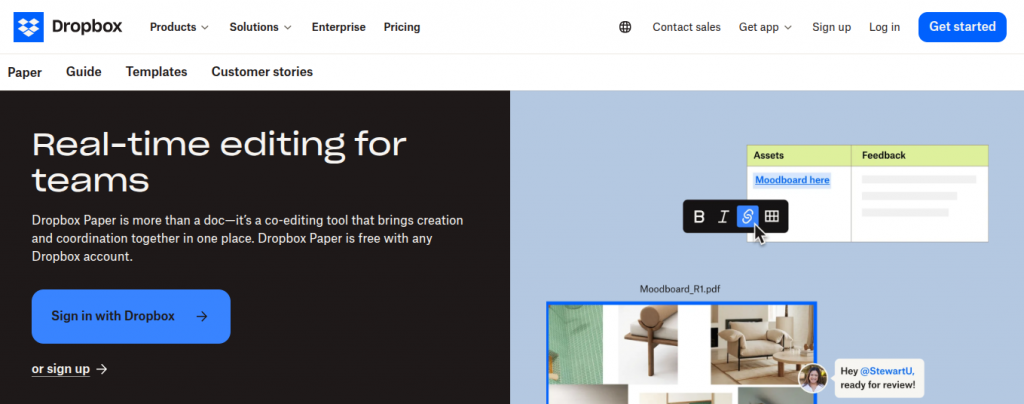
Dropbox Paper is a free, cloud-based alternative to MS Word with a minimalist interface and intuitive tools that make real work easy. I’ve used it for text creation, drafting reports, and planning projects, and its clean design and simplicity truly stand out. With support for collaborative editing in real-time, you can share documents, assign checklist items, and build action plans with your team.
You can embed audio, video, images, Trello cards, Youtube videos, and SlideShare decks right from your browser, making your content more dynamic and alive. Its apps help streamline workflows, and link-sharing keeps members connected. Just login with your Dropbox account for full access—no need to download unless you want the mobile version. It’s also a secure storage provider, and a powerful word processor without the heavy learning curve.
Office Online
Office Online isa free, web-based suite by Microsoft that works in your browser without needing to install software. You can create, edit, and share documents, whether you’re writing articles, drafting reports, or co-authoring proposals with teammates. Its real-time, collaborative features work well across platforms like Linux, Chromebook, and older operating systems like OS. The interface is clean, modern, and lightweight, offering a smooth, fast experience on all devices.
It supports docs created in Word and keeps full compatibility, including formatting, functions, and review options, just like the full-fledged, desktop version. Files are saved in the cloud, accessible anytime with an Internet connection, helping with work-life balance. From students to freelancers, it’s a powerful, practical, and basic tool that truly stands out as an alternative. No need to download—just sign in at office.com to start.
Google Docs
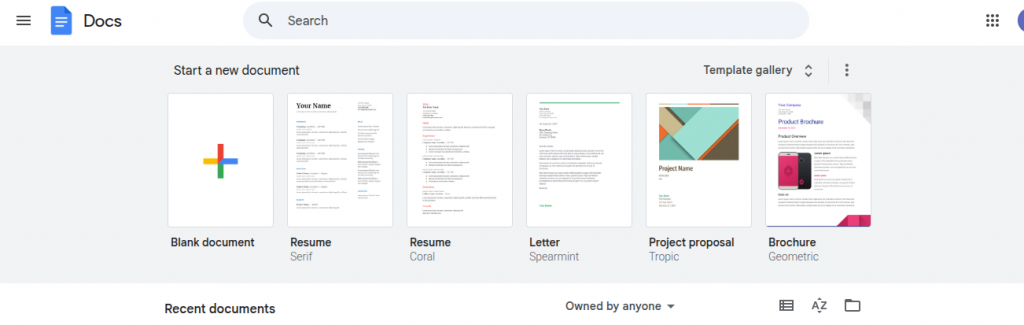
Google Docsis a free, online tool that’s great for creating, sharing, and editing documents, spreadsheets, presentations, drawings, and forms. I’ve used it to handle projects and work remotely, thanks to its easy setup and powerful features. You just need a Google account to start—no install needed. It saves your file automatically to the cloud, so your work is always backed up.
You can collaborate by inviting collaborators to view, edit, or add comments. I like how it can publish a document as a web page or let you download it in formats like Word, ODT, PDF, RTF, or plain text. There’s also an email attachment option that’s a real time-saver.
Even without an Internet connection, you can enable offline access and keep going without disruption. It’s helpful if you’re apprehensive about connectivity issues. The processing speed is solid, and with extra add-ons, the platform really transforms. I depend on it daily for productive, flexible, and reliable writing.
You can use it at docs.google.com or download the mobile app for easy access.
Etherpad
Etherpadis a free, online, open-source editor made for real-time collaboration. You don’t need to sign up or use an email—just start a pad, share the link, and begin writing with friends, students, classmates, or colleagues, even if they’re far apart. It’s customize able, easy to use, and great for team projects or quick work tasks.
You can invite collaborators or prefer private sessions. The tool is simple but powerful, ideal for users who are reluctant to register. Visit the official site to download it or use it in your browser. Etherpad is fast, efficient, and keeps your document editing together in one place.
Zoho Writer
Zoho Writeris a smart, free alternative to MS Word, offering a familiar interface and smooth editing, typing, and formatting tools. It supports DOCX, Word, PDF, RTF, ODF, TXT, HTML, and Latex file formats. You can import, edit, and insert images, text, and more.
It autosaves your documents, so your data is safe even if the browser crashes or the network connection drops. It offers desktop sync, file recovery, two-step authentication, encryption, and digital signatures via Echosign.
ou can publish to a blog, make documents public, or chat in-app. It works with your Google, Yahoo, or Zoho account, and there’s no need to download anything. With all these features, applications, and content creation tools, Zoho Writer is powerful and easy to use.
Apache OpenOffice
Apache OpenOffice is a free suite of six programs that share the same engine, making them easy to learn and use. It includes Writer (word processor), Calc (spreadsheets), Impress (presentations), Draw (diagrams, illustrations), Base (database manipulation), and Math (mathematical equations.
Writer can open PDF files natively without needing a plug-in or commercial add-on. Though it opens DOCX files, it can’t fully edit or save them.
As open-source software, it’s maintained by a community that provides bug fixes, help, and updates quickly and freely. You can install it on Windows XP, Windows 10, macOS, and Linux. It’s a powerful, freely available package worth trying.
LibreOffice
When I first started switching between operating systems—Windows, Linux, and Mac—I was constantly searching for a reliable and free word processor that could match Microsoft Word. That’s when I found LibreOffice Writer, a powerful part of the monolithic LibreOffice suite. It’s not just a random tool—it’s the direct successor of the old OpenOffice.org project, which split in 2010, creating both Apache OpenOffice and what we now know as LibreOffice projects.
What impressed me most was how easily I could edit and save files in DOCX file format, making it simple to collaborate on documents with Microsoft Office users without a hitch.
The software itself includes several components beyond just Writer—like Calc, Impress, Draw, Base, Math, and Charts—each useful in its own right. The AutoCorrect and AutoComplete features often save me from annoying typos, while the spelling and grammar checker helps polish my writing on the fly.
LibreOffice is loaded with document templates and extensions that expand its capability even more. Plus, it supports multi-language support, and you can export your work into PDF or EPUB ebook formats with ease.
you can download LibreOffice directly from its official site at libreoffice.org, and enjoy frequent updates, including both major releases and minor releases, which keep it fresh and secure. From personal experience, it’s one of the few alternatives that truly feels like a robust Microsoft Office alternative, especially when you need something professional without spending a dime. Jarte
If you’re someone who values a quick, clutter-free writing experience without sacrificing functionality,Jarte might just surprise you. I stumbled upon it while searching for a free and lightweight software that still felt like a powerful word processor—and Jarte delivered. Built on the Microsoft WordPad Engine, it’s more than just another stripped-down editor. Its ergonomic, tabbed interface makes multitasking a breeze, and the support for touchscreens adds a modern feel you wouldn’t expect from something this minimal.
To check more about the Jarte softwareyou can visit their site here.
Despite being a free tool, it’s fully compatible with both Word and WordPad documents, and even lets you insert tables, images, and hyperlinks, offering a robust set of features that rival many paid options. I was impressed by how portable it is, with small resource requirements and quick loading time making it ideal for USB use.
The built-in spell checking was surprisingly accurate, and the ability to export files in HTML or PDF formats added an extra layer of flexibility for my blogging workflow. There are no ads, trial periods, or crippled functions, and while there’s a paid upgrade called Jarte Plus, the basic version already feels more than adequate. It’s clear this tool is funded by loyal user purchases, not intrusive monetization, which gives it a sense of integrity I’ve come to respect
WPS Office Writer
After years of bouncing between different tools, I found WPS Office 2016 Free to be a surprisingly powerful choice. Its WPS Writer app feels familiar, much like MS Office, but with a smoother, more tabbed viewing window that lets me work on more than one document at a time—a huge help when juggling tasks. This suite supports a wide list of popular file formats, including docx, doc, and others, letting you open, save, and switch between applications with ease.
To check more about WPS Office Writer the you can visit their site here.
One of the standout features for me is the language support: I’ve tested it in English, Spanish, and German, but it also includes French, Portuguese, Polish, and Russian—which makes it ideal for multilingual teams. The look and feel are so close to Microsoft Word that there’s almost no learning curve When I first used it for document processing, I barely noticed I wasn’t using Office. Plus, the built-in WPS Cloud gives up to 1GB of free cloud storage, which I use constantly to keep my drafts synced across devices.
This isn’t just a free alternative—it’s a smart, scalable option for teams who want a collaborative, seamless experience without paying for a license. I’ve recommended it to others looking to find a perfect Word alternative, and it continues to impress with its performance and service. The company’s direction clearly values accessibility, and in my experience, it’s one of the most reliable tools out there.
Soft Maker Free Office
One of the most reliable tools I’ve used personally when away from my desktop is SoftMaker FreeOffice. It’s a full, featured suite that runs smoothly on Windows, Linux, and even Android, which makes it incredibly handy for working on the go. The TextMaker application—the core of this suite—feels like a solid Microsoft Word alternative, offering all the essential editing features I expect.
I’ve been able to create and format documents effortlessly using its smart templates, rich text formatting options, and the ability to insert charts, shapes, graphics, and tables with ease.
Whether working on a simple write-up or a complex report, this application truly provides everything I need to keep my document processing tasks flowing across devices.
OnlyOffice
I started using OnlyOffice when I needed a solid suite that could handle all my editing and document tasks without the heavy feel of Microsoft Word. To my surprise, this application delivered more than I expected—it let me create and edit documents with a layout so close to MS Word, I didn’t even notice the switch. Whether I was working on tables, charts, or inserting graphics, everything ran incredibly smooth.
To check more aboutOnly Office the you can visit their site here
The interface is clean and slightly minimalist, which helped me focus better during long writing sessions. What truly stood out was how effortlessly it worked across Windows, Linux, and Android, syncing with my teams without lag.
I often rely on its templates and advanced layouts, especially for more structured writing. And with all these essential tools available completely free, it never once felt like a limited trial, which is rare with most so-called alternatives. Notion
I’ve been using Notion as a daily tool and it has slowly replaced Microsoft Word in most of my tasks because it’s more than just a word processor—it’s a flexible application and full workspace that helps me create, edit, and organize all kinds of text-based documents. I often jot down ideas, manage projects, and even run a personal wiki inside this clean and minimal setup, which makes my writing sessions more focused and distraction-free.
Whether I’m drafting an article or building pages with tables, graphics, or embedded files, Notion feels smooth and smart. It works well with teams too—you can collaborate in real-time, and your content stays centralized across Windows, Android, and web, which makes it great for anyone who needs a modern, versatile environment to work in.
It supports rich formatting, handles large amounts of content easily, and fits right into your daily workflow. Best part? It’s free, and unlike many apps, it actually gives you full features without constant upsells—making it one of the most powerful alternatives to traditional word processors out there.
Software
Platform Support
Offline Access
Real-Time Collaboration
DOCX Support
Templates Available
Best For
Microsoft Word
Windows, Mac, Web, Mobile
Yes
Yes
Full
Yes
Complete Word Processing
Xodo
Web, Android, iOS, Windows
Yes (limited)
Yes
View/Edit
No
PDF Editing & Light Document Editing
Dropbox Paper
Web, iOS, Android
No
Yes
No
Limited
Team Notes & Collaboration
Office Online
Web
No
Yes
Full
Yes
Familiar MS Word Online Experience
Google Docs
Web, Android, iOS
Yes (via apps)
Yes
Yes
Yes
Real-Time Online Collaboration
Etherpad
Web
No
Yes
No
No
Open-Source Team Writing
WPS Office Writer
Windows, Mac, Linux, Mobile
Yes
Yes
Full
Yes
Office-Like Interface on Budget
Zoho Writer
Web, Mobile
Yes
Yes
Full
Yes
Cloud-Based Writing & Automation
OnlyOffice
Web, Windows, Linux, Mobile
Yes
Yes
Full
Yes
Team Collaboration + Full Document Suite
Apache OpenOffice
Windows, Mac, Linux
Yes
No
Partial
Yes
Free Desktop Word Processing
LibreOffice Writer
Windows, Mac, Linux
Yes
No (with add-ons)
Full
Yes
Open-Source, MS Word Alternative
Jarte
Windows
Yes
No
Partial
Basic
Lightweight WordPad Replacement
SoftMaker FreeOffice
Windows, Mac, Linux, Mobile
Yes
No
Full
Yes
MS Word-Compatible Office Suite
Notion
Web, Desktop, Mobile
Yes
Yes
No (exports only)
Yes
Notes, Docs, Database & Productivity Hub
FAQS
What is the best alternative to MS word?
Google Docs is the best free MS Word Alternatives , offering real-time collaboration, cloud storage, and support for .docx files with seamless syncing across multiple devices
What are alternatives to MS Office?
Popular MS Word Alternatives include LibreOffice, OnlyOffice, WPS Office, Google Workspace, and Zoho Office Suite—most offer free tools for word processing, spreadsheets, and presentations.
What can I use if I don’t have Microsoft word?
You can use Google Docs, LibreOffice Writer, or WPS Writer—all support .doc and .docx formats and work on both desktop and web-based platforms for free.
What is the best alternative to Microsoft Word for Windows 10?
LibreOffice Writer is a top free MS Word Alternatives for Windows 10, offering a full-featured word processor, offline access, and full support for .doc and .docx files.
Conclusion
These MS Word Alternatives support important file formats like DOCX and PDF, and come with useful features such as templates, collaboration tools, and cloud syncing. They run smoothly on Windows, Linux, mac OS, and even Android, meaning I can work on any device without limits. These MS Word Alternatives , powerful choices not only meet my daily writing needs but also help improve my workflow and productivity. With so many options available, there’s no need to stretch your budget—you can still explore solid writing software that fully supports your document demands and keeps you moving forward.
Over the years, I’ve explored many tools and software to replace Microsoft Word, and I’ve come to prefer those MS Word Alternatives that are free, efficient, and easy to use. Whether I need to create, edit, or share my documents, there are plenty of great alternatives that suit different needs. From my personal use, Google Docs offers smooth real-time collaboration, while LibreOffice Writer supports offline projects well, and Zoho Writer provides a strong cloud-based solution with excellent formatting controls.
cyberpanel backup settings
In this article i am going to tell few CyberPanel Backup Settings that you have to take care while setting up any type of backup in cyberpanel.
As you know CyberPanel offers different types of backups like Normal local backups, inc local backups, gdrive backups, sftp backups and few others. So while setting all these types you have to check few settings of cyberpanel backup.
Essential CyberPanel Backup Settings You Shouldn’t Ignore
In this article, I’m going to share a few important CyberPanel backup settings that you need to take care of while setting up any type of backup in CyberPanel.
As you may know, CyberPanel offers different types of backups such as normal local backups, incremental (inc) local backups, Google Drive (GDrive) backups, SFTP backups, and a few others. When configuring these backups, it’s important to check and understand the key settings associated with each type.
Local CyberPanel Backup settings:
The normal local backups of cyberpanel are the best stable and easy to use backups. You dont ahve to make any settings or special changes for these backups. You just need to do this one step thing.
Login to CyberPanel go to Backup-> Create Backup Select your website and click on create backup button your backup will be made.
This backup file will be stored in /home/domain/backup directory.
Gdrive CyberPanel Backup Settings:
For Google Drive backup with cyberpanel you must have a gdrive account if you dont have follow guide to create one. To setup Gdrive backup just follow these steps:
LOgin to cyberpanel using your login access.
2. Go to Backup-> Setup Gdrive backup
3. CLick on setup new account and add a google account in that.
4. once account added the gdrive account will be listed in your tab.
5. Now use this and add settings for the gdrive:
🔧 Google Drive Backup Configuration Overview
1. Drive Account Selection
Field:Select Drive Account
Current Value:Gdrive123
Action Button:Delete
This dropdown lets you choose a connected Google Drive account where backups will be stored. You can delete the selected account if needed.
2. Backup Frequency
Field:Select Backup Frequency
Current Value:Daily
Label on the Right:Currently: Daily
This dropdown allows the user to choose how often backups should occur. In this case, the frequency is set to Daily, meaning backups will be created every day.
3. Site Selection for Backup
Field:Add Sites for Backup
Current Value: A partially blurred domain name (e.g., example.com)
Action Button:Add Site (Highlighted with a red arrow)
This option lets the user specify which website or domain they want to include in the backup. Pressing “Add Site” adds the selected site to the backup list.
4. Backup File Retention
Note: Marked as a Paid Feature
This section likely allows configuration of how long backups are kept (e.g., 7 days, 30 days), but requires a paid upgrade.
🔍 Use Case
This panel is useful for website administrators who want to automate backups to Google Drive. It simplifies the process of:
Linking a Google Drive account
Setting a backup schedule
Choosing which sites to back up
Let me know if you’d like help automating or customizing this backup process further!
Conclusion
Setting up backups in CyberPanel is crucial for ensuring the safety and reliability of your website data. Whether you’re using the simple local backup option or integrating with Google Drive, understanding and configuring the right settings can save you from potential data loss. The local backup method is quick and easy, requiring minimal setup, while the Google Drive backup offers more flexibility and automation for remote storage — especially useful for offsite redundancy. Always make sure your chosen backup type is configured properly and tested regularly. If you need help automating or customizing your backup strategy, don’t hesitate to reach out.
Vultr Cheapest VPS Plans in 2025 – Best Budget Options Compared
In this article i am going to tell he vultr cheapest VPS plans that vultr offers. We already have an article on the Vultr vps in detials in which everything about vultr vps is explained but this is special for the low bughet vps from vultr.
in this section we will see only one plan that is the cheapest and i can see no one offer price below then that. This plan cost you only 2.50$ a month.
vCPUs: 1
Memory: 0.5 GB
Bandwidth: 0.50 TB
Storage: 10 GB
Monthly Price: $2.50 per month
Hourly Price: $0.004 per hour
Notes: IPv6 Only (no IPv4 support)
vCPUs
Memory
Bandwidth
Storage
Monthly Price
Hourly Price
Notes
1 vCPU
0.5 GB
0.50 TB
10 GB
$2.50 /mo
$0.004 /hr
IPv6 Only
There is only one thing that will attract you in this plan is the cost nothing else.
⚠️ What You Should Know Before Choosing Vultr Cheapest VPS Plan
If you’re considering Vultr’s cheapest VPS plan, it’s a super budget-friendly option — but it does come with a few limitations you should be aware of:
No IPv4 – Only IPv6 This is a big one. Most websites and services still rely on IPv4. Since this plan only includes IPv6, many things (like websites, emails, or APIs) may not work out of the box unless you pay extra for an IPv4 address or set up workarounds.
Very Low RAM – Just 0.5 GB With only half a gig of memory, you’ll be limited to running very lightweight applications. Trying to run WordPress or a database on this might be tough unless you heavily optimize everything.
Single CPU Core One virtual CPU means limited processing power. Fine for small tasks, but not ideal if you’re expecting any real traffic or running anything CPU-heavy.
Small Storage – 10 GB SSD The storage is tight. It’s enough for a tiny project or static website, but don’t expect to store much beyond basic files.
Limited Bandwidth – 500 GB/Month Half a terabyte might sound like a lot, but if your site or app serves large files or media, you might hit that cap faster than expected.
No DDoS Protection Included At this price point, don’t expect built-in security features like DDoS protection — it’s more of a DIY approach here.
No Backups or Snapshots If you want to back up your server, you’ll need to handle that manually or pay for Vultr’s backup services separately.
Not Great for All Software Due to the limited resources, some software might not even install properly — especially ones that expect a bit more RAM or disk space.
✅ Best Use Cases:
This plan is great for developers who want to experiment, set up a small IPv6-only project, or learn Linux on a tight budget. But for anything serious or client-facing, you might want to step up to a slightly higher plan that includes IPv4 and more resources.
This is the Vultr cheapest vps. but if you want low price vps is any other catagory of vultr other then the regular minimum cost per month will ve the 6.0$.
But the 6$ vps is not a bad choice or not bad for your site that will give you high performce then this.
Cloud Compute Easy-to-use and affordable virtual machines (VMs) suitable for a wide range of everyday workloads.
Optimized Cloud Compute High-performance VMs featuring NVMe SSDs and isolated environments — no “noisy neighbors” impacting your performance.
Cloud GPU Access virtualized NVIDIA GPUs at affordable rates — great for machine learning, AI, and graphical workloads.
Bare Metal Dedicated single-tenant servers giving you full hardware control with no virtualization layer.
Direct Connect A secure way to privately connect your services within the Vultr ecosystem — ideal for hybrid cloud environments.
Kubernetes Engine Managed Kubernetes clusters to deploy, scale, and manage containerized applications easily.
Databases Fully managed databases that are ready to use right out of the box — no setup or maintenance needed.
Block Storage Scalable NVMe-powered network-attached storage for high-speed and reliable data storage needs.
How to get Digital Ocean login for sSH?
A lot of users dont know how to get the Digital Ocean Login for SSH user from their Digital Ocean account, so this will be a very quick point-to-point guide to tell you how to get SSH access for your root user from Digital Ocean.
To get Digital Ocean login for the SSH user, you just need to follow these steps:
Log in to your DigitalOcean account using your credentials
2. Once logged in, you’ll see a list of all the servers (Droplets) you’ve created.
3. Click on the Droplet you want SSH access for. This will take you to the server’s dashboard.
4. On the left sidebar, click on “Access” (second option in the menu).
You’ll see various options like Launch Recovery Console, Reset Root Password, and more. Scroll down and click on “Reset Root Password”.
Click this button now, your password will be sent to your email as displayed here as well. Copy that and access your Digital Ocean server using SSH using these Digital Ocean login access for SSH.
Connect to Your Server Using Bitvise SSH Client
Download and install Bitvise SSH Client from bitvise.com.
Open Bitvise and enter the following details:
Host: Your server’s IP address (from DigitalOcean).
Port: 22 (default SSH port)
Username: root
Initial Method: Password
Password: The one you received via email
Click “Login”.
The first time you connect, you’ll be asked to accept the server’s host key. Click “Accept and Save”.
Once connected, you’ll have access to your server’s terminal and file system.
Conclusion
Accessing your DigitalOcean server via SSH is straightforward, especially when using a user-friendly tool like Bitvise SSH Client. By resetting your root password through the DigitalOcean dashboard and entering it in Bitvise, you can securely and efficiently manage your server. Whether you’re a beginner or a seasoned developer, this method gives you full control of your server in just a few clicks.
Make sure to change your root password after first login for better security, and consider switching to SSH key authentication for long-term use.
How to Deploy and Configure a Vultr VPS in Minutes?
f you’re searching for a powerful, flexible, and affordable VPS hosting solution, Vultr VPS deserves your attention. Whether you’re a developer, small business owner, or running high-performance applications, Vultr offers a global cloud infrastructure designed for speed, reliability, and full control. With data centers in over 20 locations worldwide, scalable resources, and competitive pricing, Vultr has become a go-to choice for users looking to move beyond shared hosting.
In this article, we’ll explore everything you need to know about Vultr VPS—from features and setup to performance and pricing—so you can decide if it’s the right fit for your next project.
If you’re stepping into the world of virtual private servers, Vultr is one name you’ll likely come across—and for good reason. Vultr offers a simple yet powerful platform for anyone looking to host websites, run applications, or even experiment with personal projects. Whether you’re a seasoned developer or just starting out, Vultr’s VPS (Virtual Private Server) solutions are designed to give you full control, speed, and reliability—without breaking the bank.
Imagine having your own private corner of the internet where you can build and manage things your way. That’s exactly what a Vultr VPS offers. With data centers spread across the globe, a clean user interface, and a variety of OS and app deployment options, it’s a go-to choice for tech enthusiasts and businesses alike.
In this guide, we’ll walk you through the basics of Vultr VPS—from what it is, to how it works, and why so many people are choosing it for their cloud hosting needs. Whether you’re hosting a WordPress site, setting up a game server, or launching a startup app, Vultr makes it easy to scale and grow on your terms.
Why Choose Vultr?
With so many hosting providers out there, choosing the right one can feel overwhelming. So why do so many people turn to Vultr? Simply put—Vultr strikes a perfect balance between power, simplicity, and affordability.
One of the standout features is control. Vultr gives you full root access to your VPS, meaning you’re free to install anything you need, tweak settings to your liking, and run your server exactly the way you want. Whether you’re a developer looking to spin up a quick environment, or a small business needing reliable performance, Vultr doesn’t box you in.
Then there’s speed. With 30+ global data centers, your websites and applications can live closer to your users, ensuring faster load times and smoother experiences. It’s like bringing your content to your audience’s front door.
Vultr also makes getting started incredibly easy. With one-click app deployments, a clean dashboard, and flexible pricing that scales with your needs, you don’t have to be a sysadmin to feel confident here.
And let’s not forget transparency. You pay for what you use—no hidden fees, no confusing contracts. Whether you’re running a hobby project or a mission-critical application, Vultr delivers the tools you need, with the clarity and support you deserve.
So, if you’re looking for a VPS provider that’s fast, flexible, and user-friendly, Vultr is definitely worth a look.
Types of Vultr VPS:
Vultr offers a variety of VPS (Virtual Private Server) options tailored to fit different needs—whether you’re just launching a basic web app or managing heavy workloads. Here’s a quick rundown of what you can choose from:
1. Cloud Compute These are the go-to VMs for everyday tasks. They’re affordable, easy to set up, and perfect for running common workloads without any fuss.
2. Optimized Cloud Compute Need more power and privacy? These VMs are built for performance, featuring NVMe SSDs and zero “noisy neighbors.” That means you get consistent speed and reliability.
3. Cloud GPU If you’re into machine learning, rendering, or gaming-related workloads, Vultr’s Cloud GPU option gives you access to virtualized NVIDIA GPUs at a budget-friendly price.
4. Bare Metal For those who want full control, Bare Metal servers offer dedicated physical hardware. No sharing, just raw power—ideal for demanding projects.
5. Direct Connect This feature lets you privately link Vultr services, which is great for setting up secure internal networks between your cloud resources.
6. Kubernetes Engine Prefer containers? Vultr’s managed Kubernetes clusters make it super easy to deploy and scale containerized apps without handling all the backend complexity.
7. Databases Want a database that works right out of the box? These managed databases save you time on setup and maintenance, so you can focus on building your app.
8. Block Storage Need more space? Vultr’s block storage gives you fast, NVMe SSD-based storage that you can attach to your VMs as needed.
If you’re just getting started or looking for a reliable VPS without breaking the bank, Vultr’s Regular Performance plans are a solid choice. These plans are powered by previous-generation Intel CPUs and regular SSDs, making them ideal for basic workloads, websites, and testing environments.
Here’s a quick look at what you can expect:
Starting at just $2.50/month, you can get 0.5 GB RAM, 10 GB storage, and 0.5 TB bandwidth. That’s perfect for small projects or learning Linux on a budget.
For a bit more power, $5/month gets you 1 GB RAM and 25 GB of storage—still very affordable and great for running lightweight apps.
As your needs grow, you can scale all the way up to 24 vCPUs with 96 GB RAM and 1,600 GB of SSD storage, priced at $640/month.
Here’s a general breakdown of the options:
vCPUs
Memory
Storage
Bandwidth
Monthly Price
Hourly Price
1
0.5 GB
10 GB
0.5 TB
$2.50
$0.004/hr
1
0.5 GB
10 GB
0.5 TB
$3.50 (IPv6 only)
$0.005/hr
1
1 GB
25 GB
1.0 TB
$5.00
$0.007/hr
1
2 GB
55 GB
2.0 TB
$10.00
$0.015/hr
2
2 GB
65 GB
3.0 TB
$15.00
$0.022/hr
2
4 GB
80 GB
3.0 TB
$20.00
$0.03/hr
4
8 GB
160 GB
4.0 TB
$40.00
$0.06/hr
6
16 GB
320 GB
5.0 TB
$80.00
$0.11/hr
8
32 GB
640 GB
6.0 TB
$160.00
$0.219/hr
16
64 GB
1280 GB
10.0 TB
$320.00
$0.438/hr
24
96 GB
1600 GB
15.0 TB
$640.00
$0.877/hr
Whether you’re running a small blog or spinning up larger deployments, these plans let you scale at your own pace while keeping costs manageable.
💸 Vultr High Performance VPS Pricing (AMD Plans)
Vultr’s High Performance plans, powered by AMD EPYC or Intel Xeon CPUs with blazing-fast NVMe SSD storage, are designed for users who need serious speed without the enterprise price tag.
Here’s a simplified look at what you get:
Plan
vCPUs
Memory
Bandwidth
Storage
Price (Monthly)
Hourly Rate
💡 Starter
1 vCPU
1 GB RAM
2 TB
25 GB
$6/mo
$0.009/hr
Basic Boost
1 vCPU
2 GB RAM
3 TB
50 GB
$12/mo
$0.018/hr
Developer Duo
2 vCPUs
2 GB RAM
4 TB
60 GB
$18/mo
$0.027/hr
Performance Plus
2 vCPUs
4 GB RAM
5 TB
100 GB
$24/mo
$0.036/hr
Team Power
4 vCPUs
8 GB RAM
6 TB
180 GB
$48/mo
$0.071/hr
Pro Setup
4 vCPUs
12 GB RAM
7 TB
260 GB
$72/mo
$0.107/hr
Scaling Giant
8 vCPUs
16 GB RAM
8 TB
350 GB
$96/mo
$0.143/hr
Enterprise Build
12 vCPUs
24 GB RAM
12 TB
500 GB
$144/mo
$0.214/hr
🧠 Quick Thoughts:
✅ Budget Friendly: The $6/mo plan is a great entry point for developers, learners, or small apps.
🚀 Scale As You Grow: Flexible scaling makes it ideal for startups and businesses that want to start small and grow big.
💾 NVMe SSD Storage: Ensures lightning-fast I/O performance—perfect for databases, apps, and websites with real-time needs.
Want help choosing the best plan based on your project type? Or shall I compare these with DigitalOcean and Linode pricing for you?
Check out the Intel plan options:
vCPUs
Memory
Bandwidth
Storage
Monthly Price
Hourly Price
1
1 GB
2.0 TB
25 GB
$6.00
$0.009/hr
1
2 GB
3.0 TB
50 GB
$12.00
$0.018/hr
2
2 GB
4.0 TB
60 GB
$18.00
$0.027/hr
2
4 GB
5.0 TB
100 GB
$24.00
$0.036/hr
4
8 GB
6.0 TB
180 GB
$48.00
$0.071/hr
4
12 GB
7.0 TB
260 GB
$72.00
$0.107/hr
8
16 GB
8.0 TB
350 GB
$96.00
$0.143/hr
12
24 GB
12.0 TB
500 GB
$144.00
$0.214/hr
Vultr High Frequency Plans
For users who want extra performance and faster speeds, Vultr’s High Frequency VPS plans are a fantastic option. These are powered by 3GHz+ Intel Xeon CPUs and come with blazing-fast NVMe SSDs, which makes them ideal for performance-critical applications—think high-traffic websites, databases, and more responsive apps.
Here’s what makes them stand out:
Starting at $6/month, you get 1 vCPU, 1 GB of RAM, and 32 GB of NVMe storage—plenty for speedy small projects.
Need more juice? Mid-tier plans like 3 vCPUs with 8 GB RAM and 256 GB storage come in at $48/month and are great for busy workloads.
If you’re all in on performance, the top plan offers 16 vCPUs, 58 GB RAM, and 1 TB of storage for $320/month—ready for some serious computing.
Here’s a quick breakdown of the plans:
vCPUs
Memory
Bandwidth
Storage
Monthly Price
Hourly Price
1
1 GB
1.0 TB
32 GB
$6.00
$0.009/hr
1
2 GB
2.0 TB
64 GB
$12.00
$0.018/hr
2
2 GB
3.0 TB
80 GB
$18.00
$0.027/hr
2
4 GB
3.0 TB
128 GB
$24.00
$0.036/hr
3
8 GB
4.0 TB
256 GB
$48.00
$0.071/hr
4
16 GB
5.0 TB
384 GB
$96.00
$0.143/hr
6
24 GB
6.0 TB
448 GB
$144.00
$0.214/hr
8
32 GB
7.0 TB
512 GB
$192.00
$0.286/hr
12
48 GB
8.0 TB
768 GB
$256.00
$0.381/hr
16
58 GB
9.0 TB
1024 GB
$320.00
$0.476/hr
Whether you’re running real-time apps or just want to shave off every millisecond possible, these high-frequency plans give you that edge—without needing to manage hardware.
These are some general plans you can check out here.
Getting Started with Vultr VPS
Deploying a Virtual Private Server (VPS) on Vultr is a straightforward process. Here’s a step-by-step guide to help you set up your VPS:
After registration, log in to your Vultr dashboard.
Add Billing Information:
Before deploying a server, you’ll need to add a billing method. Navigate to the ‘Billing’ section in your dashboard and provide the required payment details.
Deploy a New Server:
In your dashboard, click on the ‘Deploy New Server’ button.
Under ‘Choose Server’, select ‘Cloud Compute’.
Choose the CPU & Storage Technology that fits your needs, such as AMD High Performance or Intel High Frequency.
Select Server Location:
Pick a server location closest to your target audience to reduce latency. Vultr offers multiple locations worldwide, including cities in the USA, Europe, Asia, and Australia.
Choose an Operating System:
Under ‘Server Image’, select your preferred operating system. For instance, you can choose Ubuntu 22.04 LTS for a stable and widely-supported environment.
Select Server Size:
Determine the server plan based on your requirements. Vultr offers various plans with different CPU, memory, and storage capacities. For example, a plan with 1 vCPU, 2 GB RAM, and 50 GB NVMe storage is suitable for small to medium applications.
Additional Features (Optional):
Enable features like Auto Backups for data protection, IPv6 support, or DDoS Protection based on your needs.
Set Server Hostname and Label:
Assign a hostname (e.g., myserver.example.com) and a label to easily identify your server in the dashboard.
Deploy the Server:
Review your selections and click on the ‘Deploy Now’ button. Vultr will initiate the deployment, which typically takes a few minutes.
Access Your Server:
Once the server is deployed, navigate to the ‘Products’ section in your dashboard to view your instance.
Click on your server to find details like the IP address, username, and password.
Use an SSH client (e.g., Terminal on macOS/Linux or PuTTY on Windows) to connect to your server: ssh root@your_server_ip
Enter the provided password when prompted.
For a visual walkthrough, you might find this tutorial helpful:
Who Should Use Vultr VPS?
The beauty of Vultr is that it caters to a wide range of users—from curious beginners to seasoned tech pros. Whether you’re building something small or scaling something big, Vultr has a place in your toolkit.
✅ Developers & Programmers: If you love getting your hands dirty with code and need a customizable, no-limits environment, Vultr is a dream. You get full root access, a choice of operating systems, and the ability to deploy development stacks or frameworks with just a few clicks.
✅ Small Business Owners: Running a growing website, eCommerce store, or app? Vultr offers reliable performance and uptime without the expensive price tag. You can start small and scale up as your traffic grows—no headaches, no surprises.
✅ Tech-Savvy Hobbyists: Want to host a personal blog, set up a VPN, or play around with game servers or automation tools? Vultr makes it easy to explore and experiment without needing a PhD in networking.
✅ Agencies & Freelancers: Managing multiple client sites or web applications? Vultr’s intuitive control panel, snapshot features, and scalable instances help streamline your workflow and reduce turnaround time.
✅ Startups & Entrepreneurs: If you’re launching a new product or service, time and flexibility are everything. Vultr gives you a stable, powerful environment to iterate fast, test ideas, and push updates without delays.
In short, Vultr VPS is for anyone who wants control, performance, and peace of mind—without the usual complexities of traditional hosting.
Pros & Cons of Vultr VPS
No platform is perfect—but Vultr comes pretty close for many users. Here’s a balanced look at the ups and downs, so you can decide if it’s the right fit for your needs.
✅ Pros
1. Global Data Centers With over 30 locations worldwide, you can host your server close to your audience for faster performance and lower latency.
2. Full Root Access You get complete control over your server—perfect for developers and power users who like to customize and configure everything.
3. Flexible Pricing From budget-friendly plans to high-performance compute instances, you only pay for what you use. Great for scaling as your project grows.
4. One-Click Apps & OS Installs Quickly deploy WordPress, LAMP stacks, Docker, and more with a single click—saving time and hassle.
5. Fast SSD & NVMe Storage Blazing-fast storage means better site speed and quicker application performance.
6. Clean User Interface Their dashboard is modern, easy to use, and doesn’t overwhelm you with clutter or complexity.
❌ Cons
1. No Free Tier Unlike some competitors (like AWS or Google Cloud), Vultr doesn’t offer a free plan—though their cheapest plans start at just a few dollars a month.
2. Limited Support on Lower Plans Basic support is available, but more advanced help (like hands-on troubleshooting) may require paying extra for their premium support.
3. Manual Backups (Unless Paid) Automated backups are not included in base pricing and must be added as a paid feature, which can add up if you manage multiple instances.
4. Learning Curve for Beginners While the UI is user-friendly, VPS hosting still requires some technical knowledge—especially if you’re coming from shared hosting environments.
🔍 FAQs Inspired by Popular Search Queries
1. Vultr Pricing 💡 Topic idea: “Vultr VPS Pricing Explained – Plans, Add-ons & Cost Breakdown” Include current pricing tiers, hourly vs monthly billing, and what each plan includes.
2. Vultr Pricing Calculator 💡 Topic idea: “How to Use Vultr’s Pricing Calculator to Estimate Your Hosting Costs” Walk through setting up custom configurations and calculating costs based on traffic and storage needs.
3. Constant Charge on Credit Card 💡 Topic idea: “Why Vultr Keeps Charging Your Card – What You Need to Know” Explain Vultr’s prepaid balance system, auto-refill behavior, and how to manage billing preferences.
4. Vultr Bandwidth Pricing 💡 Topic idea: “Understanding Vultr Bandwidth Usage & Pricing” Cover bandwidth limits on plans, overage costs, and how to monitor or optimize bandwidth usage.
5. Vultr Locations 💡 Topic idea: “Where Are Vultr’s Data Centers? Full List of Global Server Locations” Talk about latency, choosing the best location for your audience, and how to deploy to specific regions.
6. Vultr Refund Policy 💡 Topic idea: “Does Vultr Offer Refunds? Their Policy Explained” Discuss how Vultr handles refunds (short answer: typically non-refundable), and what users can do if they’re unsatisfied.
7. Vultr Alternatives 💡 Topic idea: “Top 5 Vultr Alternatives for VPS Hosting (2025)” Compare providers like DigitalOcean, Linode, Hetzner, UpCloud, and AWS Lightsail, based on price, support, and features.
8. Vultr + GitHub 💡 Topic idea: “Using Vultr with GitHub – A Quick Deployment Guide” Show how developers can connect GitHub repos to Vultr instances for CI/CD workflows or auto-deployment.
🏁 Final Verdict: Is Vultr VPS Worth It?
If you’re looking for a balance of power, flexibility, and affordability, Vultr hits a sweet spot.
It’s not just for hardcore sysadmins or DevOps pros—even small businesses, startups, and curious learners can find great value in what Vultr offers. From its globally distributed data centers to its easy-to-use dashboard and competitive pricing, Vultr makes VPS hosting surprisingly accessible.
That said, it’s not a fully managed solution out of the box—you’ll need to be comfortable managing your own server (or at least willing to learn). But if you’re up for it, you’ll get far more control and performance than traditional shared hosting ever could provide.
💡 Bottom line? If you want to launch fast, scale smart, and stay in control—without breaking the bank—Vultr is absolutely worth a try.